Where do I find the Quickstart package?
* With PRO versions, you can download the Quickstart package which you just need to install and make your site look exactly like our demo site, as well as access all template features. Therefore, just replace the demo content with yours, and enjoy your time!
After buying the PRO version, you can log in to Customer Area and you will see four packages including:
- Theme Install package
- Dummy package (data like demo)
- Documentation
- Import Dummy package Guide
You just need to click on the Dummy package (data like demo) in order to download the installed file with .wpress.
System Requirement
- PHP version 7.3 or greater.
- MySQL version 5.6 or greater OR MariaDB version 10.1 or greater.
- PHP scripts are set to 300 seconds
By default, the maximum execution time for PHP scripts is set to 30 seconds. If a script runs for longer than 30 seconds, PHP stops the script and reports an error. You can control the amount of time PHP allows scripts to run by changing the max_execution_time directive in your php.ini file.
To change the maximum execution time, use a text editor to modify the max_execution_time directive in your php.ini file. The php.ini configuration file contains the default settings for your PHP installation. You can increase the max execution time by updating the max_execution_time directive in this file.
- Locate the
php.inifile on your server. - Open the file and search for the
max_execution_timedirective. - Change its value to the desired number of seconds (e.g., 300 seconds for 5 minutes): max_execution_time = 300
- Save the file and restart your web server for the changes to take effect.
In order to install this dummy content package, you must install WordPress first. If you’re not installed WordPress yet, just download it and install it on your hosting.
In short with steps
- Install WordPress core, download at WordPress.org
- Download & Install the All-in-One WP Migration plugin
- Go to WordPress Admin panel > All-in-One WP Migration > Import, pick the “.wpress” (dummy package) file, and wait for the import process. This process will take 1-5 minutes, and up to 15 minutes, depend on your server/hosting.
- Success and login with new user and password
So, with short steps, if you have any issues, just read the details steps below.
Step by step how to install dummy package
Step 1: Download “All-in-One WP Migration” Plugins at Here
Step 2: Upload Plugin
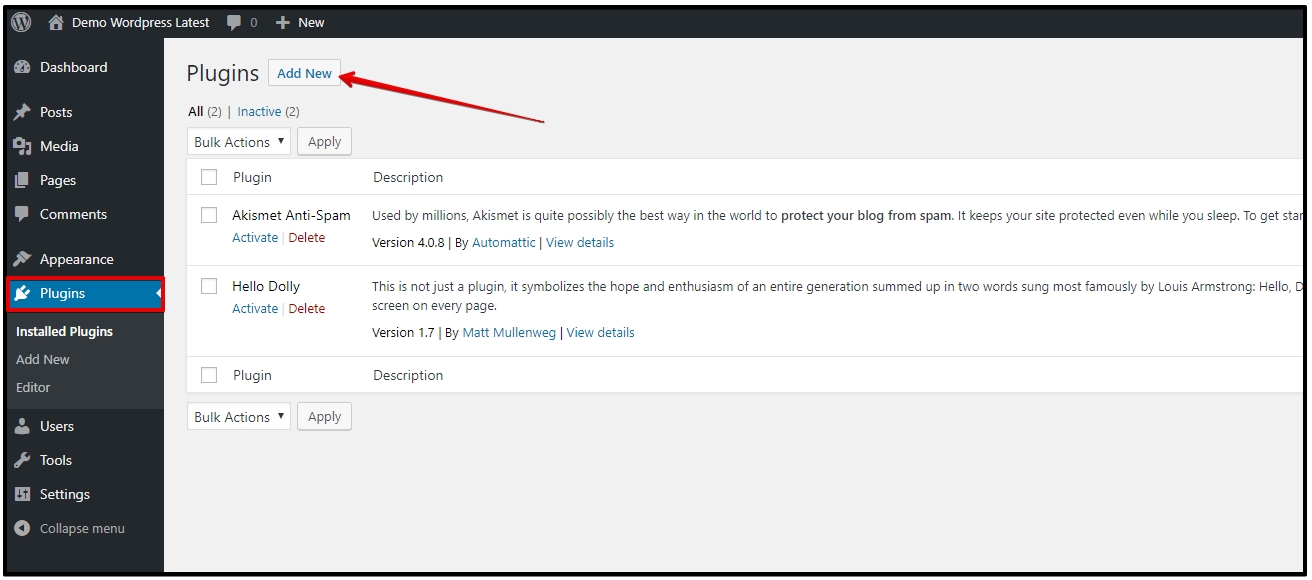
You go to Plugins on Dashboard, click the button “Add New” & Upload File
Step 3: Active “All-in-One WP Migration” Plugin
Step 4: Import Quickstart File
Then go to “All-in-One WP Migration Plugins” > “Import”
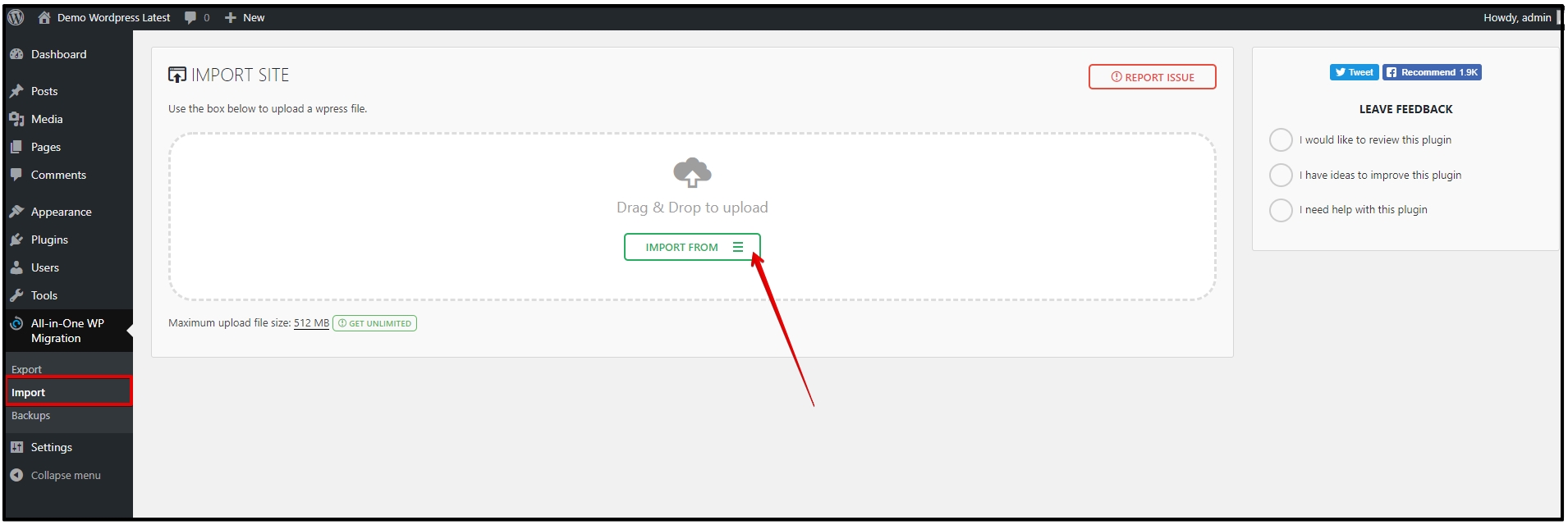
Step 5: Select the right Quickstart file
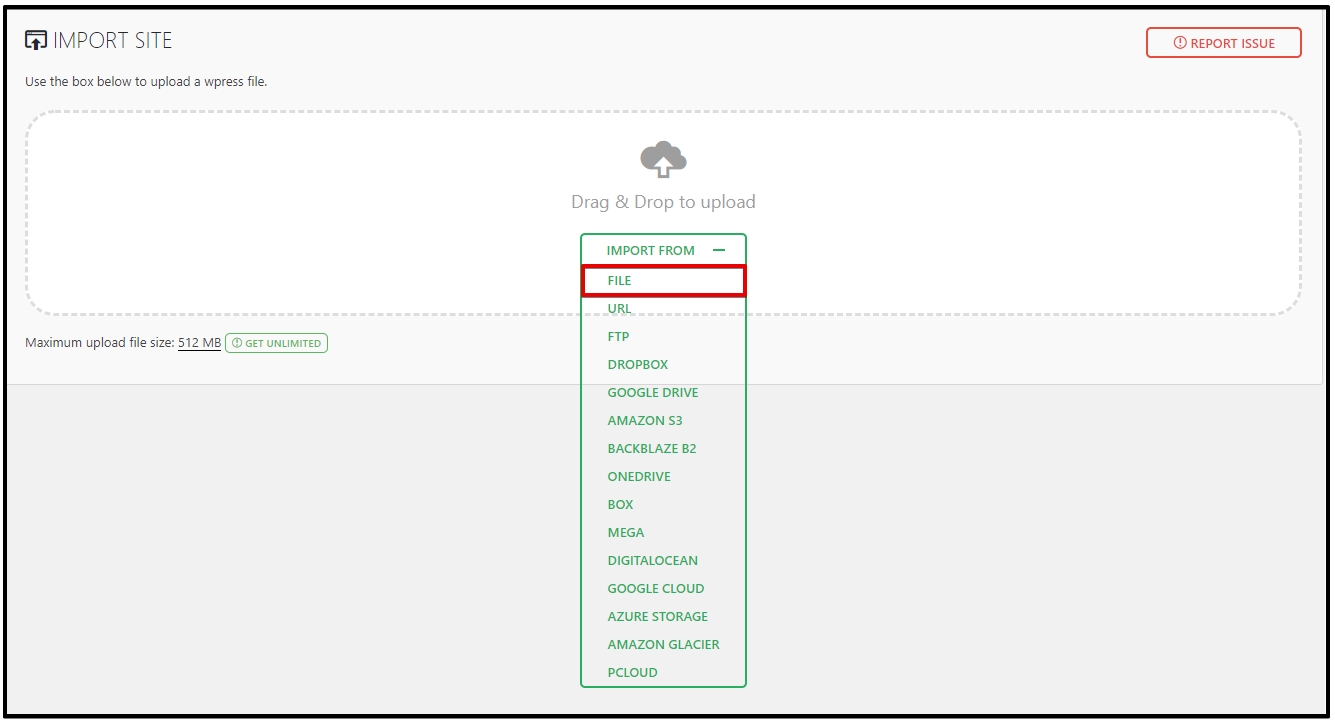
Select Import from “FILE”. And choose ‘demo5.ltheme.com-wordpress-[theme-name]-[xxxxxxx]-[xxxxxx]-[xxx].wpress‘
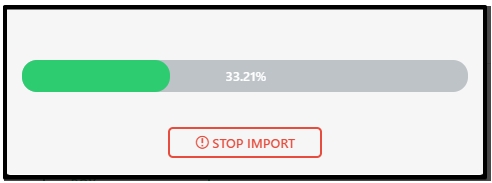
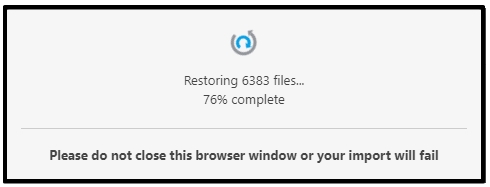
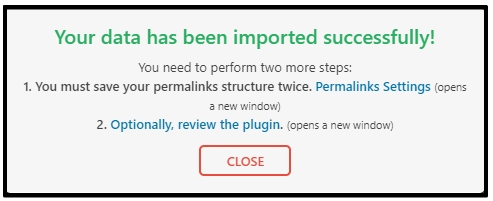
Step 6: Finish Quickstart Installation & New Login
After finishing, process button “Close”, and go to the link “Dashboard” on WordPress panel, you will back to the Login Panel, please enter
For LTheme (LT) products:
- User: admin
- password: Customer@happyworks-2022
- or password: Customer@happyworks-123
For Wooskins (WS) products:
- user: Wooskins_demo_admin
- password: Customer@happyworks-2022
- or password: Customer@happyworks-123
For Takewp (TPG) products:
- user: takewp_demo
- password: Customer@happyworks-2022
- or password: Customer@happyworks-123
For Galussothemes (GT) products:
- User: admin
- password: Customer@happyworks-2022
- or password: Customer@happyworks-123
Note: All photos used on our template demo site come from free image resources such as unsplash.com and freepik.com, so you can re-use them for your website without issue.
Troubleshoots and some general issues
*** The restore process will take longer than normally
=> Yes, this process depends on your hosting speed, some hosting will take from 5′ to 30′ to complete the quickstart package.
*** Can’t complete restore process (example: go to 70% and stop)
=> Yes, it’s an issue with hosting space, it means your hosting space does not have enough space for this quickstart package. Recommend you update your Hosting package, and increase space with 1GB for a minimum or more. Otherwise, you can reset your WordPress to reduce space for your current website, steps as below
- Step 1: Install plugin wp reset. https://wordpress.org/plugins/wp-reset/
- Step 2: Reset the site’s database to the default installation values without modifying any files.
- Step 3: Go to Plugins > remove all plugins which have been deactivated
- Step 4: Then, start your installation normally.
*** Can’t complete restore process (example: go to 1000% and stop)
=> Yes, it’s an issue with the PHP timeout problem. By default, the maximum execution time for PHP scripts is set to 30 seconds. If a script runs for longer than 30 seconds, PHP stops the script and reports an error. You can control the amount of time PHP allows scripts to run by changing the max_execution_time directive in your php.ini file.
To change the maximum execution time, use a text editor to modify the max_execution_time directive in your php.ini file. The php.ini configuration file contains the default settings for your PHP installation. You can increase the max execution time by updating the max_execution_time directive in this file.
- Locate the
php.inifile on your server. - Open the file and search for the
max_execution_timedirective. - Change its value to the desired number of seconds (e.g., 300 seconds for 5 minutes): max_execution_time = 300
- Save the file and restart your web server for the changes to take effect.
*** After installed, I have many comments on the website
=> On our demo site, we open Comments for everyone, so sometimes you will get Spam with comments after installing the quickstart package. In this case, just install and use this plugin to clear all Comments with 1-click https://wordpress.org/plugins/delete-all-comments-of-website/
After clearing it, please register the Akismet Anti-Spam API key and sign up with your website. This plugin (default WordPress plugin) will block all spam comments. So, you won’t get this issue again in the future.
Video with details guides
This video will walk you through Quickstart package installation step-by-step with detailed instructions:
Have questions and need help?
During installation, if you have any questions or problems that we’ve not mentioned in this guide yet, feel free to leave us Comments, or contact us directly via our Contact Page, submit Ticket Support to get a dedicated and fast response from us.

- How to restore full website with Duplicator backup file? – December 4, 2018
- How to setup a Multilingual Joomla! Site – March 5, 2018
- How to Install XAMPP Locally on PC/Windows – December 1, 2017