How to customize a WordPress or Joomla theme without losing changes on update
It’s one of the most common, most avoidable frustrations in running a WordPress or Joomla site: you spend an afternoon getting the header spacing right, tweaking a color, adjusting a template file to do exactly what you want — and…
By LT Digital Team (Content & Marketing)13 min read
It’s one of the most common, most avoidable frustrations in running a WordPress or Joomla site: you spend an afternoon getting the header spacing right, tweaking a color, adjusting a template file to do exactly what you want — and then a theme update rolls through and every one of those changes is gone, silently overwritten, as if you’d never touched it.
This isn’t a bug. It’s how theme updates are supposed to work — the update process replaces theme files with new versions, and if you edited those same files directly, your edits and the new files can’t both exist in the same place. The good news is that both WordPress and Joomla have had a proper solution to this for a long time. Almost nobody outside of experienced developers uses it correctly by default, which is why this keeps happening to the same people repeatedly.
Why This Happens: What an Update Actually Does
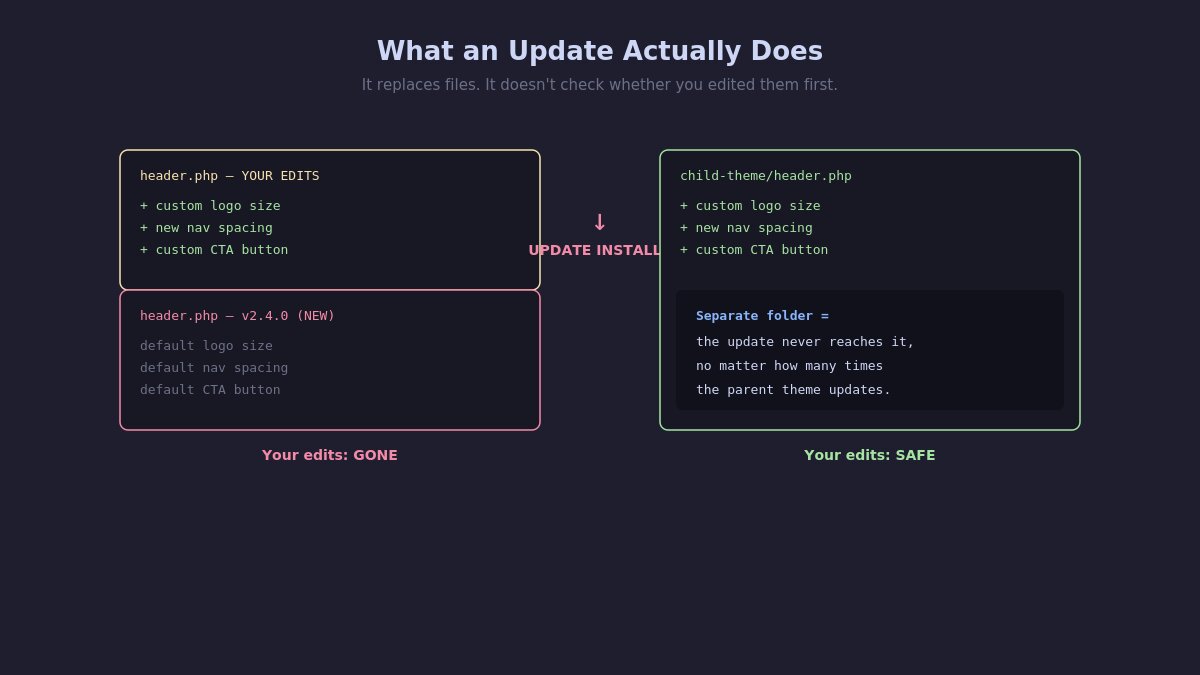
How a theme update overwrites directly edited files
When you install a theme update, the process downloads a fresh copy of every file in that theme and replaces what’s currently there — it doesn’t check whether you’ve modified a file and try to merge your changes in; it simply overwrites. If you edited header.php directly in a WordPress theme, or modified a component override file directly inside a Joomla template folder, the update has no way of knowing those edits mattered to you. It just sees an old file and a new file, and replaces one with the other.
This is precisely why “just edit the theme files directly” — while it works in the moment — is a ticking time bomb that goes off the next time you or your host applies an update. The fix isn’t to stop updating (skipping updates for this reason trades a design annoyance for a real security risk). The fix is to make your customizations in a place updates don’t touch.
The WordPress Solution: Child Themes
WordPress child theme file structure diagram
A child theme is a separate, small theme that inherits everything from a “parent” theme — your actual purchased or installed theme — while letting you override specific files or add custom CSS and functions without ever touching the parent theme’s files directly. When the parent theme updates, WordPress replaces the parent theme’s files as normal, but your child theme — living in its own separate folder — is completely untouched.
Setting one up takes four files at minimum:
A new folder inside /wp-content/themes/, conventionally named yourtheme-child.
A style.css file with a specific comment header at the top that tells WordPress this is a child theme and which parent theme it belongs to:
/*
 Theme Name: Your Theme Child
 Template: your-parent-theme-folder-name
*/
A functions.php file that loads the parent theme’s stylesheet, typically with a few lines using wp_enqueue_scripts to properly queue both parent and child styles.
Any specific template files you want to override — copied from the parent theme into the same folder structure inside your child theme. WordPress automatically uses the child theme’s version of a file over the parent’s, file by file, so you only need to copy the specific files you’re actually changing, not the entire theme.
Once that’s in place, activate the child theme from Appearance → Themes instead of the parent. Any CSS you add to the child theme’s style.css, any PHP customization in its functions.php, and any template file you’ve copied and modified all survive parent theme updates indefinitely, because the update process never touches the child theme folder at all.
What belongs in a child theme versus what doesn’t: custom CSS, small functional tweaks, and specific template file overrides belong here. Wholesale redesigns or heavy custom development are usually better served by a proper custom theme built from scratch — a child theme is for meaningful-but-bounded customization of an existing theme, not a replacement for one.
The Joomla Solution: Template Overrides
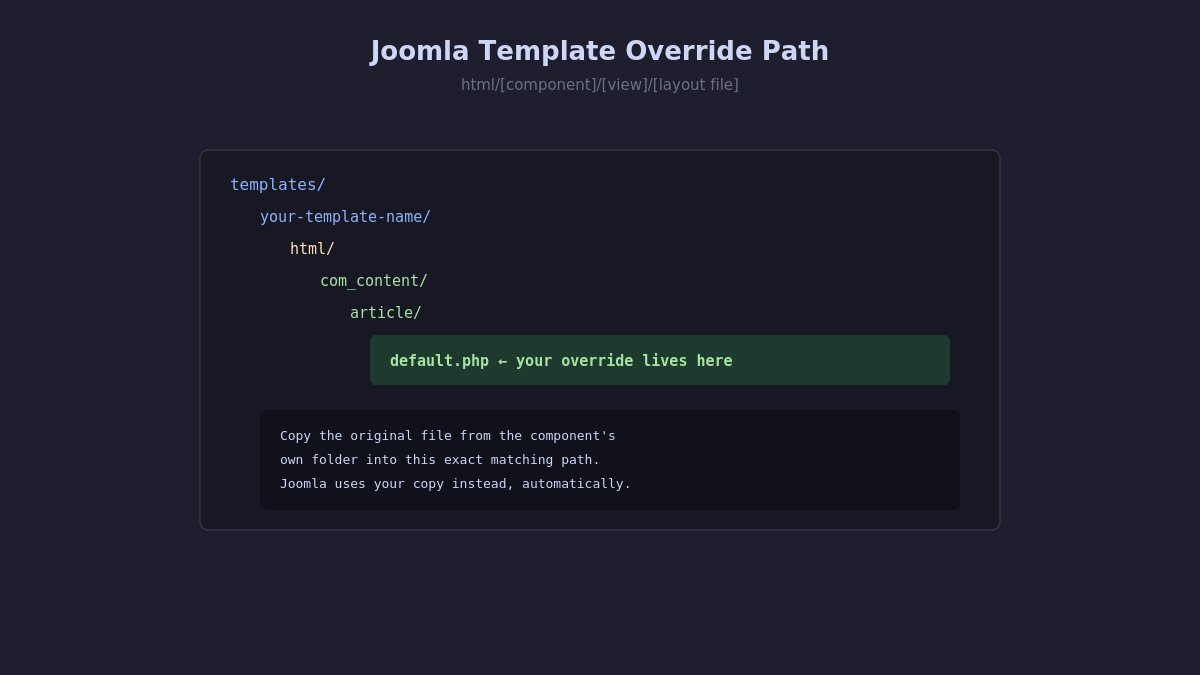
Joomla template override folder structure diagram
Joomla’s equivalent mechanism works on the same underlying principle — keep your customizations in a location the update process doesn’t overwrite — but the implementation looks different, since Joomla’s architecture separates templates from components differently than WordPress separates themes from plugins.
A Joomla override lets you copy a specific layout file from a component (like the article view, a category listing, or a module’s display layout) into a designated folder inside your template, and Joomla will automatically use your copied, modified version instead of the original from that point forward.
The folder structure for a template override:
templates/
  your-template-name/
    html/
      com_content/
        article/
          default.php   ← your override lives here
The pattern is consistent: html/[component name]/[view name]/[layout file]. Copy the original file from the component’s own folder into this matching location inside your template, modify the copy, and Joomla uses your version instead — while the original component files remain untouched and safely updatable.
Getting the original file to copy is usually the first stumbling block for anyone doing this the first time. In the Joomla administrator, go to the specific page’s Options or use the built-in Template menu’s override-creation tools in newer Joomla versions, which can generate the correct override file and folder structure for you automatically, saving you from manually hunting through component folders and guessing at the exact path.
What survives updates with this method: any layout file you’ve copied into your template’s override folder structure survives both component updates and template updates, since neither update process reaches into your template’s own html folder. Core component functionality continues to update normally — only the specific visual layout you’ve chosen to override stays frozen at your customized version until you deliberately update it yourself.
Customizations That Don’t Need Either Method
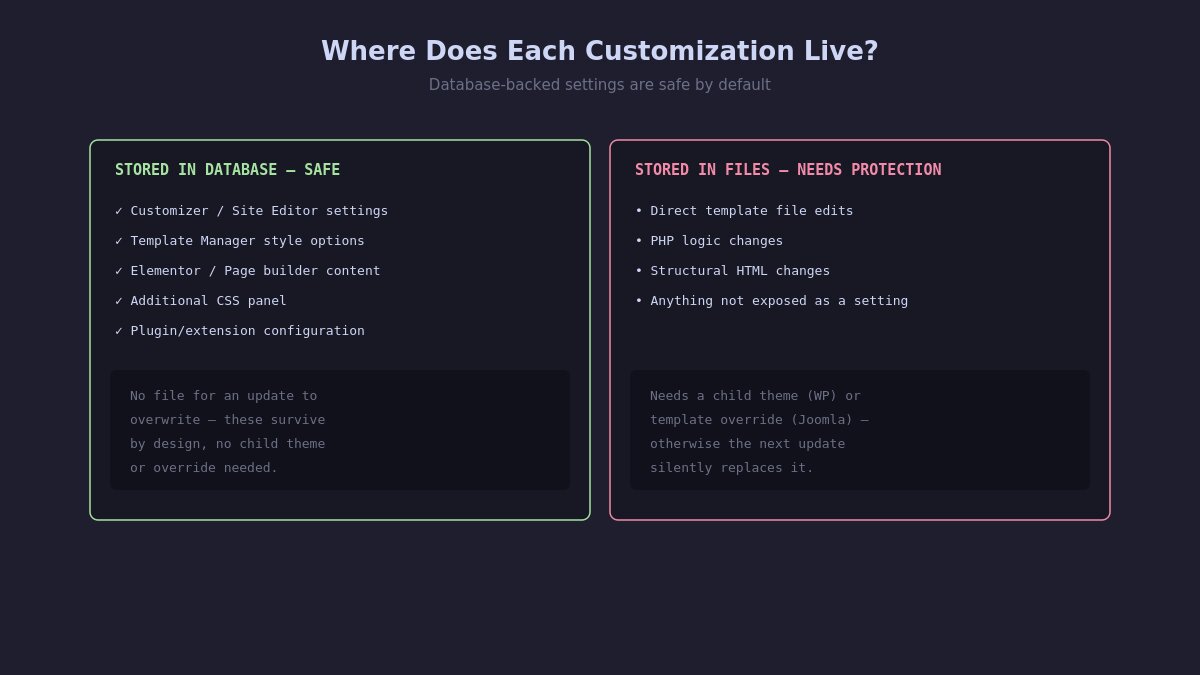
Safe versus unsafe theme customization methods comparison
Not every customization requires a child theme or override — some methods are inherently update-safe because of where they store their data:
Theme Customizer and Site Editor settings (WordPress) or Template Manager style options (Joomla) — built-in options exposed by the theme itself, stored in the database rather than in theme files. These survive updates by design, since there’s no file for an update to overwrite.
Page builder content (Elementor, SP Page Builder, and similar tools) — page and section designs built with these save to the database, not to theme template files, so they’re inherently update-safe regardless of whether you’ve set up a child theme or override.
A dedicated Custom CSS panel, if your theme or a plugin provides one (WordPress’s Additional CSS in the Customizer is a common example) — this CSS is stored in the database and applied on top of your theme, safely surviving updates without needing a child theme at all for CSS-only changes.
Plugin or extension-level configuration — settings for SEO plugins, form builders, and similar tools live in their own database tables entirely separate from your theme, unaffected by theme updates regardless of customization method.
If your planned customization fits entirely within one of these categories, you may not need a child theme or override at all — reach for those specifically when you need to change something the built-in options don’t expose, like a structural template file or PHP-level behavior.
A Decision Framework: Which Method for Which Change
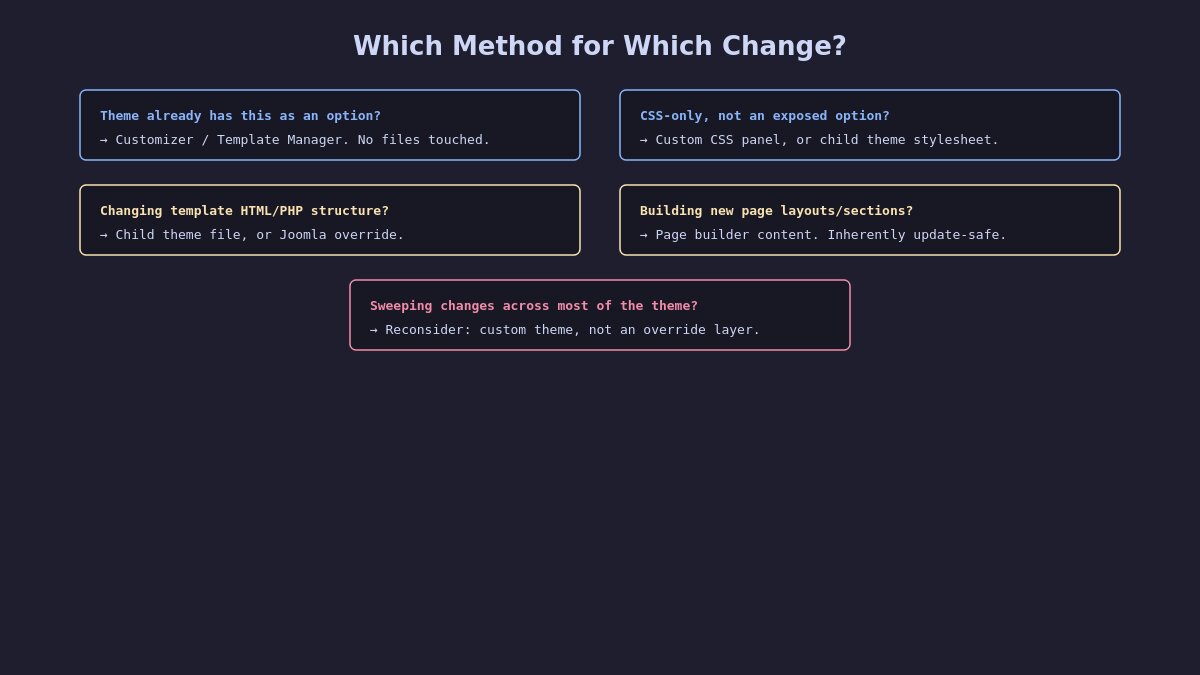
Decision tree for choosing a safe theme customization method
Changing colors, fonts, or spacing that your theme already exposes as an option? → Use the built-in Customizer or Template Manager settings. No child theme or override needed.
Adding custom CSS for something not exposed as a built-in option? → Use a Custom CSS panel if available; a child theme’s stylesheet otherwise.
Changing the actual HTML structure or PHP logic of a specific template file? → Child theme (WordPress) or template override (Joomla), copying only the specific file you need to change.
Building new page layouts or sections? → Page builder content, which is inherently update-safe.
Making sweeping structural changes across most of the theme? → Consider whether a child theme is still the right tool, or whether this has become substantial enough custom development to warrant its own dedicated theme rather than an override layer on top of an existing one.
A Worked Example: Changing a Header Layout Safely
Abstract instructions are easier to apply with a concrete example attached. Say you want to change how your site’s header displays the logo and navigation — a common enough customization that it’s worth walking through both platforms directly.
On WordPress: locate header.php in your parent theme (or the specific template part file if your theme uses the newer block-based Site Editor structure, where header markup often lives in a parts/header.html file instead). Copy that exact file into your child theme folder, preserving the same relative path. Edit only the copied file inside the child theme. WordPress now uses your modified version instead of the parent’s, and the parent theme’s own header.php remains completely untouched by your edits — meaning the next time the parent theme updates, only that original, unmodified file gets replaced, while your child theme’s copy sits safely in its own folder, unaffected by the update process entirely.
On Joomla: the header is typically controlled by the template’s own index.php and associated files rather than a component override, since the header is part of the template itself rather than content pulled from a component. For template-level structural changes like this, the safer approach is a template copy — duplicating the entire template as a new, separately named template before editing it, rather than editing the original template’s files directly. This preserves the original, unmodified template as a fallback and as the version that continues receiving updates from its source, while your duplicated, renamed copy becomes the one you freely customize without any update ever touching it.
This distinction — component-level overrides for content display logic, versus a full template duplication for structural template changes — is worth understanding clearly, since applying the wrong one of these two approaches to the wrong kind of change is a common point of confusion for anyone new to Joomla template customization.
Common Mistakes That Undermine This Whole System
Even with a child theme or override properly set up, a few habits quietly defeat the purpose:
Editing the parent theme “just this once” for a quick fix. The entire point of the system is consistency — a single direct edit to a parent theme file, even a small one, will be silently lost on the next update exactly like it would have been without a child theme at all.
Copying entire files into the child theme when only a few lines changed. WordPress child themes work at the individual-file level, which means a fully copied and overridden file no longer receives ANY updates from the parent theme, even for unrelated bug fixes in that same file. For minor changes, using a filter or hook in functions.php to modify specific output, rather than overriding the entire template file, keeps you receiving more of the parent theme’s ongoing improvements.
Forgetting the child theme when troubleshooting. If something looks wrong after an update and you’ve forgotten you’re running a child theme, it’s easy to waste time debugging the parent theme’s files when the actual active code is sitting in your child theme folder instead.
Never documenting which files were overridden. Six months later, remembering exactly which specific files you copied and modified — out of potentially hundreds in a theme — is much harder than it sounds without some record kept at the time.
Assuming a page builder protects you from everything. Page builder content is database-stored and update-safe, but if you’ve also made direct PHP or template edits alongside your page builder work, those specific edits still need the child theme or override treatment — a page builder doesn’t retroactively protect changes made outside of it.
Why This Matters More With Modern Block Themes and Page Builders
It’s worth addressing a reasonable question directly: with WordPress’s Site Editor and full-site-editing block themes handling much more through visual, database-backed settings than older classic themes did, and with page builders like Elementor covering an increasing share of what used to require template file edits — is the child theme approach still as necessary as it used to be?
The honest answer is that it’s necessary for a smaller, more specific slice of customization than it was five years ago, but not obsolete. Block themes still ship template files (now often .html files using block markup rather than PHP), and a customization that goes beyond what the Site Editor’s visual controls expose still means editing one of those files directly — which still gets overwritten on update exactly the same way a classic PHP template file would. The pattern holds; only the file format and the share of customizations that need it have shifted. The same is true on the Joomla side — modern template frameworks like Helix Ultimate expose considerably more through visual settings than older templates did, but structural customization beyond those settings still routes through the same override system covered above.
The practical implication: check what your specific theme or template’s built-in settings actually expose before assuming you need a child theme or override at all. A meaningful share of customizations that used to require file-level editing are now available as a toggle or a color picker in themes built in the last few years. Reach for a child theme or override only once you’ve confirmed the built-in options genuinely don’t cover what you’re trying to do.
Testing a Parent Theme Update Before It Reaches Production
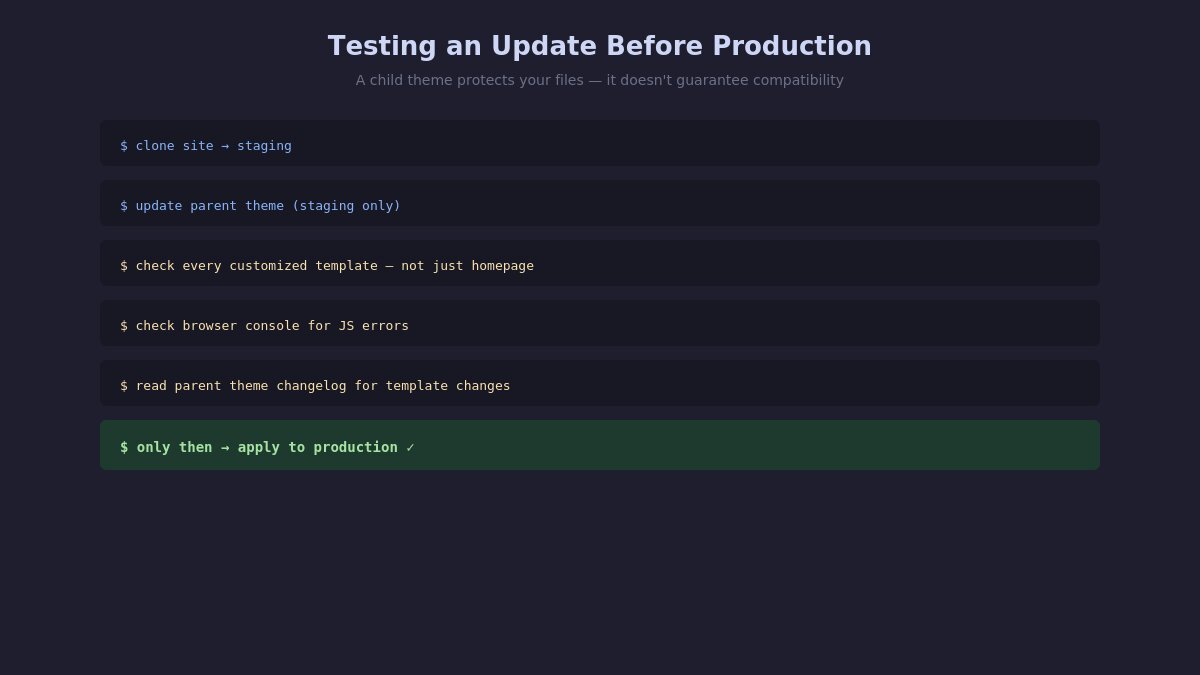
Testing a parent theme update on staging before production
A child theme or override protects your files from being overwritten — it doesn’t guarantee the new parent theme version is fully compatible with how you’ve built on top of it. A more thorough pre-update process, worth the extra few minutes on any site with meaningful customization:
Clone your site to a staging environment before touching the live site’s parent theme.
Update the parent theme on staging first, leaving your child theme or override files exactly as they are.
Visually check every page template you’ve customized, not just the homepage — a header override might render fine while a customized single-post template breaks, and you won’t know without checking each one specifically.
Check your browser’s developer console for JavaScript errors, particularly if your customization included any custom scripts that might reference functions, classes, or markup that changed in the parent theme update.
Read the parent theme’s changelog for the specific version you’re updating to, looking specifically for any mention of template file changes, deprecated functions, or restructured markup that might affect files you’ve overridden.
Only then apply the same update to production, once staging confirms everything renders and functions as expected.
This is a meaningfully different (and more thorough) process than simply trusting that “I have a child theme, so I’m safe” — the child theme protects the file from being silently replaced, but it’s still your responsibility to confirm your override still makes sense against the parent theme’s new version underneath it.
Setting Up a Safety Net Regardless
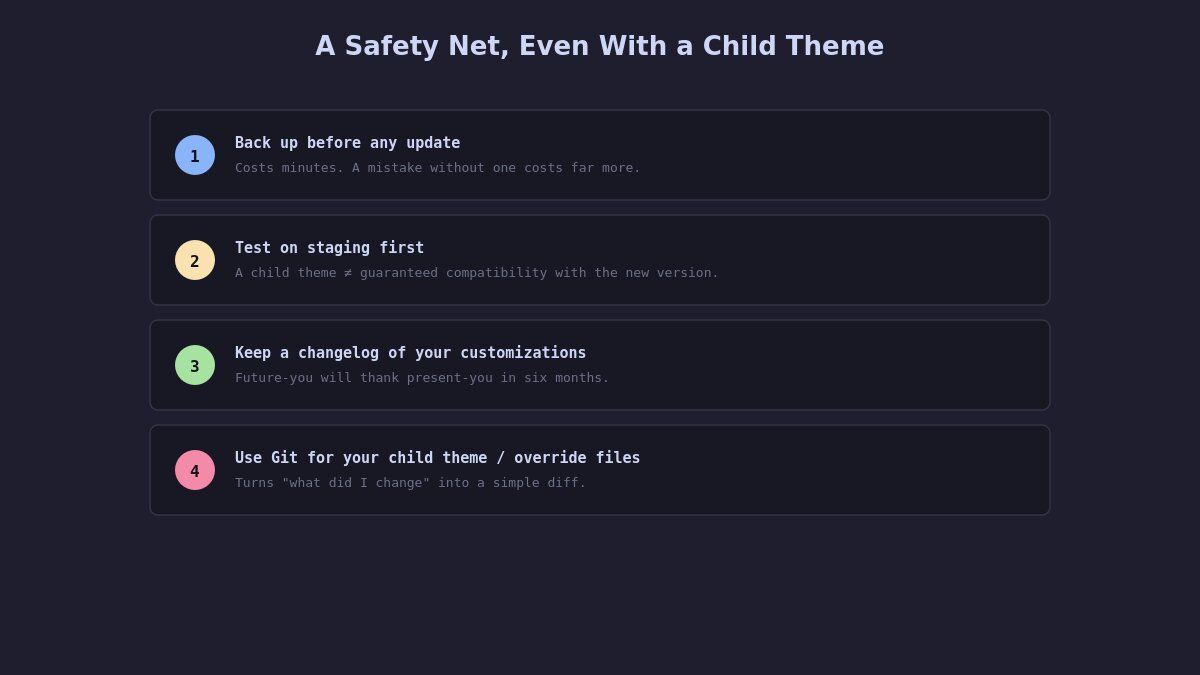
Backup workflow before applying a theme update
Even with a properly configured child theme or override system, a few habits are worth keeping regardless:
Back up before any update, not because your child theme or override should fail, but because a backup costs a few minutes and a mistake costs considerably more to unwind without one.
Test updates on a staging copy first if you’re running anything with meaningful custom work — a child theme protects your files from being overwritten, but it doesn’t guarantee the new parent theme version is fully compatible with your specific customizations.
Keep a changelog of your own customizations — even a simple text file noting what you changed and why — so that six months from now, you or someone else troubleshooting the site isn’t reverse-engineering your past decisions from scratch.
Use version control (Git) for your child theme or override files if you’re comfortable with it — this turns “what did I actually change” from a guessing game into a simple diff you can review anytime.
If You’ve Already Lost Customizations to an Update
If this article found you after the fact rather than before, a few things are worth knowing. First, check whether your host or backup plugin retains pre-update backups automatically — many do, even if you didn’t set one up deliberately, and your lost customizations may be recoverable from there. Second, if you were using a caching or version-control tool at any point, check its history for a snapshot of the file before the update ran. Third, and least satisfying but sometimes necessary: if the customization was meaningful enough to be worth the frustration of losing it, it’s worth redoing properly this time, in a child theme or override, rather than directly in theme files again — the whole point of this approach is that you only need to solve this problem once per customization, not every time an update ships.
The One Habit That Prevents All of This
If there’s a single rule worth internalizing from everything above, it’s this: never edit a file inside your actual theme or template folder directly, full stop. Every customization goes into a child theme, a template override, a database-backed setting, or page builder content — never a direct edit to a file that an update will eventually replace. It takes a few extra minutes the first time to set up a child theme or override folder correctly. It takes considerably longer to redo lost work every time an update ships, for as long as you run the site.
Welcome to LT Digital Team. We make daily blogs for Joomla! and WordPress CMS, support customers and everyone who has issues with these CMSs and solve any issues with blog instruction posts, trusted by over 1.5 million readers worldwide.
Latest posts by LT Digital Team (Content & Marketing) (see all)
We use cookies to improve your experience on our website. By browsing this website, you agree to our use of cookies.
Functional
Always active
The technical storage or access is strictly necessary for the legitimate purpose of enabling the use of a specific service explicitly requested by the subscriber or user, or for the sole purpose of carrying out the transmission of a communication over an electronic communications network.
Preferences
The technical storage or access is necessary for the legitimate purpose of storing preferences that are not requested by the subscriber or user.
Statistics
The technical storage or access that is used exclusively for statistical purposes.The technical storage or access that is used exclusively for anonymous statistical purposes. Without a subpoena, voluntary compliance on the part of your Internet Service Provider, or additional records from a third party, information stored or retrieved for this purpose alone cannot usually be used to identify you.
Marketing
The technical storage or access is required to create user profiles to send advertising, or to track the user on a website or across several websites for similar marketing purposes.