

As many Joomla! users have discovered, updating your template packages to Joomla! 6 can be a bit challenging. The primary change in this version is the installation method, which requires some modifications to your existing template files. In this blog post, we’ll walk you through the steps to ensure a smooth transition to Joomla! 6 using the necessary files from your template source.
Understanding the Changes
Joomla! 6 introduced a few changes in how templates are installed. The most significant adjustment involves the addition of a new file called installer.script.php. This file is crucial for the installation process, as it outlines the procedures that the installer will execute. If you’re working with template packages created for previous versions of Joomla!, it’s essential to update them with this new script.
Step-by-Step Guide: Updating Your Template Package
-
- Download the Template Package: First, download the latest version of your template package. This archive will contain the necessary files, including the new
installer.script.phpand the updatedtitle.phpwithin the folder structure.
When you download full package (Or free package without the quickstart package file), unzip it, so you can see list of sub packages as below:
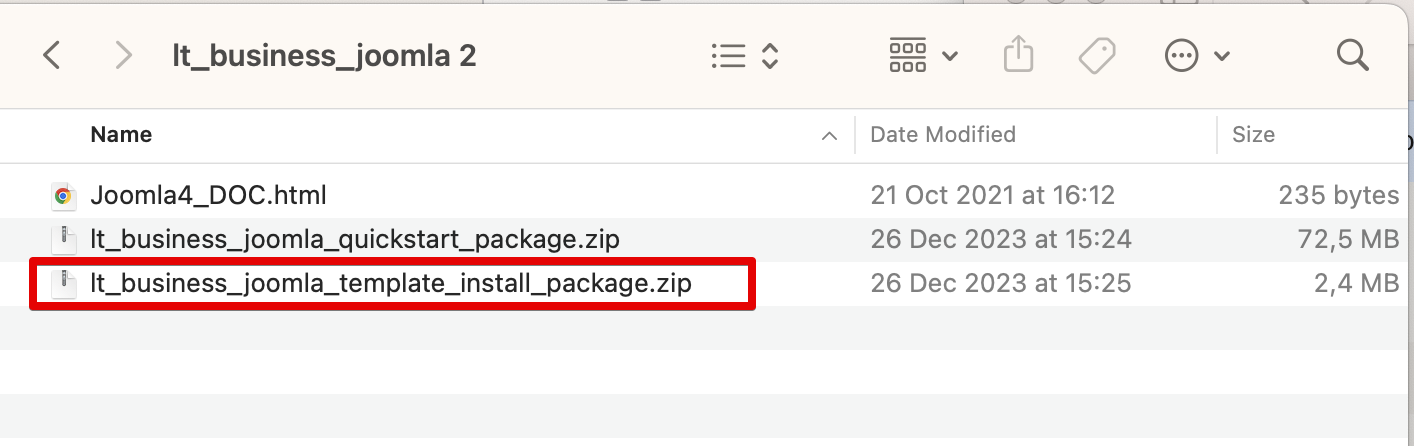
Just take a look for the template install package and unzip it - Unzip the Template Package: After downloading, unzip the package. You should now see a folder containing various files and directories associated with your template.
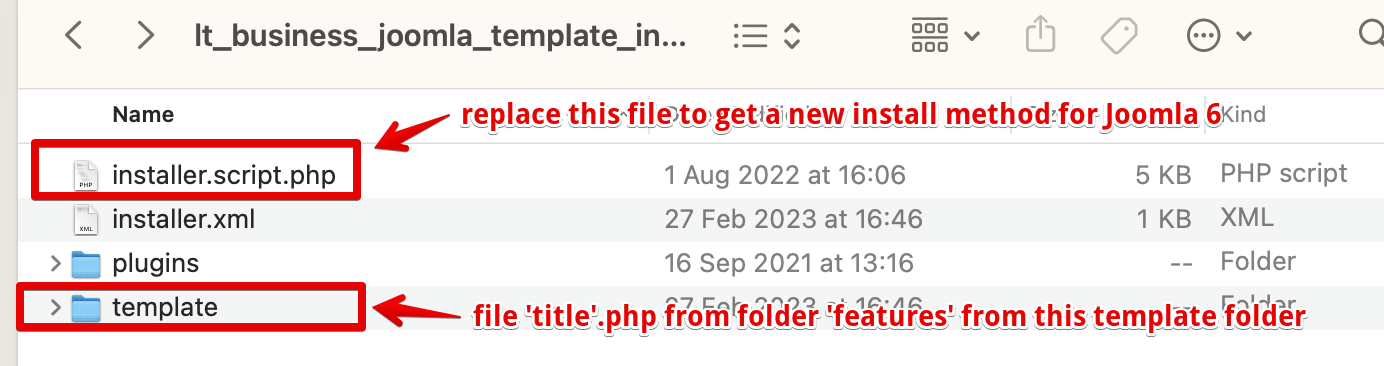
- Download Path Update: To ensure you have the correct files, you can download the necessary updates via path file update here.
- Replace the Required Files: Navigate to the root of your template package source. Here are the key files you need to focus on:
installer.script.php: This file should be located in the root of the template source. Replace the existing file with the one provided in the latest package.title.php: Go to thetemplate/featuresdirectory. You’ll find thetitle.phpfile here. Replace this file with the updated version from the latest package. Additionally, it’s advisable to replace all files in thefeaturesfolder to ensure consistency and to benefit from any improvements made by the developers.
For a quick reference, here’s the structure you should be looking at:
template_package/
    ├── installer.script.php
    └── features/
        └── title.php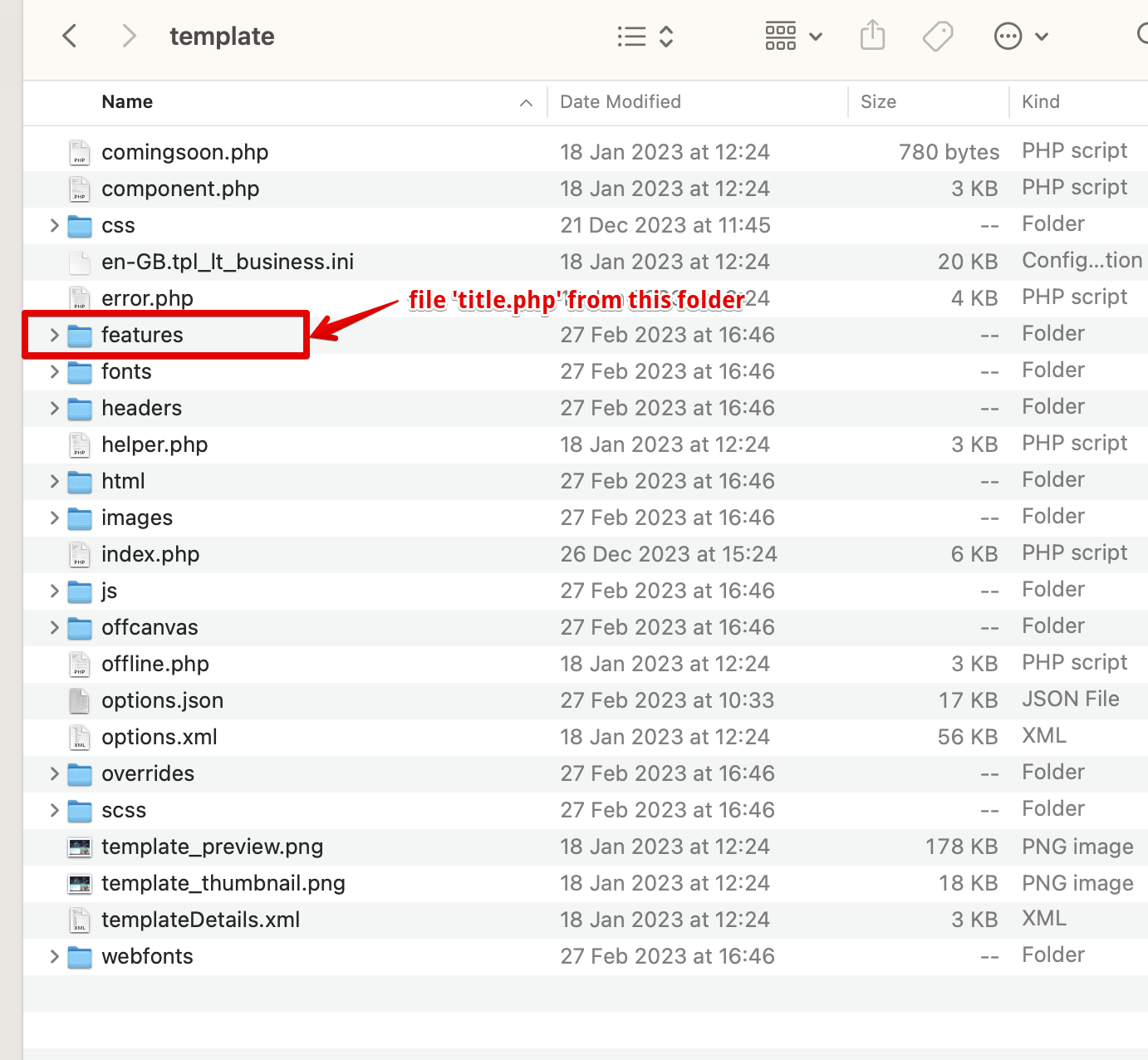
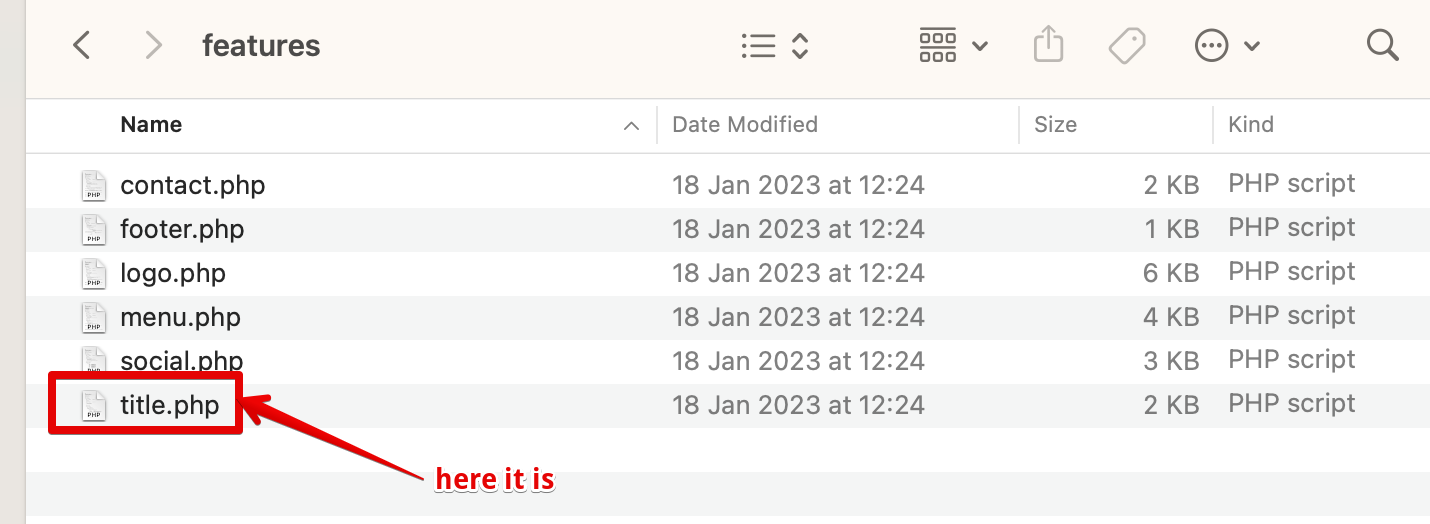
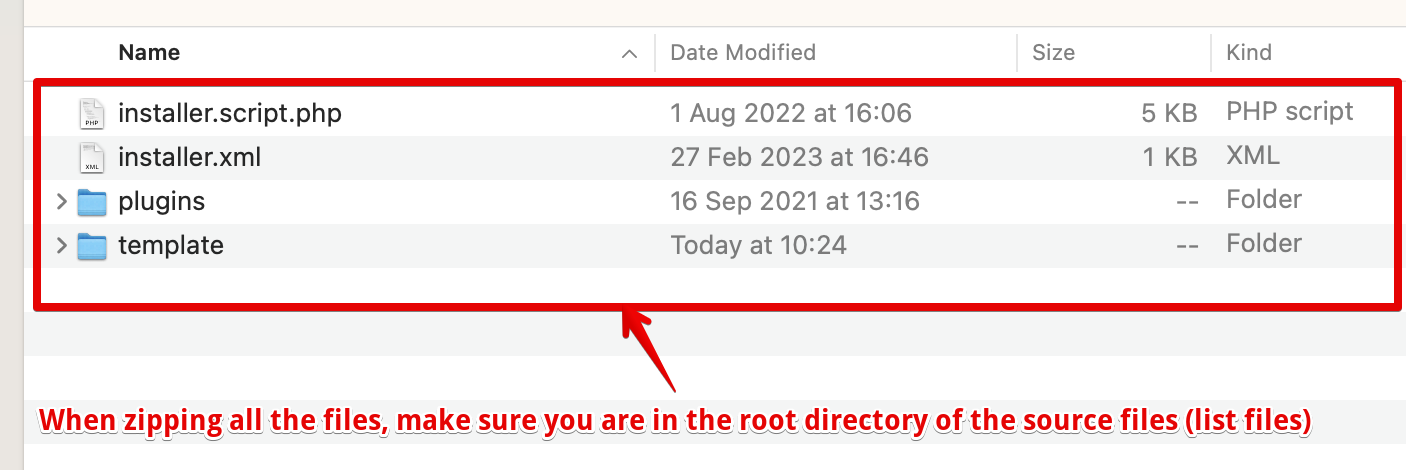
- Repackage it into a .ZIP file, and it will be ready for installation on the Joomla! 6 system
When zipping all the files, make sure you are in the root directory of the source files (list files), not the root single folder. You can name the .ZIP file anything you like, and once created, it will be ready for installation without any issues.
- Download the Template Package: First, download the latest version of your template package. This archive will contain the necessary files, including the new
Future Plans & Updates
We are committed to providing you with the best possible experience. Our team is currently working on updating and repackaging all template packages for Joomla! 6. You can expect these updated packages to be re-uploaded to our cloud storage very soon, ensuring that you always have access to the most current versions.
Thank you for being a part of our community! We wish you a wonderful New Year and look forward to bringing you continued support and excellence in your Joomla! experiences. If you have any questions or need further assistance, please don’t hesitate to reach out in the comments or through our support channels. Let’s make 2026 a great year for your Joomla! projects!

Thank you for being here!
- Why Your Website Fonts Flash or Disappear on Load: FOUT vs FOIT Explained - August 30, 2026
- WordPress 7.1 hover and focus styling design guide - August 22, 2026
- The Design Choices That Make a Website Memorable - August 20, 2026








Recent Comments