Why do you need to change the admin email in WordPress?
It is true that email plays a crucial role in helping you get contact forms from customers and manage all messages, notifications, and email reminders when any problems occur on your website. It is also used to recover lost passwords and receive account notifications.
However, most beginners often use their personal email addresses as their business email addresses. This can be inconvenient because these site emails may get mixed up with their personal ones. That is why most WordPress users want to use another business email address to make their website more professional. In addition, they might also want to use different email addresses for site administration and the admin user.
How to change the admin email address in WordPress?
There are many ways to change the admin email address in WordPress. In today’s tutorial, we will share the easiest ones. Now, let’s go over the following solutions.
Solutions
Method 1: Change admin email address in WordPress settings
This is considered the easiest way and is suitable for beginners. You can use this method to change your WordPress site email as well as your WordPress admin user account’s email address.
Step 1: Just go to Settings > General in your dashboard. In the “Administration Email Address” field, type the new email address.

Step 2: Click on the “Save” button at the bottom of the Settings screen to save changes.

Now your new admin email address is saved. You’ll see a confirmation message displayed under the Email Address field. This message means that your new admin email address will not be changed until you verify the new email.

Once you have confirmed the new email address, WordPress will send important administration-related emails to the new address.
Method 2: Change the admin email in the Admin User Account section
If your website has many admin accounts, you need the second method to change the contact email address of a specific admin. This is different from the first method, which only applies to the entire website.
Step 1: go to Users > All users page and hover over the admin account that you want to change. Then click on “Edit” to change.

Step 2: Scroll down to the Contact Info section and enter the new address in the Email box.

Step 3: Click on the “Update User” button at the bottom of the page to save your changes.

As with the method above, WordPress will send a notification to the new email address for confirmation. Your address will only be changed after you verify it.
Method 3: Use the Change Admin Email plugin
If you have tried the methods above but cannot receive the verification email to change the admin email address, using the Change Admin Email plugin is a great way to change admin email without confirmation in the database.
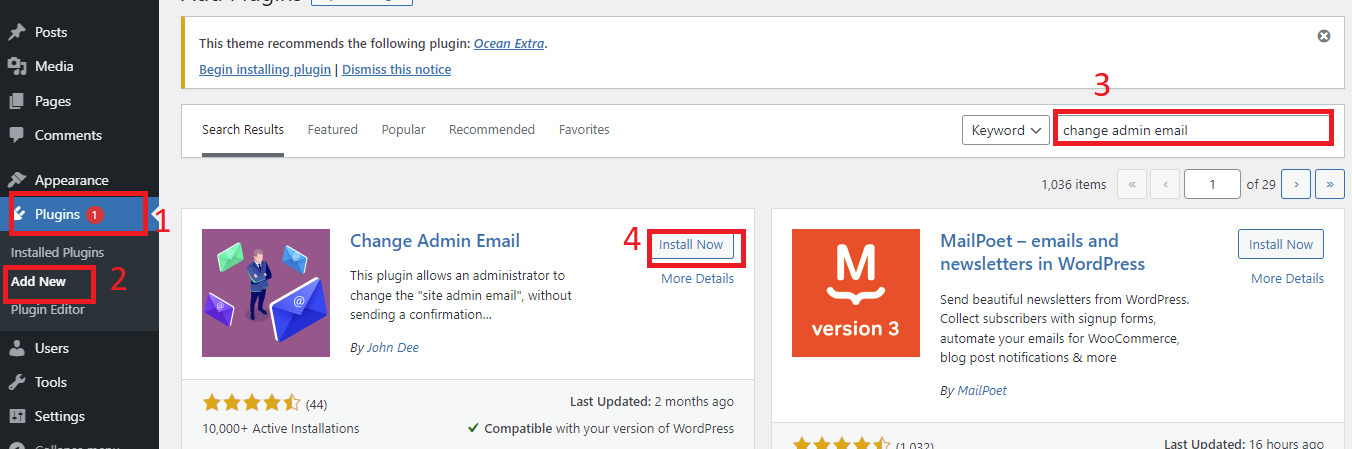
Step 1: You need to install and activate the Change Admin Email plugin first.
Just go to Plugins>Add New on your dashboard, enter the plugin’s name in the search bar. Then click on the “Install Now” button and activate it.
Step 2: Once activated, you can change the admin email from the Settings > General page
Next, scroll down to the “Administration Email Address” field and enter the new email address you want to use. And don’t forget to click on the ” Save Changes” button to finish.
This plugin will help you change the admin address immediately and skip the complicated verification process. In addition, it will also send you a test email to the new admin email address.

Wrap up
We have just shown you the easiest methods to change admin email in WordPress. Hopefully, through this tutorial, you can tackle this matter by yourself. If you have any questions or encounter any difficulties while using these methods, please feel free to leave a comment in the box below.
By the way, our free WordPress Themes offers a wide array of stunning, modern, well-organized themes and templates that are suitable for various fields. If you are also planning to create a professional website, don’t miss our website.