A post you scheduled for 9:00 shows “Missed schedule” at 11:00. A WooCommerce sale ends hours late. Backup emails arrive in bursts after the site has been quiet all night. All of these usually have the same cause: WordPress’s built-in scheduler only runs when someone visits the site. This guide shows you how to swap it for a real server cron job, check that it works, and set up the same thing for Joomla’s Scheduled Tasks.
Why WP-Cron misses its schedule
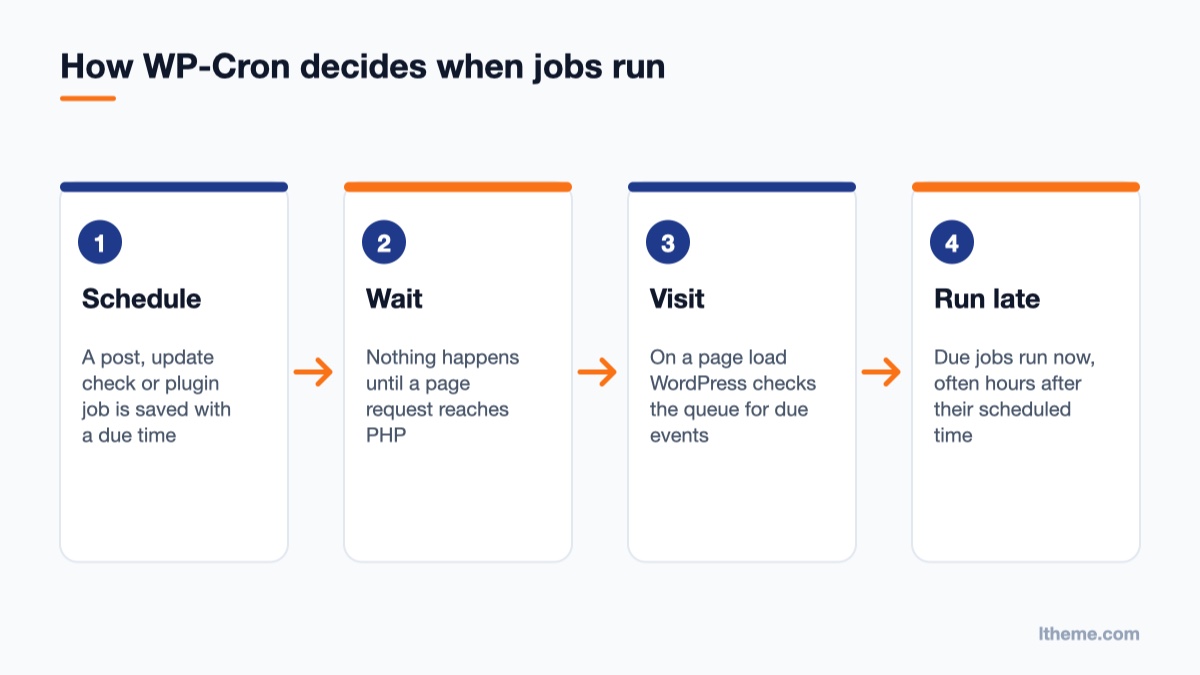
WP-Cron is the WordPress system that runs time-based jobs: publishing scheduled posts, checking for core, plugin and theme updates, cleaning out expired transients, and whatever plugins add (backups, sitemap rebuilds, WooCommerce housekeeping, newsletter queues). It is not a background service. As the WordPress Plugin Handbook explains, WordPress checks its list of scheduled events on each page load and runs the ones that are due.
That design has two consequences you can feel on a real site:
- Low-traffic sites run jobs late. If an event is due at 2:00 and nobody visits until 5:00, it runs at 5:00. A brochure site, a staging copy or a new blog can go hours without a visit, especially overnight.
- Busy or cached sites waste resources, or skip the trigger. On a busy site WordPress keeps checking for due jobs on page loads. On a site behind full-page caching or a CDN, many visits never reach PHP, so nothing triggers the check even though traffic looks healthy.
The handbook’s point in WP-Cron’s favour is that a missed event is not lost: it stays in the queue and runs on the next trigger. That is fine for cleanup jobs. It is not fine when a post, a sale or a timed email has to go out on time. The fix is to stop relying on visitors and have the server call the scheduler on a fixed interval.
Before you start: what you need
- Access to
wp-config.php(SFTP, SSH or your host’s file manager). - A way to add a cron job:
crontab -eover SSH, or the “Cron Jobs” screen in a hosting panel such as cPanel or Plesk. Most shared hosts provide one even without SSH. - Optional but useful: WP-CLI on the server, which gives you a cleaner trigger and tools to inspect the queue.
- A recent backup. You are only adding one line to
wp-config.php, but a typo in that file can take the site down (see our guide to the WordPress critical error if that happens).
Step 1: Look at the current cron queue
Before you change anything, find out what is scheduled and whether jobs are already running late. That gives you a baseline to compare against afterwards.
With WP-CLI
From the site’s root folder, list the events and when each is due next:
wp cron event list
wp cron event list --fields=hook,next_run --format=json
The default table shows the hook name, the next run time in GMT, a relative time and the recurrence. If several hooks show a next run in the past, the queue is waiting for a trigger that is not arriving often enough.
You can also run wp cron test. It checks that WordPress can spawn WP-Cron over HTTP and reports “Success: WP-Cron spawning is working as expected.” when it can. Run it now, because once you disable WP-Cron in Step 2 this command will report an error by design.
Without WP-CLI
Go to Tools → Site Health. Site Health includes a scheduled events check and lists a warning under the Status tab when an event has failed or is running late. For a full view of the queue, the free WP Crontrol plugin adds a Tools → Cron Events screen that lists every event, its next run and its recurrence, and lets you run an event manually.
Step 2: Disable the page-load trigger
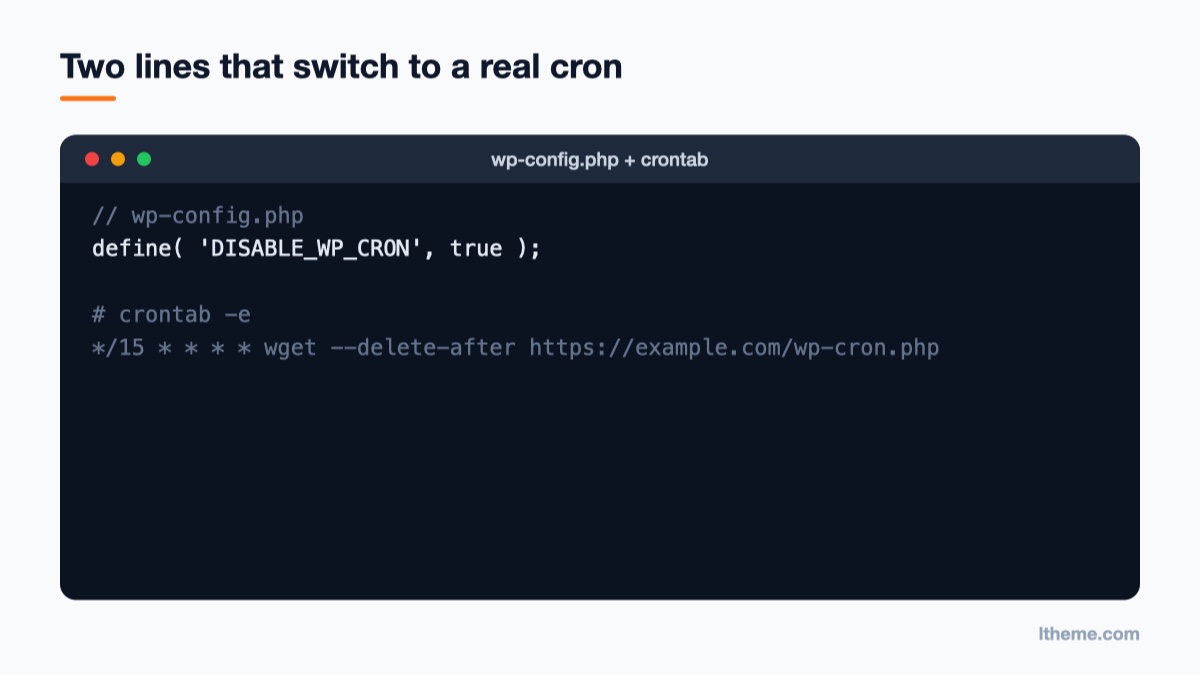
Open wp-config.php in the site root and add this line above the comment that reads /* That's all, stop editing! Happy publishing. */:
define( 'DISABLE_WP_CRON', true );This constant is the method documented in the handbook page Hooking WP-Cron Into the System Task Scheduler. It does not delete or pause your scheduled events. It only stops WordPress from checking the queue on every page load. The events stay in the database and will run as soon as something calls the scheduler, which is what Step 3 sets up.
Do this step and Step 3 together. If you disable WP-Cron and forget the server job, scheduled posts stop publishing completely and update checks stop running.
Step 3: Add a real cron job
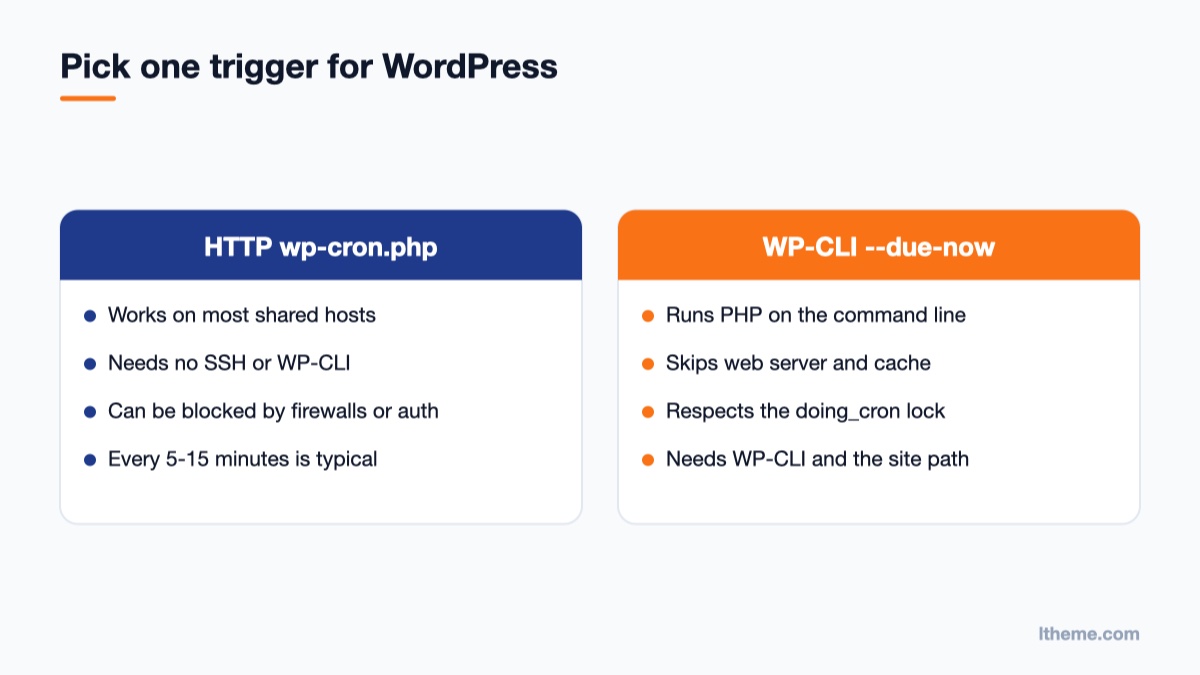
You have two ways to trigger the queue from the server. Pick one, not both.
Option A: Request wp-cron.php over HTTP
This works on almost any host, with or without SSH. In your crontab (or the hosting panel’s cron screen) add a line that requests wp-cron.php on a schedule. The handbook’s example uses wget; replace the address with your own site URL:
*/15 * * * * wget --delete-after https://example.com/wp-cron.phpThe five fields at the start are minute, hour, day of month, month and day of week. */15 in the minute field means “every 15 minutes”, and an asterisk in the other fields means “every”. The --delete-after flag matters: without it, wget saves a copy of the response every time it runs, and your home folder slowly fills with empty files. Hosting panels usually send cron output by email, so many people also add >/dev/null 2>&1 at the end of the line to silence it.
On a Windows server, the handbook uses Task Scheduler with a PowerShell command such as powershell "Invoke-WebRequest https://example.com/wp-cron.php".
Option B: Run due events with WP-CLI
If WP-CLI is installed, you can skip the web request and run the queue directly in PHP on the command line. This avoids your web server, caching layer and any firewall rules in front of the site:
*/5 * * * * cd /var/www/example.com/public_html && wp cron event run --due-now --quietAccording to the WP-CLI reference, --due-now runs every hook that is currently due and respects the doing_cron lock, so two runs will not overlap. Adjust the path to your WordPress folder, and make sure the cron job runs as the same system user that owns the site files. If you run it as root, files a plugin writes during a job may end up owned by root and become unwritable for WordPress later.
How often should it run?
The interval is the worst-case delay for any job. For most sites every 5 or 15 minutes is a good choice: scheduled posts go out within a few minutes of their time, and the load is negligible. Shops that run timed sales or stock syncs often use every 5 minutes. A daily job (0 0 * * *) is only suitable for sites with nothing time-sensitive, because the update check and every scheduled post would wait for midnight.
Step 4: Confirm the server job is working
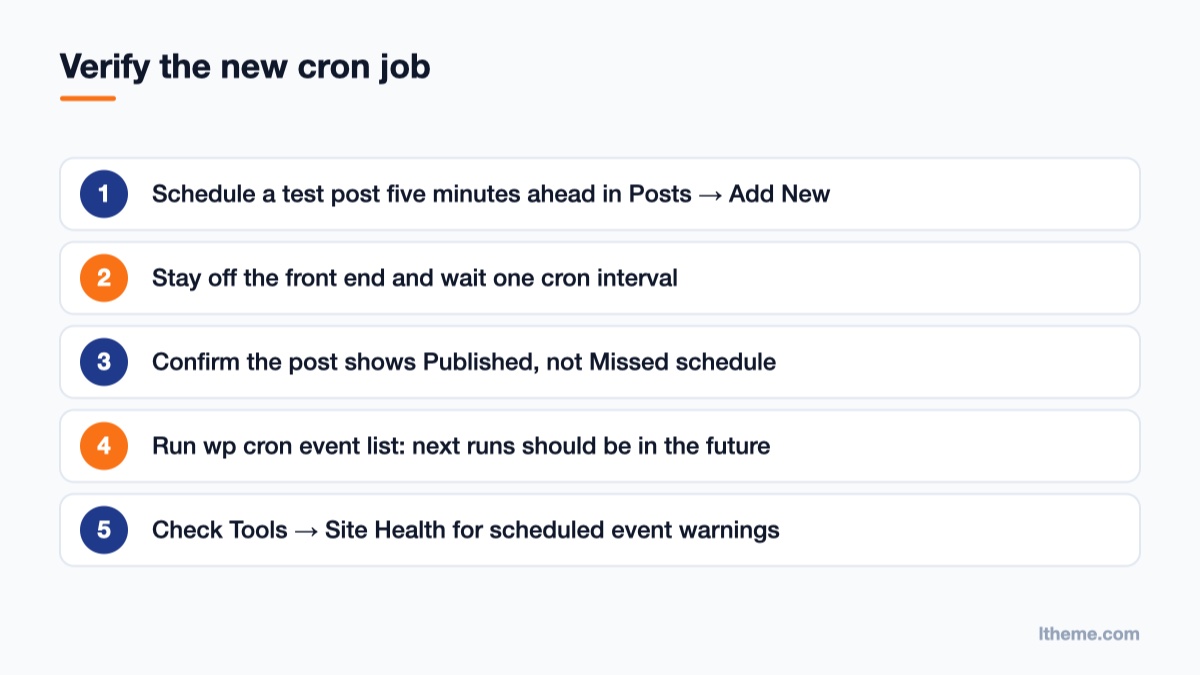
Don’t assume the job runs just because you saved it. Check it:
- Schedule a test post for five minutes from now (Posts → Add New, then set the publish date in the post settings panel and click Schedule). Our older tutorial on scheduling posts in WordPress walks through that screen.
- Avoid visiting the front end in the meantime, then check the post list after the next cron interval. It should show as Published, not “Missed schedule”.
- Run
wp cron event listagain (or reload Tools → Cron Events). Recurring events should now show next-run times in the future. - Look at Tools → Site Health after a day. The scheduled events warning should be gone.
- If your host emails cron output, check that the messages contain no errors, then silence them.
What about ALTERNATE_WP_CRON?
You may see advice to add define( 'ALTERNATE_WP_CRON', true ); instead. That constant changes how WordPress spawns cron: it uses a redirect during the visitor’s request rather than a separate loopback request. It is a workaround for servers that block loopback requests, and it still depends on visits. wp cron test warns when it is set. If you can add a real cron job, use DISABLE_WP_CRON with a server job and leave ALTERNATE_WP_CRON out.
The Joomla equivalent: Scheduled Tasks with a real cron
Joomla 5 and 6 have the same issue. Their built-in task scheduler handles jobs such as the site status email, deleting action logs, rotating log files and extension tasks like backups. Out of the box it uses the Lazy Scheduler, which is triggered by site visitors. The Joomla manual’s page on choosing a scheduler says to switch it off once a real cron job is in place, and to use one scheduler only, not both.
CLI cron (recommended when you have it)
Add this to your crontab, adjusted to your site path and PHP binary. It runs every minute, which gives tasks one-minute precision:
* * * * * php /path/to/your/site/cli/joomla.php scheduler:run --allThe --all flag runs every due task in one pass, not just the next one.
Web cron (when you only have a URL-based cron)
- Go to System → Manage → Scheduled Tasks and click Options in the toolbar.
- In the Web Cron section, enable Web Cron. Joomla generates a link that contains a secret hash. Keep that hash private, because anyone who has it can trigger your tasks.
- Point your host’s cron job (or an external cron service) at that link, ideally every minute.
- Back in Options, set Lazy Scheduler to Disabled and save.
The order matters: create the cron job first, then disable the Lazy Scheduler, so there is never a gap with no trigger. If you are also tidying up how articles move through review before they go live, our guide to Joomla workflows for article approval pairs well with reliable scheduling.
Common mistakes and troubleshooting
- Disabled WP-Cron, forgot the server job. Nothing scheduled runs anymore, and update checks stop too. If posts suddenly stay in “Scheduled” forever, check the crontab first.
- The cron URL is blocked. Security plugins, HTTP authentication on staging sites, or a “coming soon” mode can return 401 or 403 for
wp-cron.php. Run thewgetcommand by hand over SSH and read the response. If you can’t unblock it, switch to the WP-CLI trigger. - Wrong PHP version on the command line. The
phpon the server’s command line can be a different version from the one your site uses. If WP-CLI orjoomla.phpfails with syntax errors, call the full path of the correct binary (your host’s docs list it, often something like/usr/bin/php8.3). - Running as root. Files created during jobs become owned by root. Add the job to the site user’s crontab instead.
- Two triggers at once. Leaving Joomla’s Lazy Scheduler on next to a CLI cron, or running both a
wgetjob and a WP-CLI job for WordPress, only adds load. One trigger per site. - Multisite. The
wp-cron.phprequest runs events for the site you call. On a WordPress network, every subsite needs its own trigger. Loop overwp site list --field=urland pass each URL towp cron event run --due-now --url=..., or call each subsite’swp-cron.php. - Auto-updates you didn’t expect. A reliable cron also makes WordPress’s background update checks run on time. If you manage updates by hand, review your settings with our guide on turning off automatic updates in WordPress.
Which sites benefit most
Content sites that schedule posts days ahead get the most out of this. A theme like LT Paste for WordPress, built for content marketing, or its sibling LT Paste for Joomla, shows posts the moment they publish, so they only look as reliable as your scheduler. Online shops gain too: store themes such as LT Shine run on WooCommerce, which uses background jobs for things like scheduled sale prices and cleanup. You can find more in our WordPress themes and Joomla templates collections. If you are moving more of your site work to assistants and automation, see what AI Ready means for our themes: it is ready in our WordPress block themes, in progress for Joomla templates and planned for Elementor themes.
Wrap-up
Switching WordPress to a real cron takes one line in wp-config.php and one line in your crontab. Disable the page-load trigger with DISABLE_WP_CRON, request wp-cron.php every 5-15 minutes (or run wp cron event run --due-now), and confirm the change with a test post and Site Health. On Joomla, add the scheduler:run --all CLI job or the Web Cron link, then turn off the Lazy Scheduler. As a next step, list your current events today with wp cron event list or WP Crontrol. If you see hooks with next-run times in the past, your site will benefit from this change.

- Replace WP-Cron with a Real Cron Job (and Fix Missed Schedules) – October 28, 2026
- 63 AI-Ready WordPress Block Themes for Local Businesses – October 15, 2026
- Fix “The Response Is Not a Valid JSON Response” in WordPress – October 14, 2026