Introduction
If you own a website, you always want to give your website visitors a great experience. One of the important factors that keeps them satisfied and makes them return is the fast loading speed of the website. If you improve your site speed, you can easily increase your site traffic as well as sales.
If you are looking to boost the loading speed, why don’t you enable GZIP compression for your WordPress site? Today, in our blog, we would like to show you some simple ways to enable GZIP compression. So, let’s explore now!
GZIP compression definition
GZIP compression is defined as the technology of compressing your website’s data files before they are delivered to the user’s browser. Once the compressed data arrives, modern browsers like Firefox and Chrome will automatically unpack and display them. This makes your website faster without changing the look of the page or how the website works.
So, the question arises: how does GZIP compression work? It uses compression algorithms that work on website files, such as JavaScript, CSS, HTML, and so on. Thus, whenever the site visitors want to access a page of your site, the server sends the output in compressed form.
According to statistics, GZIP compression can reduce file sizes by up to 70%. However, it doesn’t support compressing image or video files. So, you need to use other methods for those.
Why should you enable GZIP compression for your site?
Simply put, with GZIP compression, you can improve website speed and performance, including:
- Transfer data quickly and efficiently
- Speed up page load time
- Reduce the load on the server hosting your website
How to enable GZIP compression
In this blog, we will show you 2 ways to do that:
- Using W3 Total Cache
- Utilizing WP-Optimize – Cache, Clean, Compress
Using W3 Total Cache
W3 Total Cache is one of the most popular WordPress Cache Plugins. It has more than one million installations and impressively high ratings. This plugin can help you enable GZIP compression easily and smoothly.
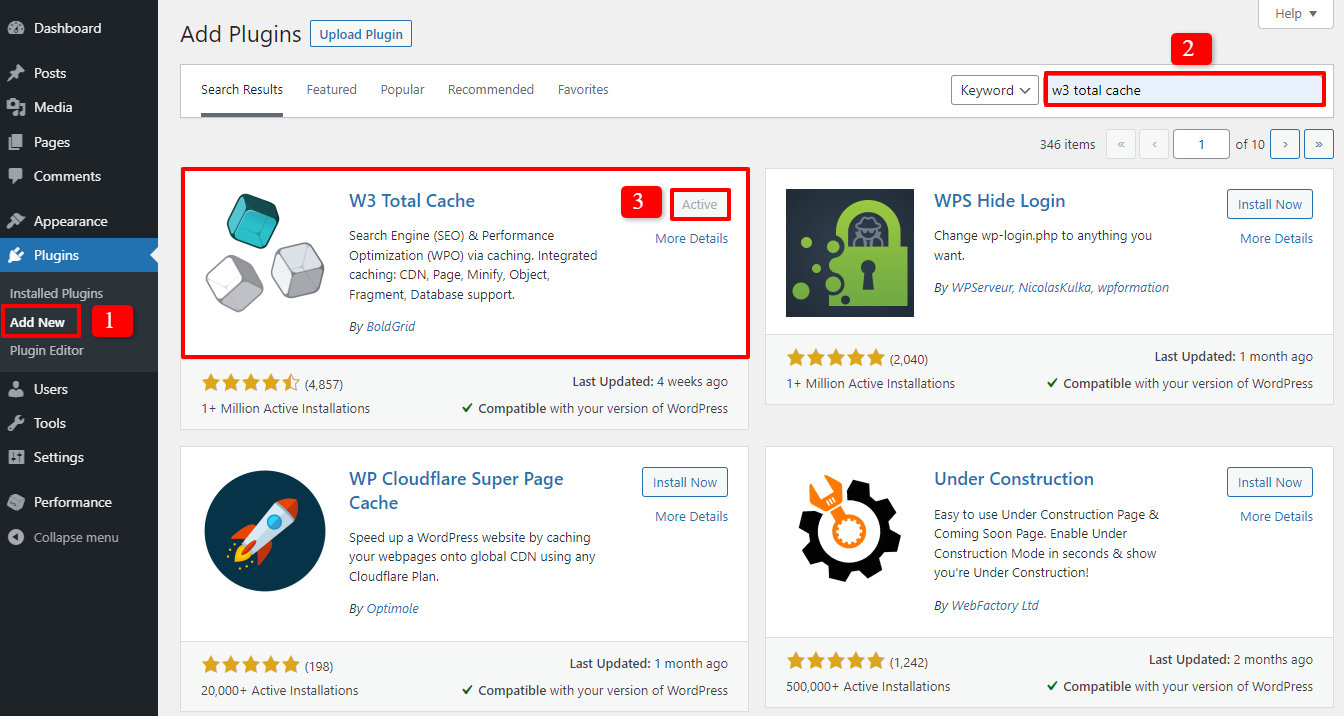
Firstly, you need to add W3 Total Cache to your site. Let’s access Plugins -> Add New, then enter the name of the plugin in the search bar. The first plugin is ready for you to install and activate now.
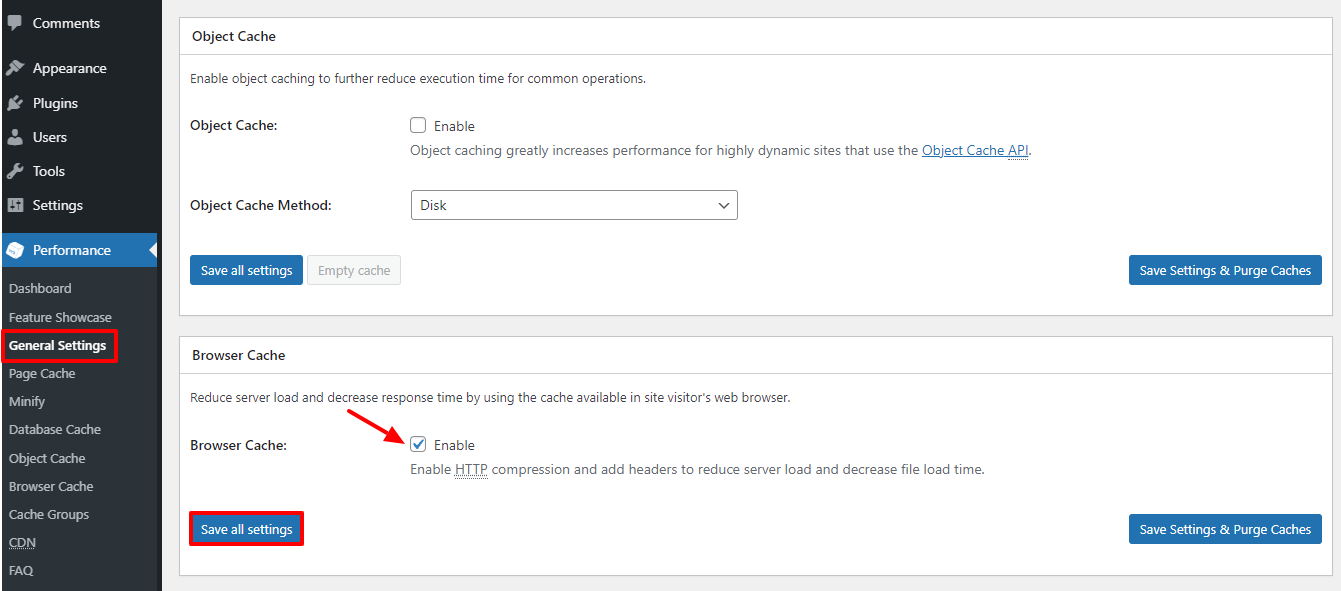
After activating it, go to Performance -> General Settings on the WordPress admin dashboard. Scroll down and find the Browser Cache section.
Now, tick the box to enable GZIP compression. The last step is to save your settings.
Utilizing WP-Optimize
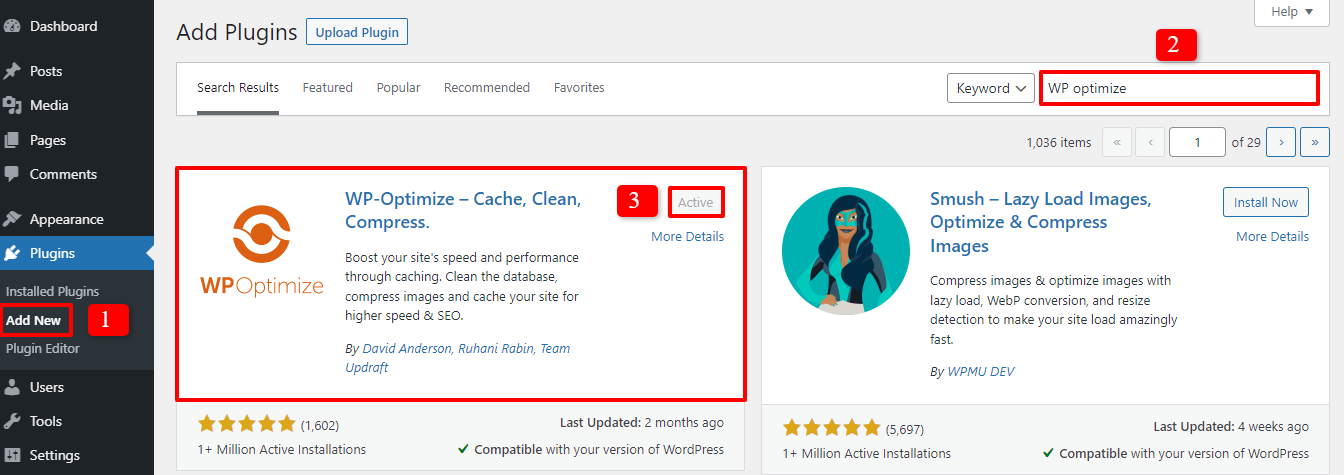
WP-Optimize is one of the multifunctional WordPress Optimization Plugins you should have. To use it, you have to install and activate it first.
The installation process is similar to other plugins. You just need to go to Plugins -> Add New, find the plugin with the search bar and click on the Install now -> Activate it.
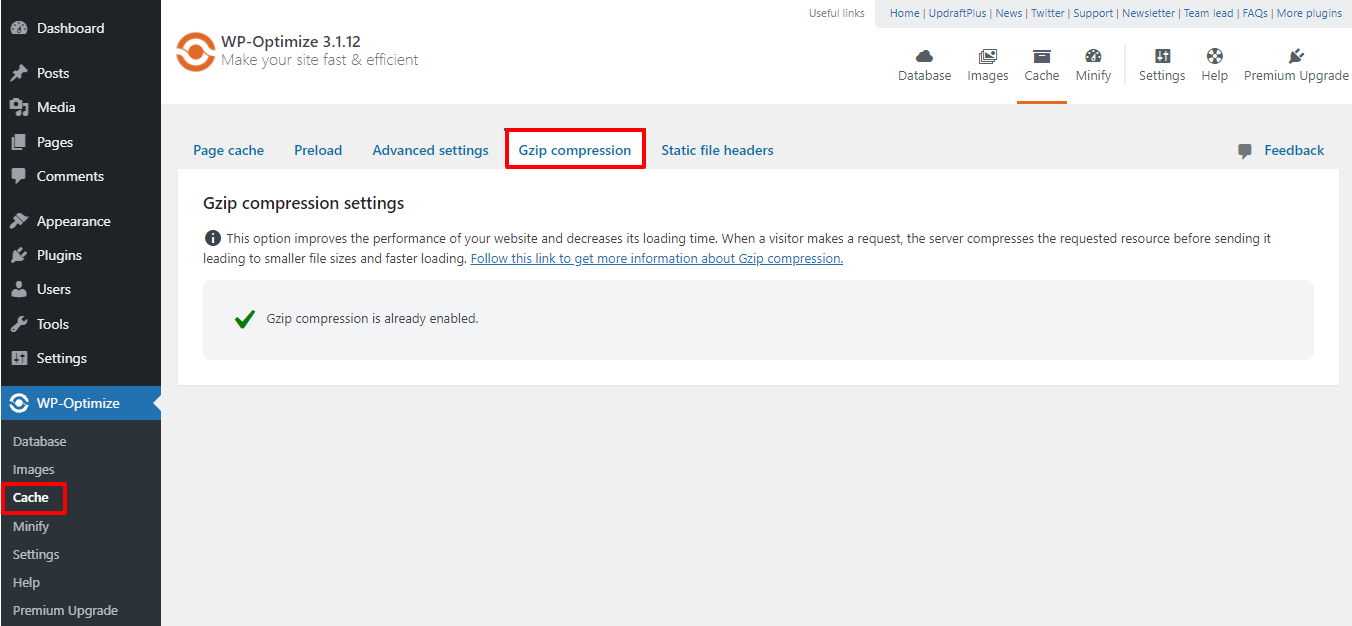
Now, choose WP-Optimize -> Cache on the admin dashboard. In the fourth section – Gzip compression – you can see that this plugin enables GZIP compression automatically for you.
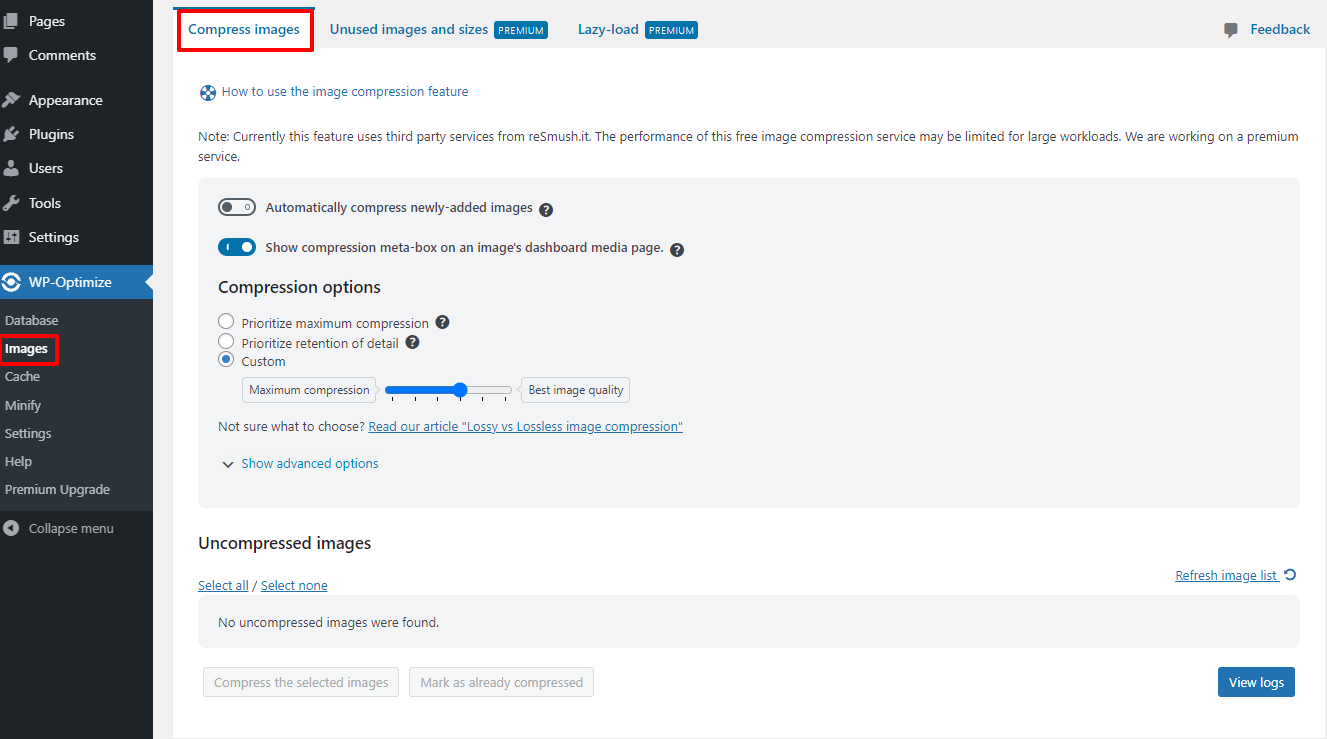
In addition, because GZIP compression does not include image and video compression, you can compress the images of your site by selecting Images -> Compress images. Here, you can set it up the way you want.
Don’t forget to save all the changes after completing the setup.
Checking whether GZIP compression is enabled on your site
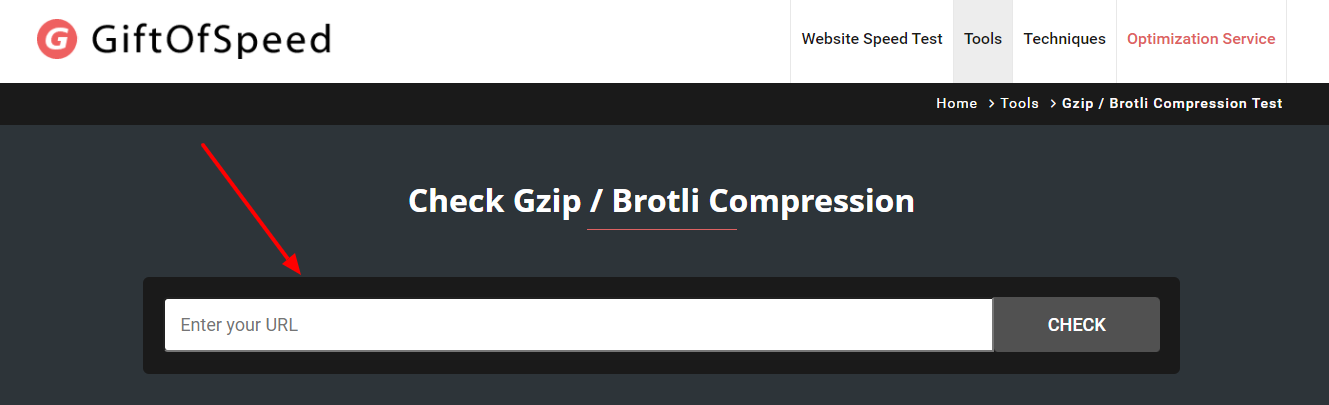
One of the easiest ways to tell is to visit your website and see how fast it loads. Furthermore, if you want to be certain, you can test Gzip compression with the GiftOfSpeed tool.
All you need to do is enter your URL site in the bar and click on the Check button. The result will appear under the bar.
Wrap Up
In conclusion, we are happy to have shared some methods to enable and check GZIP compression for your website. Don’t hesitate to try them to boost your site load speed easily and effectively. If you have any questions, let us know by leaving a comment below. Thanks for reading.