Are you seeking the simplest method to disable automatic empty trash in WordPress? Fortunately, in today’s blog, we are going to write about this topic. We will share with you some useful ways to do it. Now, let’s explore the following solutions.
What is Trash in WordPress?
The trash in WordPress is similar to the Recycle Bin on your computer. In each WordPress site, the administrators and editors will have the ability to remove a post, page, or article. Once deleted, an item is immediately moved to the trash, where it is stored for 30 days. From here, you can restore any item that you may have deleted by accident.
If you don’t restore them within 30 days, those items in the trash will be automatically and permanently removed from your WordPress database. Therefore, to minimize the risk of unintended deletion of items, the trash feature was introduced in WordPress 2.9.
If you would like to stop WordPress from emptying the trash automatically in WordPress, you can dive into our tutorial to find the most useful method that will help you disable this feature.
How to limit or disable automatic empty trash in WordPress
Method 1: Using the Change Empty Trash Time plugin
Change Empty Trash Time is a simple, easy-to-use plugin that lets you set the number of days after which WordPress will automatically empty your trash.
To use this tool, first of all, you need to install and activate it.
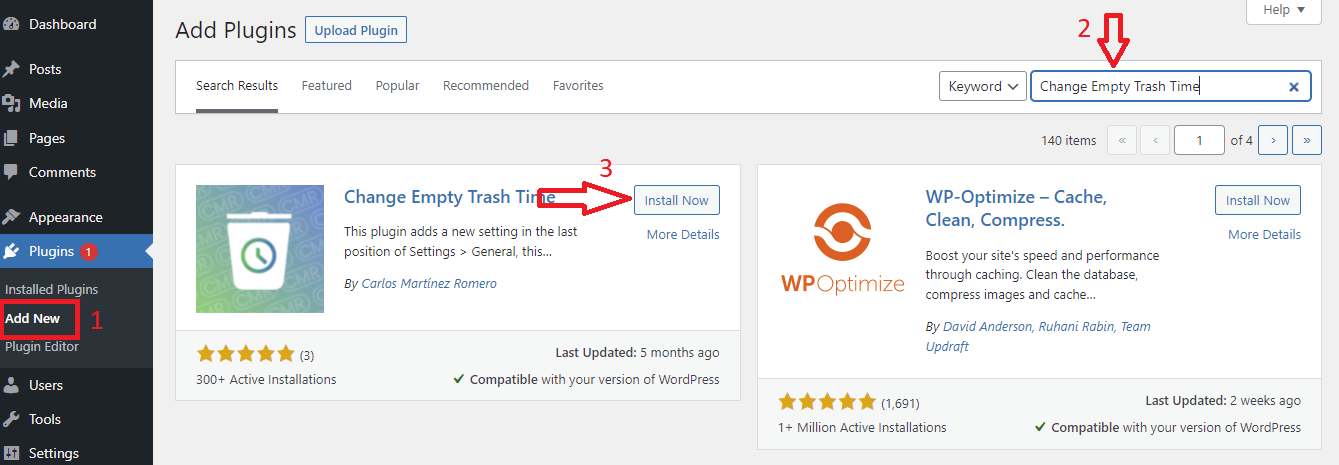
Just go to Plugins > Add New and then you can use the search feature to find the “Change Empty Trash Time” plugin. Once the plugin appears, quickly click on the “Install Now” button and activate it.
After the plugin is installed, you need to visit the Settings > General page from your dashboard menu. On the General settings page, scroll down to the bottom of the page and you will see a new “Time to empty trash” setting.
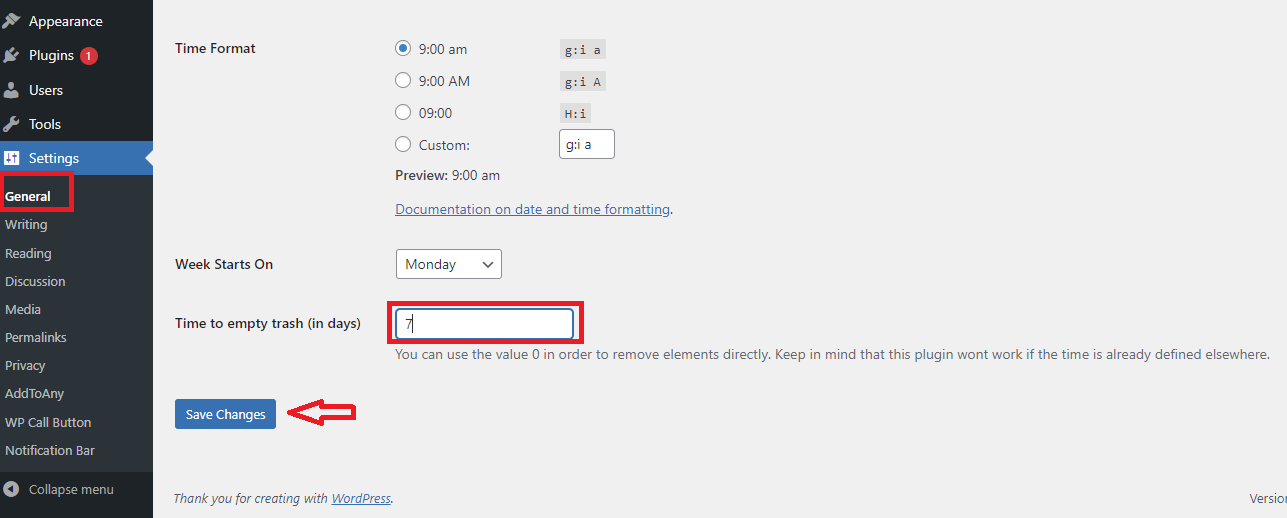
From here, you can enter the number of days that WordPress should take to empty the trash. For example, you can enter 1 for daily, 7 for weekly, or any number of days you want.
Note that if you type 0, WordPress will permanently delete posts/pages as soon as you delete them instead of moving them to the trash.
Once you are done, don’t forget to click on the “Save Changes” button to store your settings.
Method 2: Editing your theme’s functions.php file
If you don’t want to install any additional plugins, you can use this method to disable automatic empty trash in WordPress. Just follow these steps.
First, you need to visit Appearance > Theme editor and then click on the “Theme functions” and simply add the following code to it, or to a site-specific plugin.
function wpb_remove_schedule_delete() {

remove_action( 'wp_scheduled_delete', 'wp_scheduled_delete' );

}

add_action( 'init', 'wpb_remove_schedule_delete' );
This code will help you disable the action through which WordPress automatically deletes trashed items once their time is up.
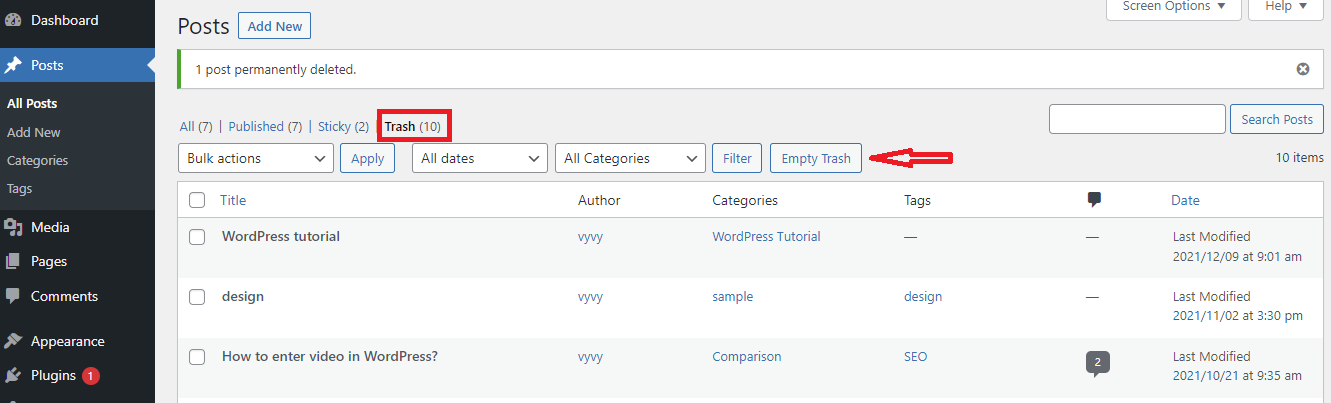
Now, whenever you delete posts/pages, they will be moved to the trash, and they will remain there until you visit the trash and manually click on the “Empty Trash” button.
Summing up
Disabling automatic empty trash in WordPress is really useful in some situations, for example, when someone accidentally clicks the ‘Delete’ link on a post. We have just shared the easiest ways to handle this issue in WordPress. If you have any questions, feel free to mention them in the comment section below.
Last but not least, if you are planning to build an impressive and professional WordPress website, don’t miss our free WordPress themes website. Here, we offer a wide array of SEO-friendly, responsive designs for your website. Let’s visit and get one.