How to Install a WordPress Theme
Hi friends! Today, we will share with you how to install a WordPress Theme on your site. You can download any of our free WordPress theme to try installing. We also have Onepage WordPress themes, and if you love one-page layouts, you can get them for free. Now we will go to the main topic. 😀
To install a WordPress theme, just follow the instructions below!
First, access the theme installer in your WP admin
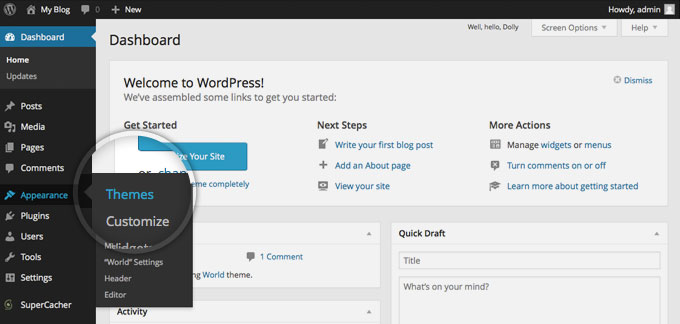
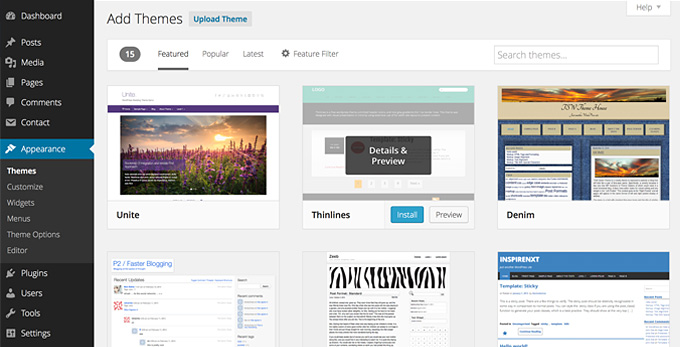
Step 1: Log in to your admin page -> Go to Appearance -> Themes.
Step 2: It will show all the themes you have installed. To add another one, simply click on the Install Themes tab.
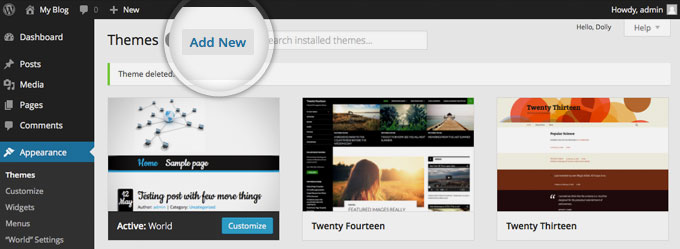
There are two ways to add a new WordPress theme to your site: use the search field, which returns results from the WordPress.org theme directory, or upload a WordPress theme from your local hard drive.
1. Choose and install a theme from the official WordPress theme directory
If you know the theme’s name, you can simply search for it by typing its name in the Search box.
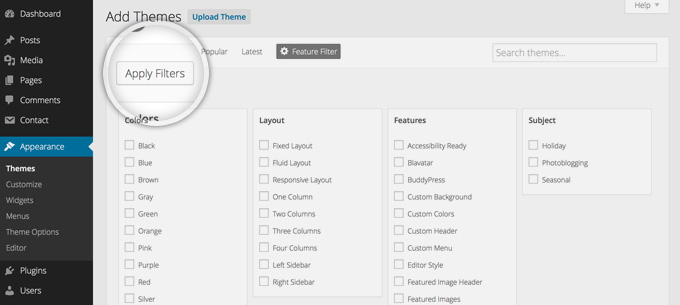
You can use the Feature Filter. For example, if you search for a Black and White, One column WordPress theme with custom colors, just check those tags and click the “Apply Filters” button.
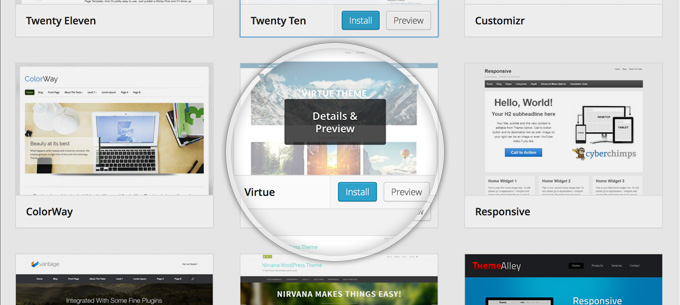
Now, it will show all WordPress themes that match your search. Each theme has two options: See Demo and Install. All you need to do now is to choose a theme you want to use and install it by clicking the blue “Install” button.
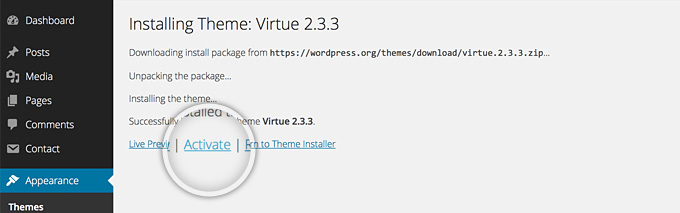
Your WordPress application will download and install the theme for you. Now, click the Activate link on the page you are redirected to.
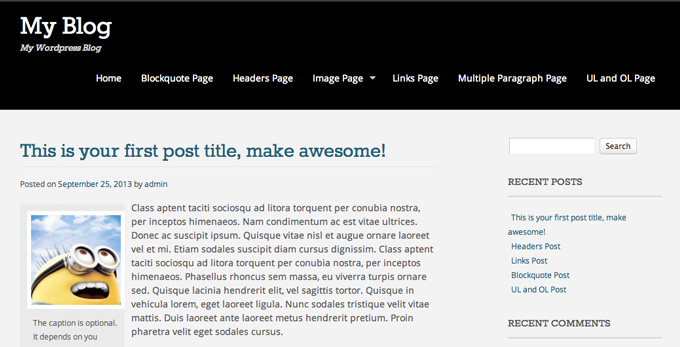
You’re done, now, let’s go to the front page to see your site’s new look!
2. Upload a theme from your hard drive
If you already have a WordPress theme on your hard drive, just upload the theme to your site and install it.
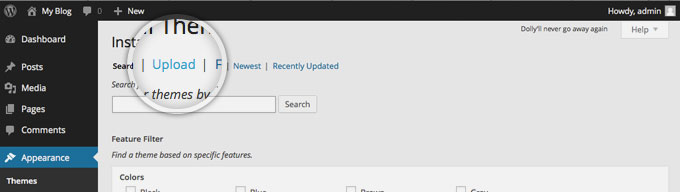
First, click on the Upload link at the top of the page.
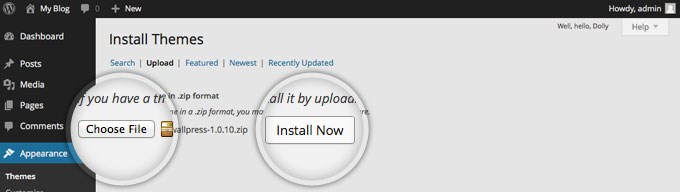
Next, click on the “Choose File” button, select the archive of your WordPress theme from your local computer and click on the “Install Now” button.
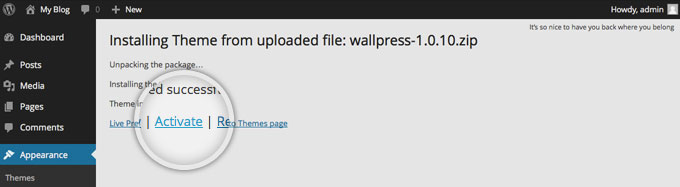
Now, WordPress will upload and extract the theme archive for you. Just click the Activate link under the success message.
Now, you can go to the front end of your website and see the newly activated theme.