On August 13, 2026, WordPress quietly shipped something it had never officially had before: a first-party browser extension. It’s free, open source, available for Chrome and Safari, and — unusually for a WordPress-adjacent tool — it collects no data at all. Most of the coverage so far has been straightforward “here’s what shipped” announcements. What’s been missing is the more useful question: what does this actually change about how you evaluate, test, and review a WordPress site day to day?
The project itself has a small, community-driven origin story worth knowing. It started as an independent side project by a single developer, built under the name WP Detective before it had any official backing at all. Automattic picked it up during an internal push earlier this year, and WordPress co-founder Matt Mullenweg encouraged the developer to bring it in as an official project rather than leaving it to live on as one more unofficial tool the community would need to rediscover and trust independently. A handful of core contributors, including a WordPress core committer, helped shape its architecture before this release.
If you spend any time comparing themes, reviewing a design before it goes live, or checking how a page actually looks to a visitor instead of a logged-in admin, this extension solves a problem you’ve probably worked around manually for years without a good tool for it.
The Problem It Was Built to Solve
Every WordPress site you’re logged into shows the admin bar — that dark strip along the top with links to the dashboard, “Edit Post,” your profile, and whatever else various plugins have bolted onto it over time. It’s genuinely useful. It’s also a problem the moment you need to see a page the way an actual visitor sees it, not the way a logged-in administrator sees it.
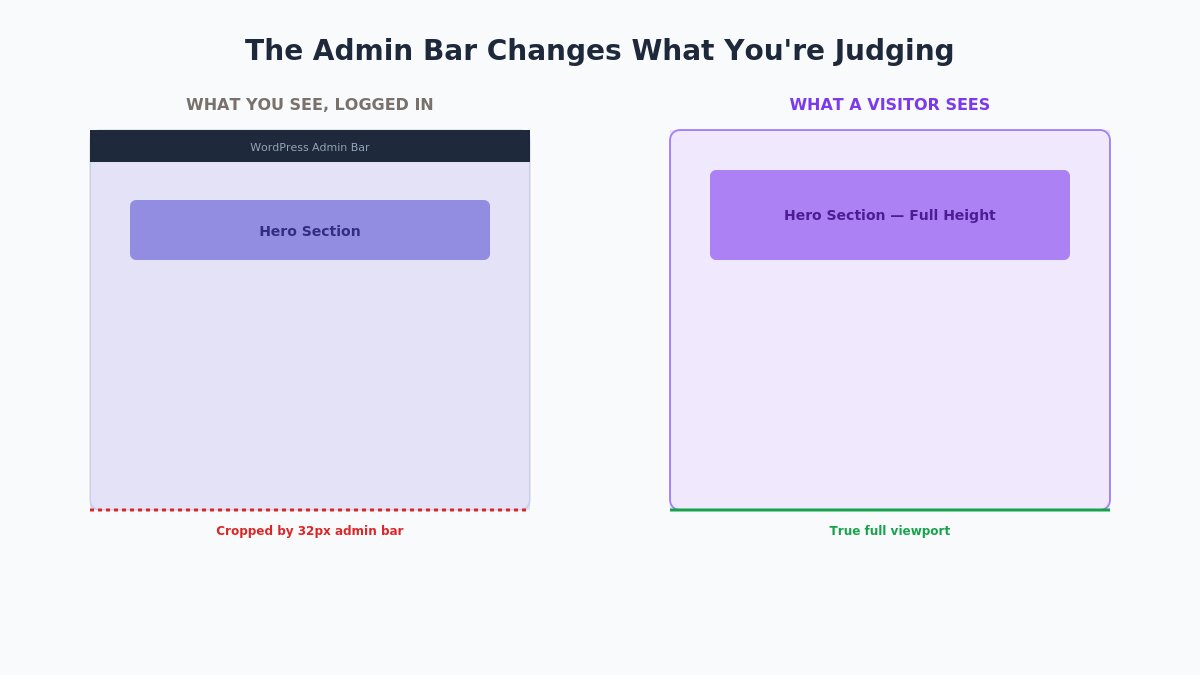
This matters more than it sounds like it should. Sticky navigation bars, full-height hero sections built on 100-viewport-height layouts, parallax effects, and anything “immersive” in a design all calculate their positioning relative to the browser viewport — and the admin bar changes that viewport by exactly the height of the bar itself. A hero section that’s supposed to fill the screen edge-to-edge doesn’t, because thirty-some pixels at the top are occupied by a bar your actual visitors will never see. If you’ve ever demoed a theme to a client and had to explain “it won’t look like this for you,” this is almost always why.
The standard workaround — turning the admin bar off entirely in your user profile settings — fixes the visual interference and creates a new problem: you lose the shortcuts. No more one-click jump to edit the post you’re looking at, no quick link back to the dashboard. You’re trading one annoyance for another rather than actually solving anything.
What the Extension Actually Does
The extension’s approach is to move the admin bar’s most useful shortcuts out of the page itself and into the browser’s toolbar, where they don’t affect the viewport at all. Once installed, a small WordPress icon appears next to your address bar, and it changes state depending on what you’re looking at:
- Grey — the current page isn’t running WordPress at all.
- Blue, no dot — the site is WordPress, but you’re not signed in.
- Blue with a green dot — the site is WordPress and you’re currently signed in.
That alone is a small but genuinely useful bit of information when you’re browsing competitor sites, potential client sites, or inspiration galleries and want to know at a glance what’s actually running WordPress underneath.
Installing It
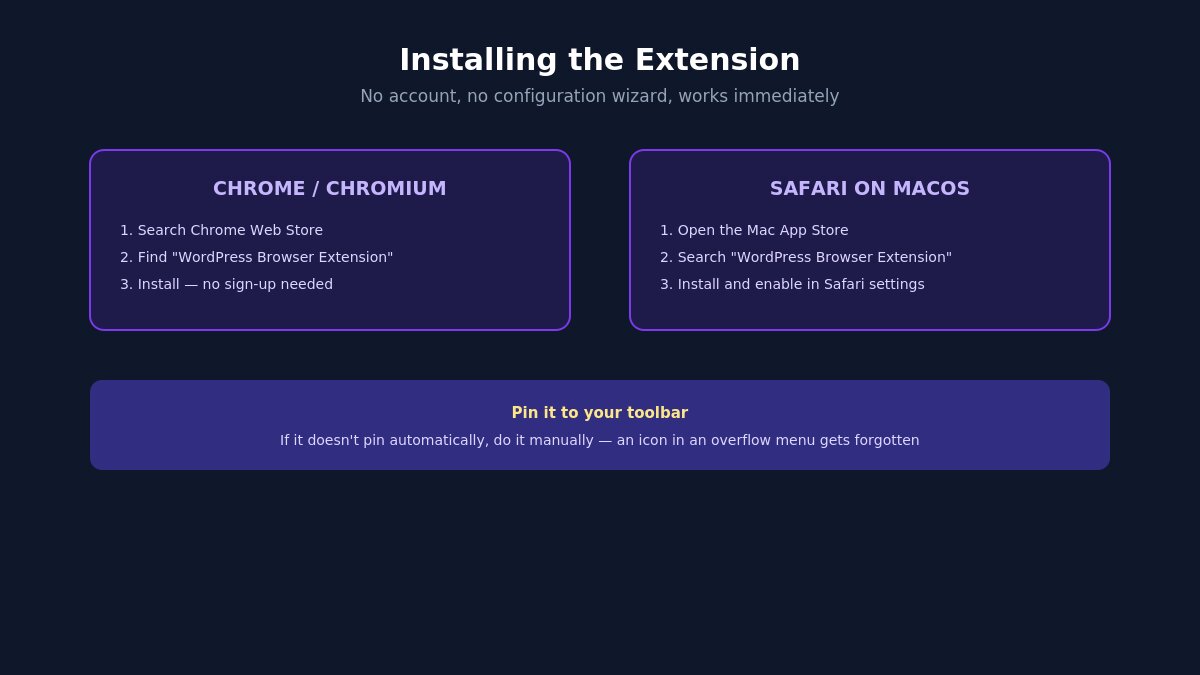
Setup is genuinely simple, and it’s worth walking through once so you know exactly what to expect:
- Chrome or Chromium-based browsers (Edge, Brave, and similar): search the Chrome Web Store for “WordPress Browser Extension,” published by the WordPress Foundation, and install it directly — no separate account or sign-up required.
- Safari on macOS: install it through the Mac App Store rather than the Chrome Web Store, since Safari extensions distribute differently than Chromium ones.
- No configuration required to start. The extension works immediately after installation — it begins detecting WordPress sites as you browse, with no setup wizard or account creation step in the way.
- Pin it to your toolbar if your browser doesn’t do this automatically, so the status icon stays visible rather than tucked into an overflow menu where you’ll forget it exists.
Firefox support isn’t available yet but has been publicly confirmed as the next item on the roadmap, so if Firefox is your primary browser, this is worth checking back on rather than assuming it’s been skipped entirely.
Hiding the Admin Bar Without Losing the Shortcuts
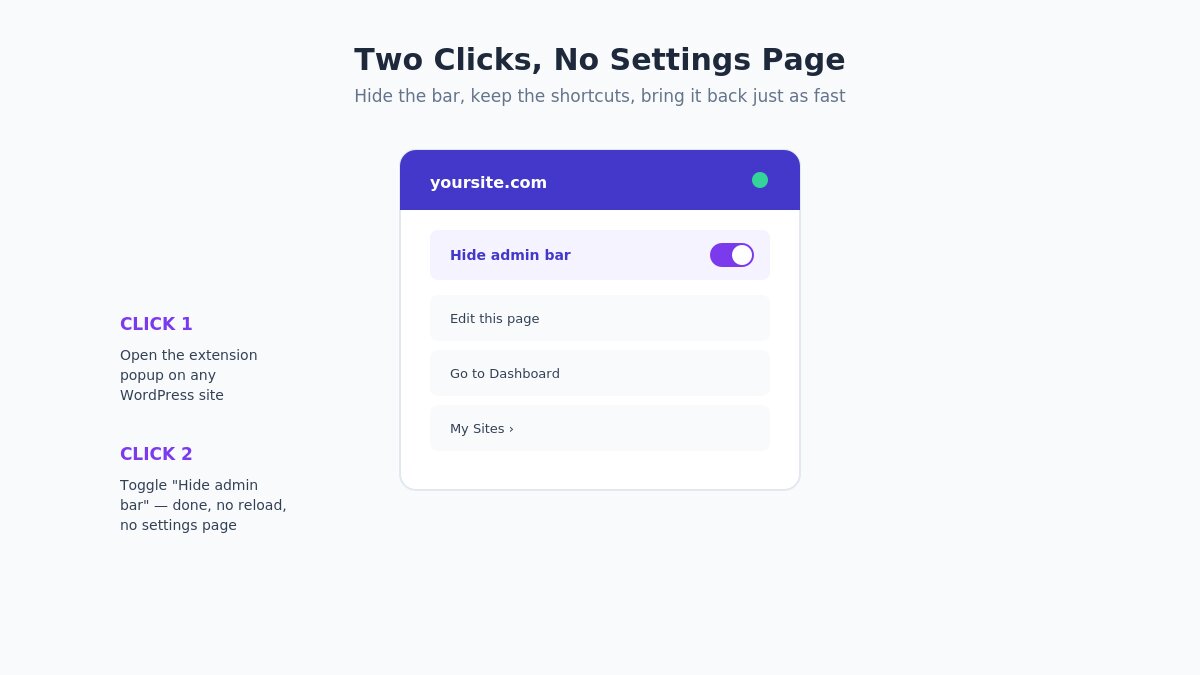
This is the core feature, and it’s worth understanding exactly how it behaves rather than assuming it works like the old profile-setting toggle:
- Click the extension icon on any WordPress site you’re signed into, and you’ll find an option to hide the admin bar — either just for the current site or as a default across every WordPress site you visit.
- With the bar hidden, the page renders exactly as a logged-out visitor would see it — full viewport height, no visual interference with sticky or fixed-position elements.
- The shortcuts don’t disappear, they relocate. The extension’s popup still gives you one-click access to edit the specific post, page, taxonomy, or template you’re currently viewing, jump to the dashboard, or access your profile.
- Bringing the full bar back, if you need it for a specific task, takes two clicks and no trip through settings.
For anyone regularly reviewing design work — your own or a client’s — this single feature removes a recurring, low-grade friction point: no more toggling a profile setting and reloading, no more explaining to a client that the live site won’t actually look like the screen you’re both staring at.
Why This Matters Specifically for Theme Evaluation
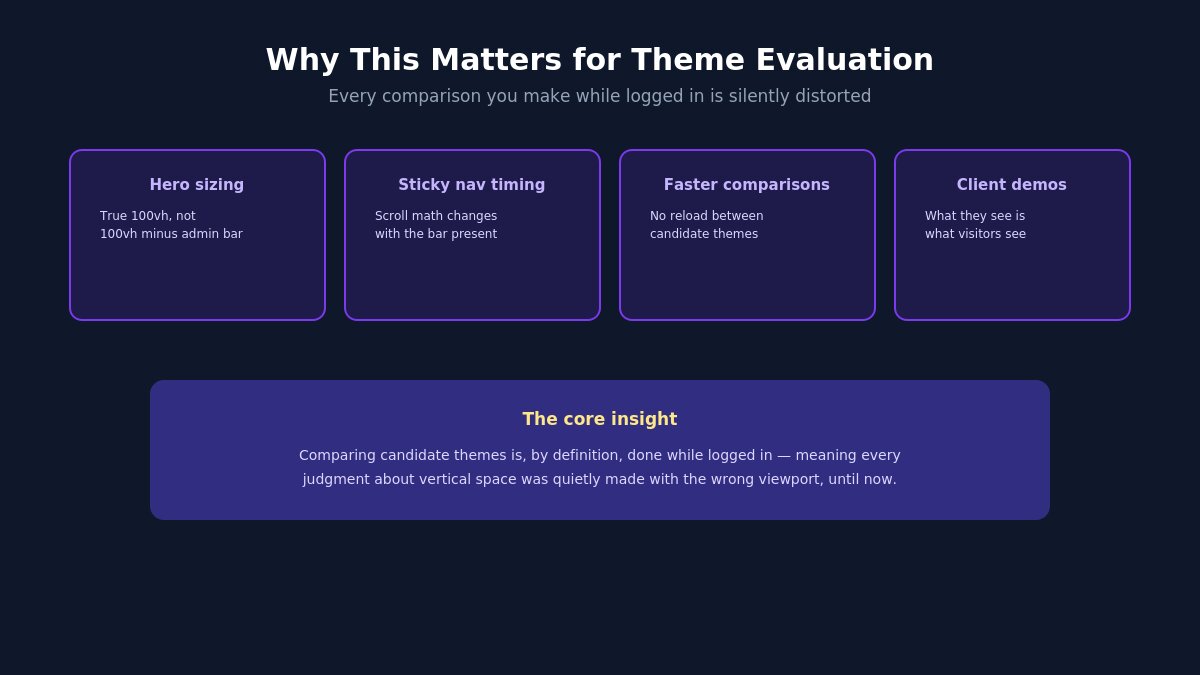
Here’s where this extension earns a place in a workflow that’s easy to overlook if you’re thinking about it purely as an admin convenience tool. If you’re comparing candidate themes for a new site, doing a design review, or demoing options to a client, you are — by definition — logged in the entire time. Every comparison you make is happening with the admin bar present, silently altering the exact thing you’re trying to judge: how much vertical space the design actually has to work with.
A few concrete ways this changes a theme evaluation workflow for the better:
- True hero-section sizing. If a theme’s hero section is built to fill 100% of viewport height, you need to see it at 100% of viewport height, not 100% minus the admin bar, to judge whether the design actually looks intentional or cramped.
- Accurate sticky-navigation behavior. Themes with a sticky header that activates after scrolling need to be judged on when and how that transition happens for an actual visitor — the admin bar changes the scroll math and can make a transition point look different than it will in production.
- Faster side-by-side comparisons. Switching between candidate themes to compare them is faster when you’re not repeatedly toggling a profile setting and waiting for a full page reload each time.
- More accurate client demos. Showing a client a design live, in the actual browser, with the admin bar hidden, means what they’re looking at is what their actual visitors will see — no verbal caveat needed.
If your work involves evaluating or building WordPress themes with any regularity, this is arguably the single most useful feature in the extension, even though it wasn’t the headline pitch in most of the initial coverage. It’s a reminder that the most valuable part of a new tool isn’t always the feature the announcement leads with — sometimes it’s the specific, narrow use case that happens to line up exactly with the work you already do every day.
The Developer Tools Panel
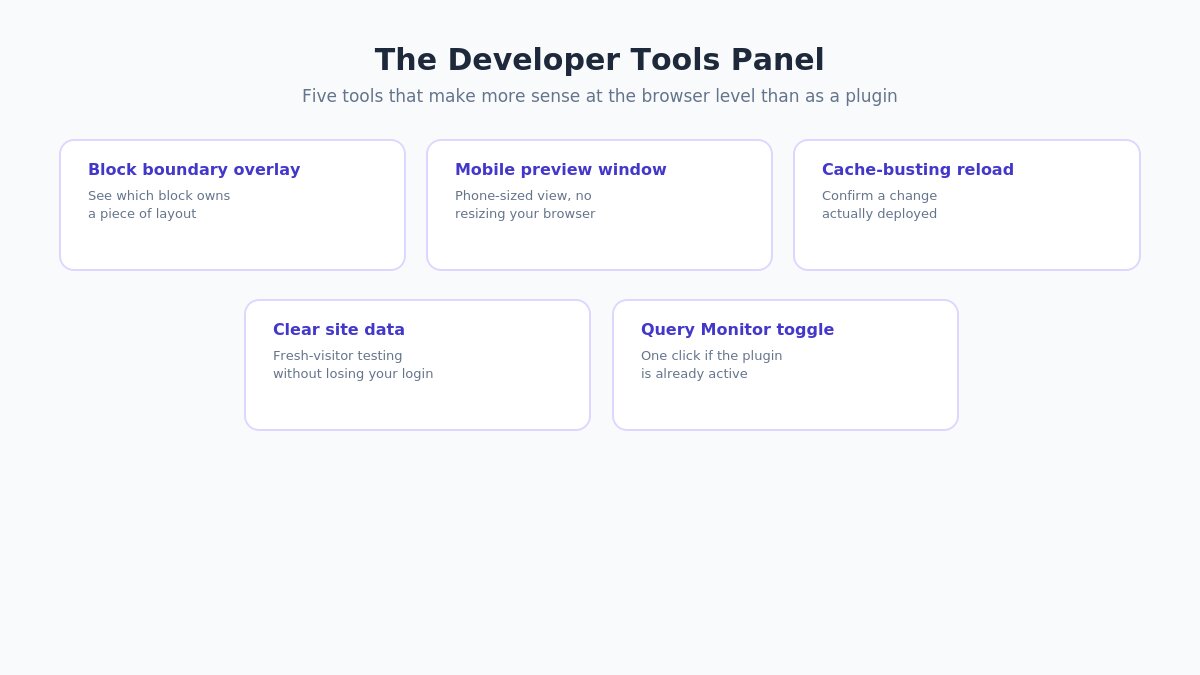
Beyond hiding the admin bar, the extension bundles a handful of tools that make more sense living at the browser level than as something installed into the site itself:
- Block boundary overlay. Highlights the edges of individual blocks directly on the rendered front-end page — useful for quickly identifying which block is responsible for a specific piece of layout without digging through the editor.
- Mobile-sized preview window. Opens the current page in a phone-sized window without needing to resize your actual browser or switch to your device’s dev tools panel.
- Cache-busting reload. Forces a fresh load of the page, bypassing any page or CDN caching — genuinely useful after making a change and wanting to confirm it actually deployed, rather than staring at a stale cached version wondering why nothing changed.
- Clear cookies and site data. Clears stored data for the current site specifically, without signing you out of WordPress — useful for testing how a page behaves for a “fresh” visitor without losing your own admin session in the process.
- Query Monitor toggle, if the Query Monitor plugin is already active on the site — a quick way to surface performance and query debugging information without navigating into the plugin’s own interface.
None of these are groundbreaking individually — most have existed in some form as separate browser extensions or dev tools panels for years. The value here is consolidation: one extension, purpose-built for WordPress specifically, rather than a collection of generic tools you have to configure and remember how to use.
The “My Sites” Launcher
If you manage more than one WordPress site — which describes most people running a template or theme business, an agency, or even just a handful of personal projects — the extension keeps a locally stored list of every WordPress site you’ve signed into. This becomes a quick-jump menu: click the extension, see your sites, go straight to whichever dashboard you need, without hunting through browser bookmarks or typing out a URL from memory.
This list lives entirely on your device. It isn’t synced to an account, isn’t uploaded anywhere, and isn’t visible to WordPress.org or Automattic — which matters if you’re managing sites for multiple clients and would rather not have that list exist anywhere beyond your own browser.
What This Extension Deliberately Doesn’t Do
It’s worth being clear about the boundaries here, since a first-party WordPress tool naturally invites assumptions about scope it doesn’t actually have:
- It doesn’t modify your site. Everything happens in the browser, locally — the extension doesn’t install anything on the WordPress installation itself, doesn’t add new database tables, and doesn’t touch your site’s files.
- It doesn’t replace your existing dev tools workflow entirely. Think of it as a fast, WordPress-specific layer on top of what you already do, not a replacement for your browser’s full developer tools panel or a dedicated staging environment.
- It doesn’t work on Firefox yet, as covered above — if that’s your primary browser, you’re not covered by this release specifically.
- It doesn’t include any AI features, despite that being a common thread in almost everything else WordPress has shipped over the past year. This is a deliberately narrow, utility-focused tool.
Privacy: What Actually Happens to Your Data
Given how central WordPress and Automattic are to the ecosystem, it’s a fair question whether “official” means “another thing collecting analytics.” Based on the extension’s own documentation and privacy disclosure, the answer here is genuinely no: no telemetry, no analytics, no advertising integration, no developer-controlled servers receiving your browsing data. Preferences, your detection cache, and your My Sites list are stored locally on your device. The only network requests the extension makes are to the actual WordPress site you’re visiting, to power the functionality itself — not to any third-party or WordPress.org tracking endpoint.
For anyone who’s grown understandably cautious about “free” browser extensions quietly monetizing browsing data, this is worth knowing before you install it, and it’s a genuinely different posture than most extensions in this general category take — particularly extensions that request broad permissions to read and modify data on every site you visit, which this one also requires in order to function, but visibly does not exploit beyond its stated purpose.
What’s Coming Next
According to the developer behind the project, a few features are already on the roadmap beyond this initial release: Firefox support, browser-level editorial preferences that follow a specific user across every WordPress site they manage rather than being set per-site, and a content-capture tool for turning something you’re viewing on the web directly into a new WordPress post — a modern nod to the old “Press This” bookmarklet that longtime WordPress users will remember fondly.
None of that is available yet, so don’t build a workflow around features that haven’t shipped — but it’s a reasonable signal that this is an actively maintained project rather than a one-off release.
A Few Setup Snags Worth Knowing About
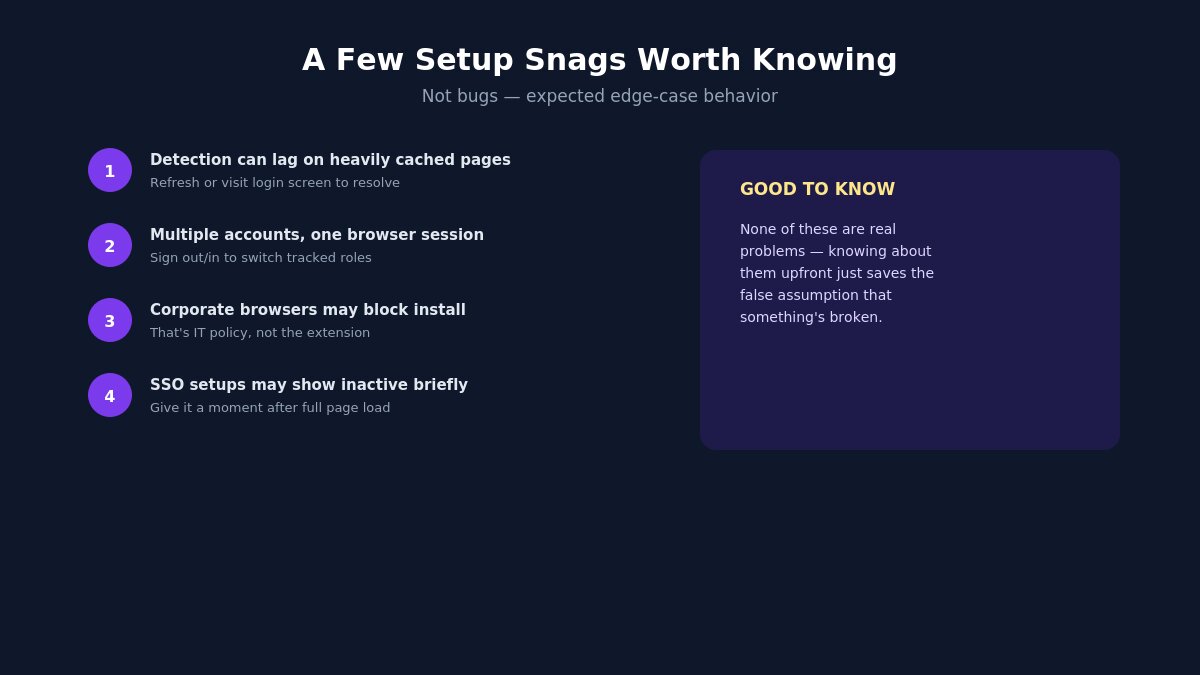
A first-release extension from a project this size is generally solid, but a few practical wrinkles are worth knowing before you assume something’s broken:
- Detection can lag on heavily cached or CDN-fronted pages. Because the extension checks for WordPress signals like the REST API, generator meta tags, and body classes, a page served entirely from an edge cache without those markers intact can occasionally show as “not detected” even though the underlying site runs WordPress. Refreshing or navigating to an uncached page (like the login screen) usually resolves it immediately.
- Multiple WordPress accounts on the same site — a common setup for agencies testing different user roles — are handled per-browser-session, not per-account, so switching between a client’s admin login and a contributor login for testing purposes may require signing out and back in rather than the extension tracking both simultaneously.
- Corporate or managed browser environments sometimes restrict extension installations entirely through policy. If you’re on a work laptop and the Chrome Web Store install doesn’t complete, that’s very likely an IT policy rather than an issue with the extension itself.
- The icon can look inactive at first glance on sites using an unusual authentication setup (single sign-on layered in front of WordPress, for instance) — give it a moment after the page fully loads before assuming detection failed.
None of these are significant problems, but knowing about them upfront saves the false assumption that something’s gone wrong when it’s actually working as designed for an edge case.
How This Compares to What You Were Doing Before
If you’ve been managing this problem manually, you were likely doing one of a few things: toggling the admin bar off in your profile and back on when you needed the shortcuts, keeping a separate incognito or private window open specifically to check the “visitor view,” or maintaining a personal collection of browser bookmarks and dev tools shortcuts cobbled together over time. All of these work. None of them are particularly fast, and the incognito-window approach specifically has its own downside — you lose your session entirely, so checking “does this look right to a visitor” and “let me quickly edit that heading” become two completely separate browser contexts instead of one continuous workflow.
The extension’s actual improvement isn’t that it does something previously impossible — it’s that it collapses several separate manual workarounds into one persistent, low-friction toggle that lives exactly where you’d expect it, without asking you to give up your logged-in session to get an accurate view.
Why WordPress Built This as a Browser Extension, Not a Plugin
It’s worth understanding the reasoning behind the architecture choice itself, since it explains why certain features work the way they do. A WordPress plugin runs on the server and inside the site’s own codebase — it can modify what gets sent to the browser, but it has no visibility into how the browser actually renders that page, what other tabs are open, or what other WordPress sites you’re currently signed into elsewhere. A browser extension flips that entirely: it has full visibility into your browsing context across every site, but no ability to modify what the server sends in the first place.
For a tool whose entire purpose is showing you an accurate view of your own site and giving you quick access across multiple sites you manage, the browser-extension architecture is the only one that actually fits the job. A plugin-based equivalent would need to be installed separately on every site you manage, wouldn’t have any awareness of your other open tabs or sessions, and couldn’t do anything about the fundamental viewport problem the admin bar creates, since that’s a rendering decision made by the browser, not the server.
Should You Actually Install This?
If you evaluate, build, or review WordPress themes and designs with any regularity, yes — install it today. The admin-bar-hiding feature alone solves a real, recurring problem in exactly the kind of work where an inaccurate viewport actively costs you the ability to judge a design correctly, and the developer tools panel is a genuine convenience on top of that.
If you manage a WordPress site casually and rarely think about viewport height or sticky navigation behavior, it’s still a reasonable, low-risk install — free, open source, no telemetry, and it does nothing until you actually use it. The worst case is an unused toolbar icon; the best case is a small, recurring friction point in your workflow that quietly disappears.
Building or evaluating themes and want a design that holds up under real scrutiny? Browse our WordPress themes or Joomla templates.

- 63 AI-Ready WordPress Block Themes for Local Businesses – October 15, 2026
- Fix “The Response Is Not a Valid JSON Response” in WordPress – October 14, 2026
- Joomla Workflows: Set Up an Article Approval Process – October 13, 2026