
Do you know how to set featured images or post thumbnails in WordPress? Luckily, this blog gives you a step-by-step tutorial to handle this.
What is the role of the featured image in WordPress?
As you know, a featured image is a special image that is displayed at the top of your post/ page and next to each post’s heading on your homepage. This featured image plays an essential role in representing an individual post/page or custom post type. Additionally, if you choose a suitable image as the featured image, it can make your site more stunning. As a result, your website will have more opportunities to enhance user engagement as well as increase pageviews.
How to add featured images or post thumbnails in WordPress?
Firstly, navigate to the post/page where you want to set a featured image, or start a new post.
Secondly, look at the right-hand sidebar and you will see a list of options. In the Featured Image section, click on the Set featured image link.

This will open a popup window where you can upload a new image from your computer by clicking on the Select files button. In addition, you can also choose one from your pre-uploaded images in your media library.
Additionally, it allows you to add a title, caption, and description for the featured image in the right-hand column.
After that, click on the Set featured image button.

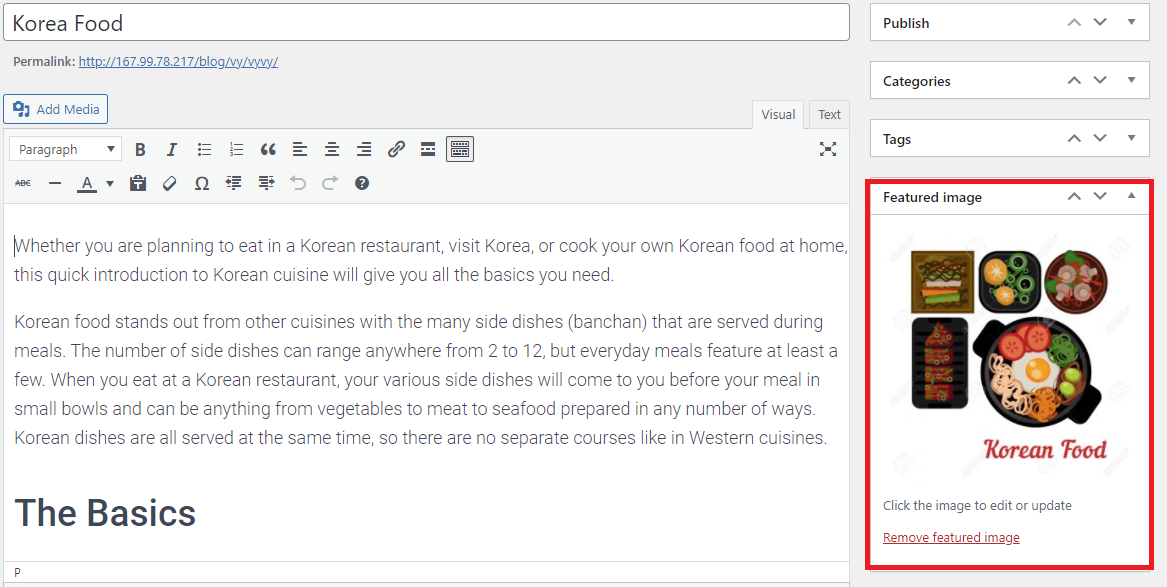
Now, you can see the preview of the featured image in the right column. However, the featured image will look different depending on your WordPress Theme.
You can click on the Update/ Publish button to see how the featured image appears on your live website.
How to resize the WordPress featured image?
You can change the size of the WordPress featured image by customizing your theme’s functions.php. However, this method is quite complicated and it requires coding skills. Luckily, there are several useful plugins that can help you handle this task effectively.
First of all, you need to install the Simple Image Size plugin by going to Plugins > Add New on your dashboard. Then type the plugin’s name in the search bar. Simply click on the Install Now button and Activate it.

After the plugin has been installed, navigate to Settings >Media to change the featured image’s size.

Here, you need to fill in the parameters in the image size or thumbnail size field. In addition to resizing the featured image, this plugin also allows you to change the default WordPress image size.
You should note that changing the image size here will not affect the size of your old images. To resize the old images, you don’t need to re-upload the images; just click on the Regenerate Thumbnails button. Thumbnails will be displayed correctly according to the size you choose.
How to find free images for your WordPress posts?
There is a wide array of stunning and professional images on the internet. However, if you accidentally choose images that are actually copyrighted, using them can cause legal and financial consequences for your website. Therefore, you should consider carefully before choosing a featured image for your website.
Fortunately, there are some reputable websites that provide a lot of free images for your blog posts. You can refer to one of the available sources below:
- Shutterstock
- Unsplash
- Negative Space
- New Old Stock
- and much more
End
Hopefully, through this post, you have learned how to set featured images or post thumbnails in WordPress. If you have any problems while using the methods above, please leave a comment below. We are always willing to support you.
Moreover, you can access our detailed tutorial on how to fix common image issues in WordPress. Last but not least, if you want to make your website more stunning, don’t miss our Free WordPress Themes.