
Showing banners has become an increasingly popular method in digital marketing. This is because banner ads offer a visually appealing layout that can capture customers’ attention very well. Therefore, this tutorial blog will propose some simple methods for WordPress users to add a banner to the WordPress site. Now, let’s start!
What are the benefits of adding a banner to the WordPress Site?
Banners will help you increase sales and revenues effectively thanks to their eye-catching layout. With banners, you can showcase text, images, and other kinds of content and highlight information with ease. In addition, you can flexibly present banners in different places on your site without complex coding requirements. Therefore, you can save your site space and earn more income from advertisements, or inform customers about your product launches, discounts, and other kinds of promotion. Last but not least, you can customize your banner appearance in your own way easily.
How to Add a Banner to the WordPress Site
It’s possible for you to embed a banner in your WordPress site with or without the assistance of a WordPress plugin. Without further ado, let’s explore each method together with its advantages and disadvantages.
Method 1: Add a Banner to the WordPress Site without using a plugin
You are able to insert banners directly from your WordPress sites. This solution is quite simple and especially suitable for banner ads such as images, videos, and GIFs.
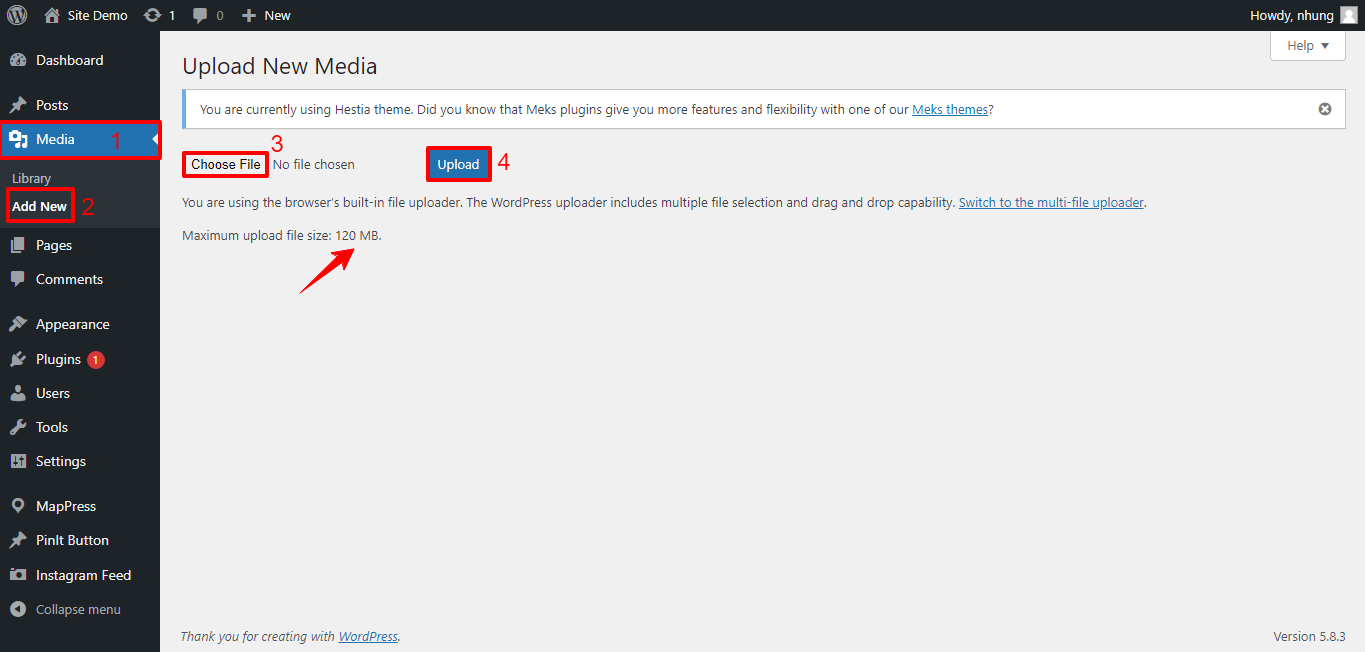
To add a banner to the WordPress site, go to Media –> Add new –> Choose File –> Upload.
You should upload banners within the maximum upload file size of your website. However, if your file exceeds this limitation, you can increase it easily by following the instructions in How to fix ‘The link you followed has expired’ Error in WordPress.
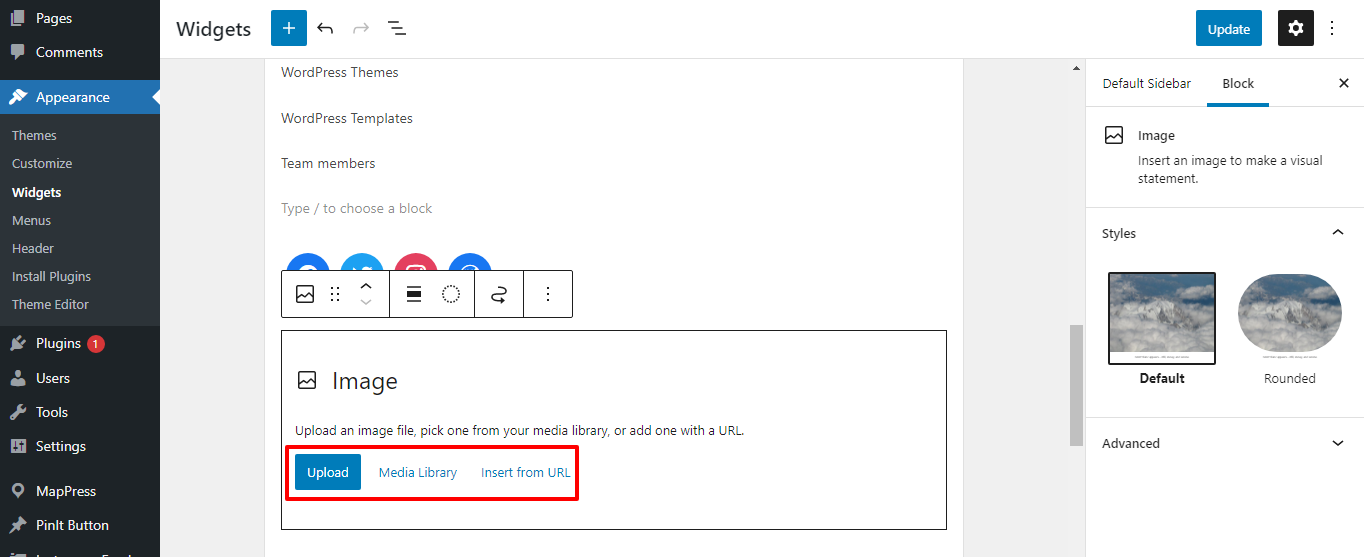
Next, navigate to Appearance –> Widgets, choose the proper place for displaying banners and click on the plus sign (+). Then, search for “Image” to open the Image widget.

In the new window, you can upload your banners directly from your device, Media Library, or even Insert from URL.
In this article, we will open the banner image that we have uploaded by clicking on Media Library and choosing a suitable item. Then choose the Select option to add the image to the widget.

Next, you can customize your image banner in your own way with a wide range of options such as changing alignment, inserting a direct link, and more in the navigation menu over the images. At the bottom of the image, you can see the Add Caption option where you are able to adjust the text fonts, add links, and so on.

Then go to the front end and check what your banner looks like!

Method 2: Add a Banner to the WordPress Site by using a Plugin
This method requires you to install and activate Simple Banner, one of the must-have WordPress Banner Plugins. If you don’t know how to do this, see our detailed instructions in How To Install A WordPress Plugin For Beginners.
Upon activation, go to the Admin Dashboard –> Simple Banner. In the Simple Banner Settings, you can create your own new banner by selecting and entering banner text, custom CSS, and other elements to make your banner perfect.

Finally, don’t forget to click on the Save button to save your changes.
End
To sum up, we hope that this article can give you simple-to-understand instructions for embedding a banner into your WordPress sites. If you get into any trouble, let us know in the comment box below.
Besides, we also provide a huge library of WordPress designs to help you build your dream site quickly. So, why don’t you take a look at Free WordPress Themes to find the best WordPress themes and templates that are suitable for both your style and budget to boost your site development?