You add a line of custom CSS to change a button’s color, save it, refresh the page — and nothing happens. The button is still the theme’s original color. You double-check the CSS is actually saved, confirm there’s no typo, even try refreshing with cache cleared, and it still doesn’t apply. This is one of the most common points of frustration in customizing any WordPress or Joomla theme, and it almost always comes down to one specific, well-defined concept that most people customizing a theme have never actually had explained clearly: CSS specificity.
The frustrating part is that this isn’t a bug, a caching quirk, or anything actually broken — it’s CSS working exactly as designed, following a scoring system that’s been part of the web standard since the 1990s and hasn’t meaningfully changed since. That consistency is actually good news: once you understand the rule, it applies identically on every theme, every page builder, and every future site you ever touch, rather than being something you need to relearn per project.
If you read our guide to customizing a theme without losing changes on updates, this is the natural next problem — you’ve correctly set up a child theme or override so your custom CSS survives updates, and it still doesn’t visually apply. Here’s exactly why, and how to fix it properly instead of reaching for the usual workaround.
What Specificity Actually Is
When two CSS rules both try to style the same element, the browser has to decide which one wins. Specificity is the scoring system browsers use to make that decision — every CSS selector gets a calculated “weight” based on what it’s made of, and when two rules conflict, the rule with the higher weight wins, regardless of which one appears first or second in the stylesheet, and often regardless of which stylesheet loads later.
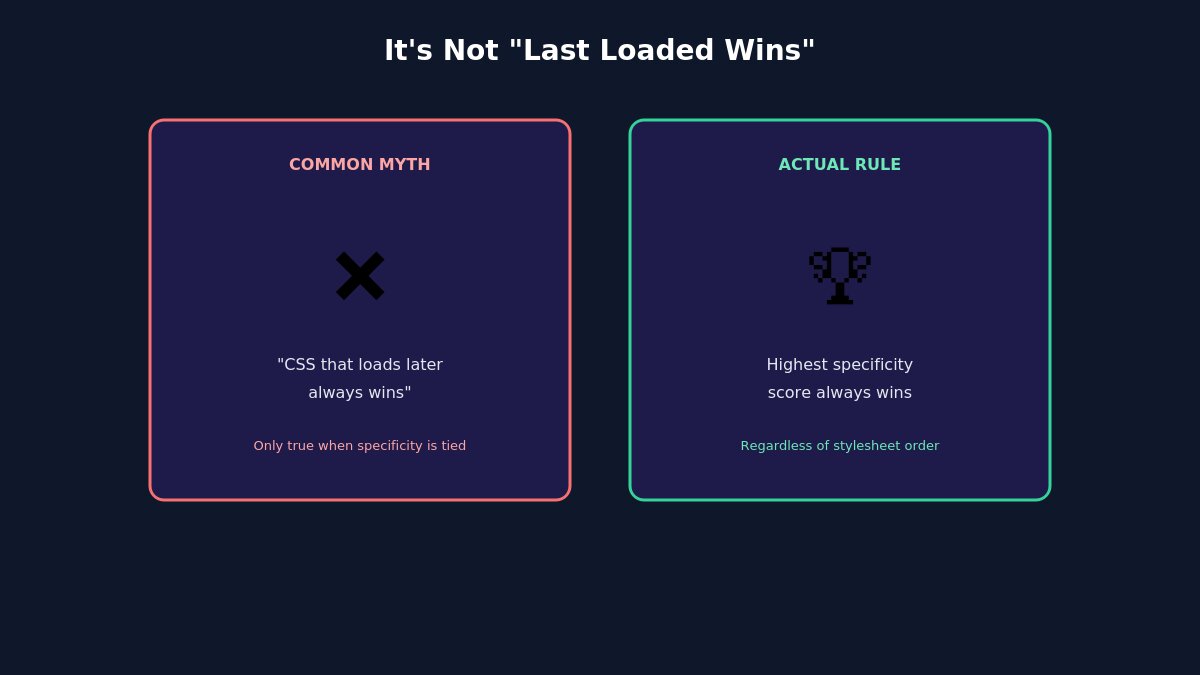
This point trips people up constantly: it is not simply “the CSS that loads last wins.” Load order only matters as a tiebreaker when two selectors have exactly equal specificity. If your custom CSS loads after the theme’s CSS but has lower specificity, the theme’s rule still wins — this is precisely the scenario behind the vast majority of “I added CSS and nothing changed” situations.
How the Score Is Actually Calculated
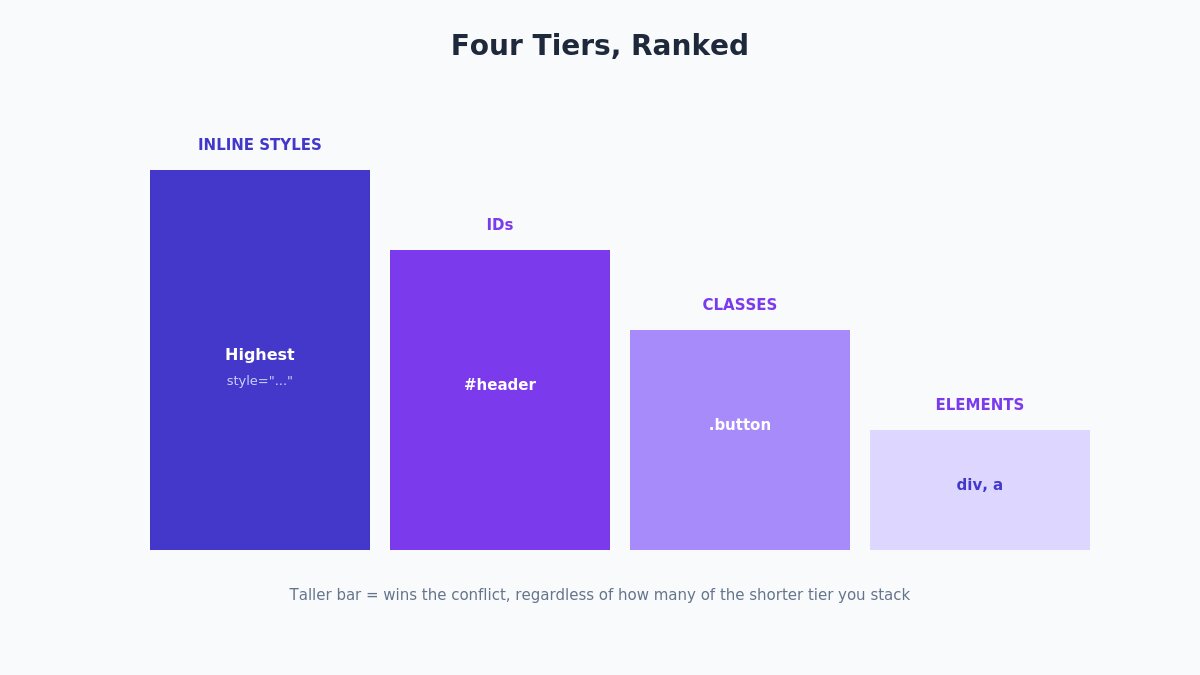
Specificity is calculated across four tiers, from highest weight to lowest:
- Inline styles (a
style="..."attribute directly on an HTML element) — the highest weight of all, overriding virtually any stylesheet rule. - IDs (
#header,#main-nav) — the next tier down, and a common source of theme CSS being harder to override than it should be, since many themes use ID selectors for major layout elements. - Classes, attribute selectors, and pseudo-classes (
.button,[type="submit"],:hover) — the tier most custom CSS operates in. - Elements and pseudo-elements (
div,a,::before) — the lowest weight, easily overridden by almost anything more specific.
A selector’s total score adds up contributions from all four tiers, and more selectors combined together generally increases the total. .button scores lower than .sidebar .button, which scores lower than #content .sidebar .button. This is why a theme’s own CSS, which is often written with several nested classes or an ID to keep its own styles contained and predictable, frequently outscores a single, simple custom class you’ve just added — not because the theme is doing anything unusual, just because it’s more specific by the numbers.
A Concrete Example With Real Numbers
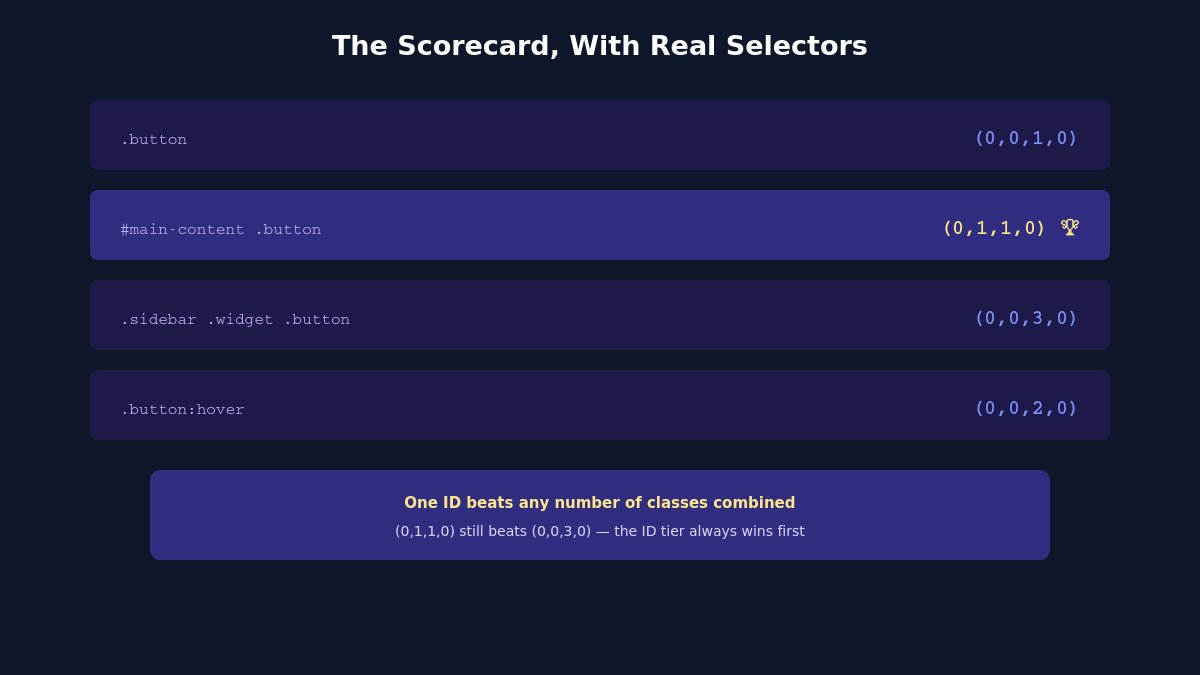
Abstract rules are easier to apply with actual numbers attached. Specificity is commonly represented as a set of four numbers (inline, IDs, classes, elements), read left to right in priority order:
.button→ (0, 0, 1, 0) — one class, nothing else.#main-content .button→ (0, 1, 1, 0) — one ID plus one class. This beats the line above outright, since any single ID outweighs any number of classes..sidebar .widget .button→ (0, 0, 3, 0) — three classes, no ID. This actually beats a plain.buttonbut still loses to#main-content .buttonabove, since that one ID is worth more than three classes combined..button:hover→ (0, 0, 2, 0) — a class plus a pseudo-class, which counts in the same tier as classes.
If your custom CSS is a plain .button { } rule and the theme’s own CSS targets that same button with #main-content .button { }, your rule loses every time, regardless of where either rule sits in the loading order. This is almost certainly the exact shape of whatever is happening on your own site right now if a simple class-based custom style isn’t taking effect.
Why Theme CSS Often Wins by Default
Understanding this pattern explains a genuinely common frustration: many WordPress and Joomla themes, particularly ones built with a page builder like Elementor or SP Page Builder, generate fairly specific selectors automatically as part of how the builder renders its own output — nested classes, sometimes IDs tied to specific elements or widgets. This isn’t a flaw in the theme; it’s a reasonable way for a theme to keep its own styles predictable and contained so they don’t accidentally leak into or get overridden by unrelated page content. The side effect is that a simple, low-specificity custom CSS rule frequently isn’t specific enough to win against it by default.
The !important Trap
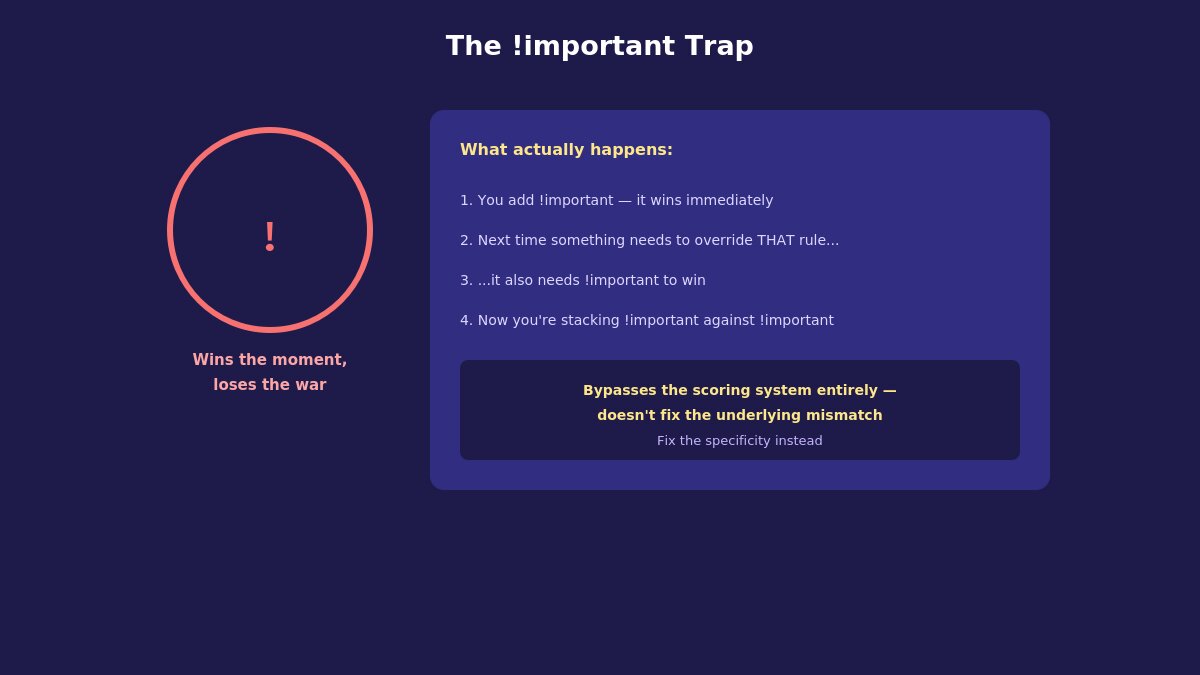
The common workaround — adding !important to the end of a CSS declaration — genuinely works in the moment: it overrides normal specificity rules almost entirely, forcing that specific declaration to win regardless of the selector’s actual calculated weight. This is exactly why it’s so tempting, and exactly why it causes real problems down the line.
The issue is that !important doesn’t fix the underlying specificity mismatch — it bypasses the entire system, which means the next time you (or a theme update, or a plugin) needs to override that same property, you’re now fighting an !important rule instead of a normal one, and the only way to win that fight is another !important, escalating a manageable specificity problem into a genuinely difficult one to untangle later. A stylesheet with !important scattered throughout is a stylesheet where the normal, predictable rules of CSS no longer reliably apply, and every future change becomes harder to reason about than it needed to be.
A single, deliberate, well-documented use of !important — overriding a specific inline style you can’t otherwise reach, for instance — is a reasonable, narrow exception. Reaching for it as the default fix every time a specificity conflict comes up is the pattern worth avoiding.
Common Patterns That Make Theme CSS Especially Hard to Override
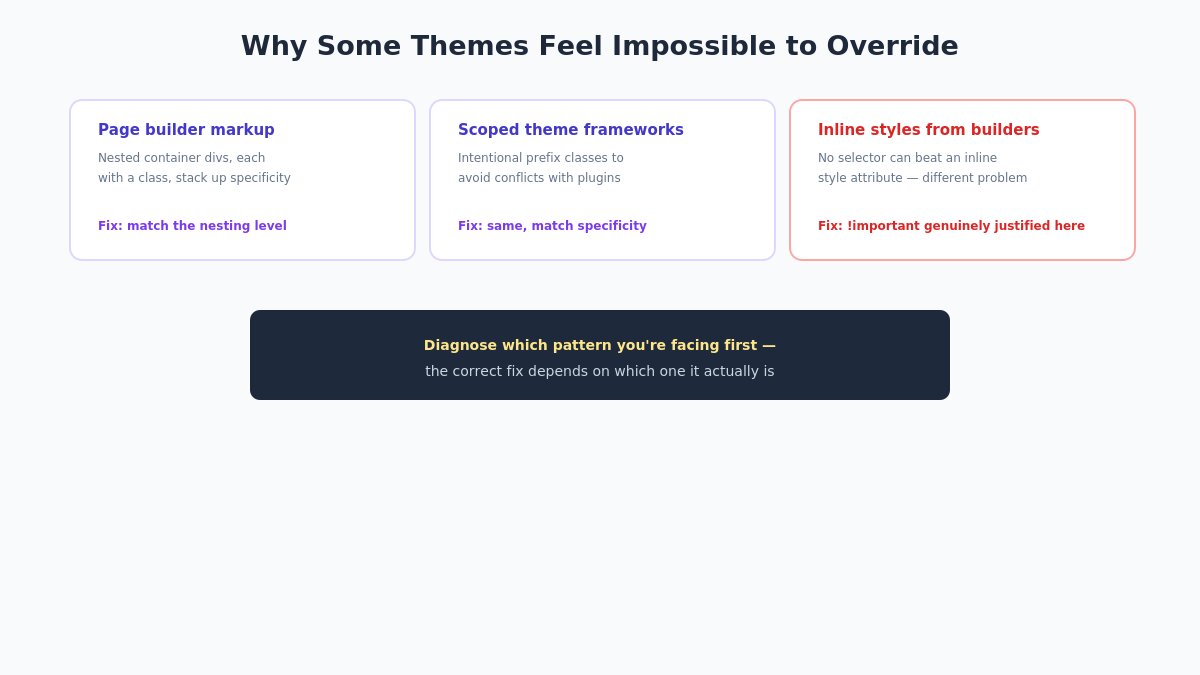
A few specific, recurring patterns are worth knowing about, since they explain why some themes feel especially resistant to customization compared to others:
- Page builder-generated markup. Elementor, SP Page Builder, and similar tools often wrap content in multiple nested container divs, each potentially carrying its own class, to keep their layout system self-contained. A button several layers deep in this structure can end up with genuinely high specificity by the time you’re trying to target it, purely as a side effect of how the builder constructs its output.
- Utility-first or heavily-scoped theme frameworks. Some modern themes intentionally scope their CSS tightly — using a unique prefix class on nearly every selector — specifically to avoid style conflicts with plugins and custom code. This is a deliberate, defensive design choice that has the side effect of making the theme’s own styles harder to override with a casual, low-specificity rule.
- Inline styles from page builder settings. This is the one case where the browser’s normal specificity hierarchy doesn’t help you at all — if a page builder applies a color or size setting as an inline
styleattribute (common for values set directly in the builder’s visual interface, like a specific font size chosen from a dropdown), no ordinary CSS selector can override it, regardless of how specific it is. In this specific situation,!importantis genuinely the correct and often only practical tool, since you’re not fighting a specificity mismatch — you’re fighting the one category of style declaration that sits above the entire specificity system by design. - Third-party plugin CSS loaded after your custom stylesheet. Occasionally what looks like a specificity problem is actually a loading-order problem for two rules of genuinely equal specificity — worth checking both possibilities in DevTools rather than assuming it’s always a pure specificity issue.
Recognizing which of these patterns you’re actually dealing with changes which fix is appropriate — matching specificity for nested builder markup, versus reaching for a justified !important specifically to counter an inline style, versus checking load order for a tied specificity score.
How Specificity Interacts With CSS Custom Properties
A detail worth knowing if your theme uses CSS custom properties (variables, written as --variable-name) for theming, which is increasingly common in modern WordPress block themes and newer Joomla templates: overriding a custom property’s value is a different operation than overriding a rule that uses that property, and the two are easy to conflate when troubleshooting.
If a theme defines --button-color: blue; at a broad scope (commonly on :root or body) and a component uses background: var(--button-color);, redefining --button-color at an equal or narrower scope changes the value everywhere that variable is referenced — no specificity battle required, since you’re changing the variable’s value rather than competing to override the rule that consumes it. This is often a cleaner fix than fighting specificity directly, when your theme’s design system is actually built around custom properties rather than hardcoded values throughout. Check your theme’s stylesheet (or its documentation) for whether it uses this pattern before assuming a standard specificity override is your only option — themes built around CSS custom properties are often easier to restyle this way than by fighting the cascade directly.
The Right Way to Win: Increase Specificity Deliberately
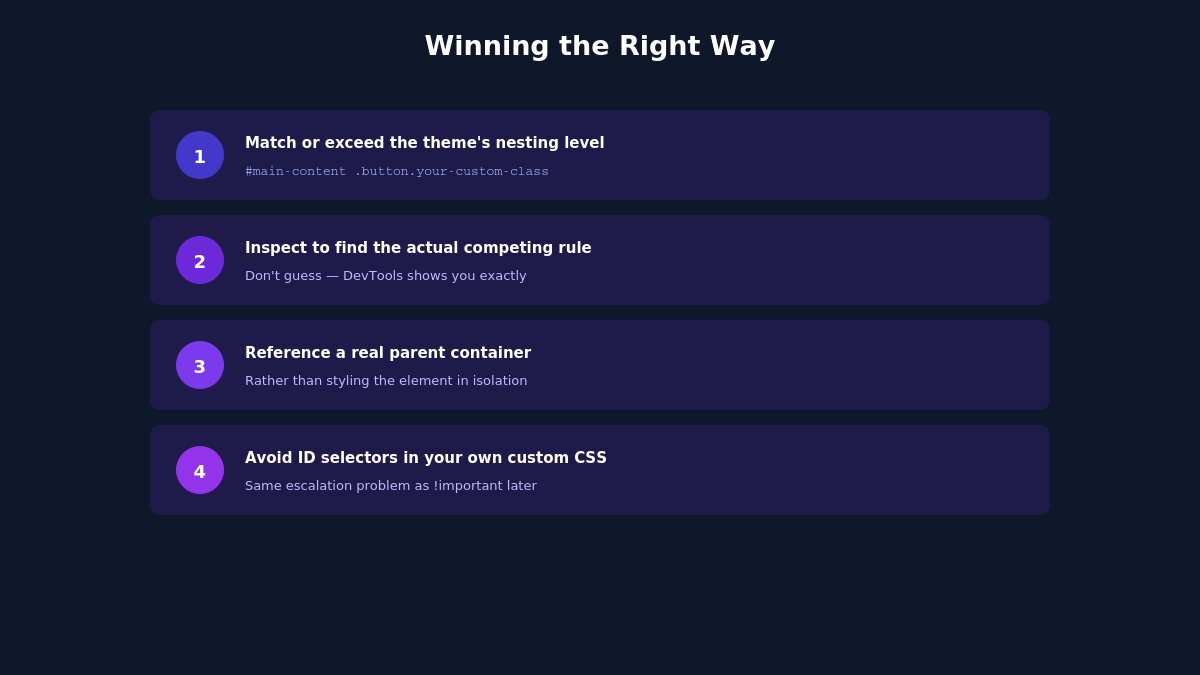
Instead of !important, the correct fix is writing a selector that’s genuinely more specific than the one you’re overriding, using the same scoring system rather than bypassing it:
- Match or exceed the theme’s nesting level. If the theme’s rule is
#main-content .button, your override needs at least that level of specificity —#main-content .button.your-custom-classcomfortably beats it. - Use your browser’s inspector to see the actual competing rule. This is the single most useful habit for solving specificity problems quickly rather than guessing — covered in detail below.
- Add a more specific parent selector, referencing a container or section your target element actually sits inside, rather than trying to style it in isolation.
- Avoid ID selectors in your own custom CSS if you can help it, even though they’d technically “win” more easily — IDs create the same escalating specificity problem as
!importantif you need to override your own custom ID-based rule later.
A Newer Wrinkle: Cascade Layers
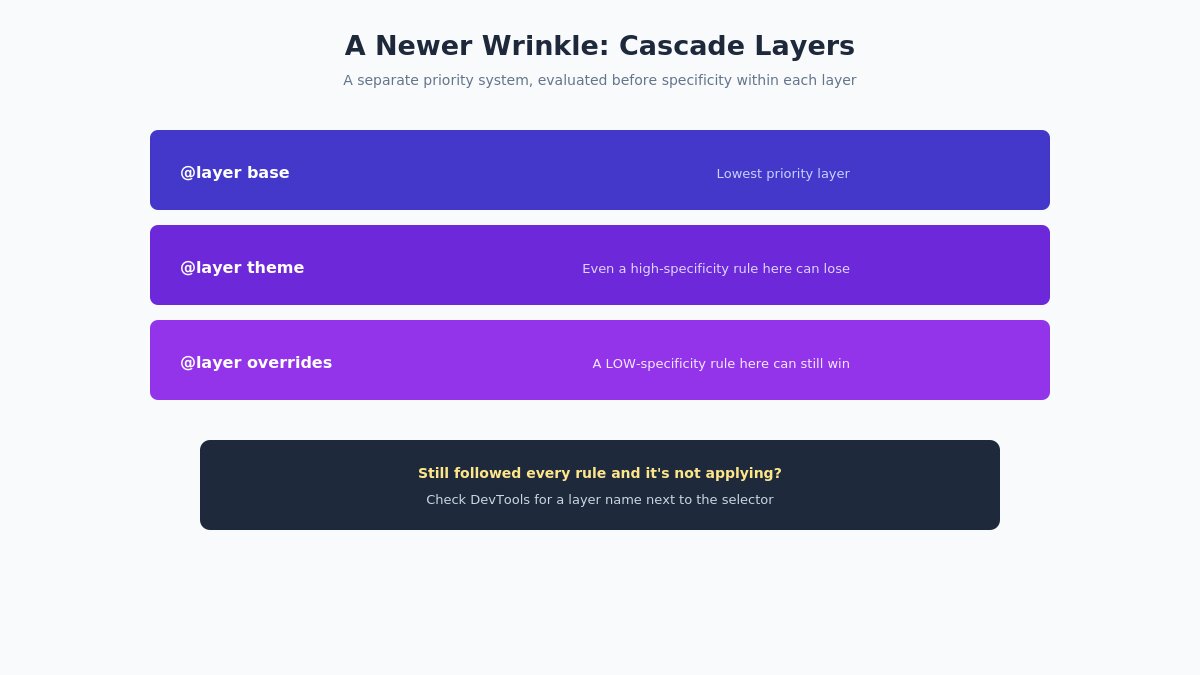
Modern CSS added a feature called cascade layers (@layer), and it’s worth knowing about since some newer themes and page builders have started using it, and it changes the specificity conversation in an important way. Cascade layers let a stylesheet author group CSS rules into named layers, and layers themselves have a priority order that’s evaluated before specificity within each layer — meaning a low-specificity rule in a later layer can beat a high-specificity rule in an earlier layer, which looks like it breaks the normal specificity hierarchy described above, but is actually a separate, higher-priority system layered on top of it.
For most WordPress and Joomla customization work, you won’t run into this directly yet — it’s still a relatively newer feature that only some modern themes and tools have adopted. But if you’ve followed every rule in this guide correctly, matched or exceeded the competing selector’s specificity, and your CSS still isn’t applying, checking whether your theme uses @layer anywhere is worth adding to your troubleshooting list. DevTools will generally show you the layer a rule belongs to alongside its selector, which is the fastest way to confirm whether this is what you’re actually dealing with rather than a standard specificity conflict.
A Second Common Confusion: Specificity vs. Source Order
It’s worth being precise about a distinction that’s easy to blur even after understanding specificity in principle: specificity and source order (which rule appears later in the stylesheet, or which stylesheet loads later) are two separate mechanisms, and they only interact in one specific way — source order is the tiebreaker used only when two rules have genuinely equal specificity. It never overrides a real specificity difference.
This matters practically because a common troubleshooting mistake is moving custom CSS later in the loading order (enqueuing a stylesheet after the theme’s own, or pasting a rule at the very bottom of a custom CSS box) and expecting that to fix a specificity mismatch. If the competing rule has higher specificity, load order changes nothing — your later-loading, lower-specificity rule still loses. This is worth ruling out early in troubleshooting: if you’ve confirmed two selectors have genuinely equal specificity (same counts across all four tiers), then load order is your answer and moving your CSS later will fix it. If the specificity scores are different, load order is irrelevant and you need to address the specificity gap directly using the methods covered above.
Debugging With Browser DevTools
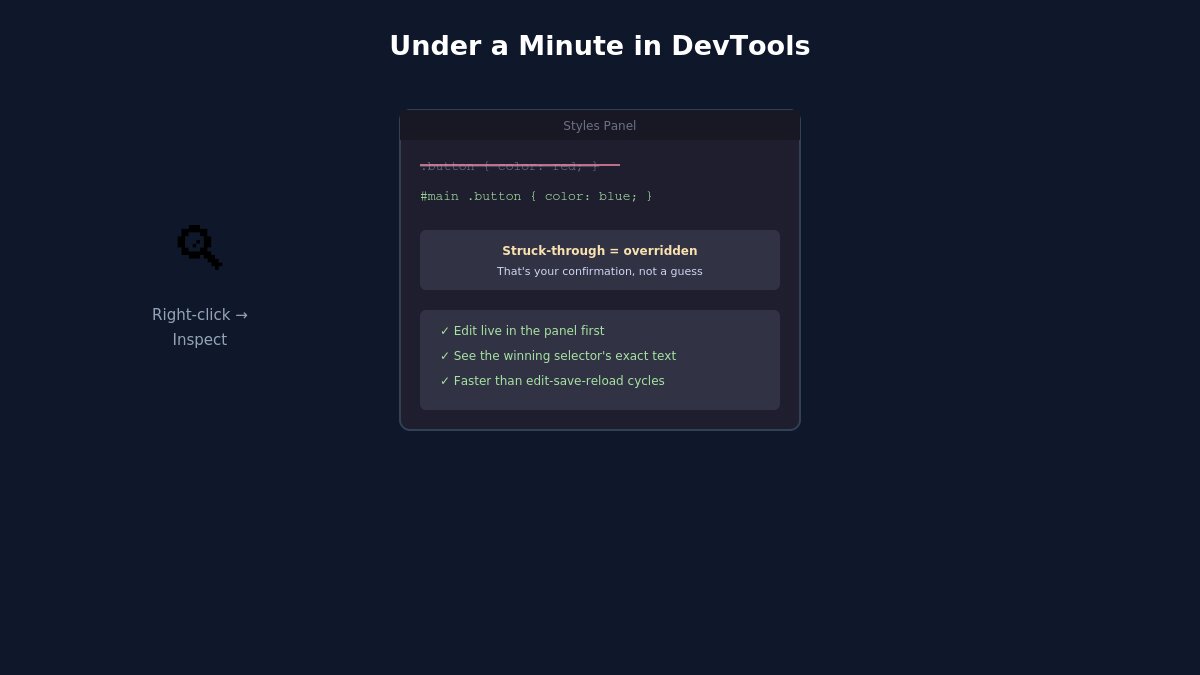
This is genuinely the fastest way to solve any specificity conflict, and it takes under a minute once you know the steps:
- Right-click the element that isn’t styled correctly and choose Inspect (or Inspect Element).
- Look at the Styles panel — most browsers show every CSS rule targeting that element, with rules that are being overridden shown with a strikethrough.
- Find your custom rule in the list. If it’s struck through, you’ve confirmed the specificity conflict directly rather than guessing — and you can see exactly which competing rule is winning, including its selector, which tells you precisely how specific your override needs to be to beat it.
- Test changes live in the inspector first, before editing your actual stylesheet — most browser DevTools let you edit CSS directly in the panel and see the result immediately, which is a faster iteration loop than editing a file, saving, and reloading repeatedly.
Where to Actually Put Your Custom CSS
On WordPress, three common locations each have different implications: the Customizer’s Additional CSS panel (quick, but tied to the active theme and not version-controlled), a child theme’s style.css (survives updates, sits alongside your other theme customizations — see our theme customization guide for the full setup), or a dedicated custom CSS plugin (useful if you want CSS decoupled from the theme entirely). Specificity rules apply identically regardless of which location you choose — the location affects maintainability and update-safety, not how the browser scores your selectors.
On Joomla, custom CSS commonly goes into a template’s dedicated custom CSS field (if the template provides one) or a CSS file loaded through a template override — worth checking your specific template’s documentation for exactly where this is configured, since implementation varies by template. As with WordPress, specificity math is identical regardless of Joomla’s own file structure.
A Practical Troubleshooting Checklist
- Confirm the CSS is actually loading — check the Network tab in DevTools, or view the page source, to rule out a caching or file-path issue before assuming it’s a specificity problem at all.
- Inspect the specific element and find the competing rule with the strikethrough, rather than guessing at what’s overriding your style.
- Compare the two selectors’ specificity using the four-tier scoring covered above.
- Write a selector that legitimately beats the competing rule, matching or exceeding its nesting level.
- Avoid
!importantand ID-based overrides as your default fix, reserving them for genuine edge cases rather than routine conflicts. - If you’re consistently losing specificity battles against a specific theme, it may be worth a broader look — our customization service can help if this is becoming a recurring pattern rather than an occasional fix.
The Three Numbers Worth Remembering
If you only take one thing from this, it’s the four-tier hierarchy in priority order: inline styles beat IDs, IDs beat classes, classes beat elements, and more of the same tier beats fewer. Every specificity conflict you’ll ever run into is some version of this same comparison. Once you can look at two competing selectors and immediately tell which one the browser will pick, “I added CSS and nothing happened” stops being a mystery and becomes a two-minute fix — inspect the element, compare the selectors, write something that legitimately outscores the one that’s winning.
This is also, genuinely, one of the few pieces of web fundamentals knowledge that pays for itself immediately and keeps paying off — every future theme, every future page builder, every future site you touch operates under the exact same scoring system, whether it’s WordPress, Joomla, or something else entirely.
Building on a theme with clean, predictable CSS structure makes this kind of troubleshooting rarer to begin with. Browse our WordPress themes or Joomla templates built with that in mind.

- Replace WP-Cron with a Real Cron Job (and Fix Missed Schedules) – October 28, 2026
- 63 AI-Ready WordPress Block Themes for Local Businesses – October 15, 2026
- Fix “The Response Is Not a Valid JSON Response” in WordPress – October 14, 2026