Why you need to set up reCaptcha to WordPress Comment Form
Currently, one of the most common problems that annoy website administrators using the WordPress platform is comment spam. Hackers utilize this method to attack the WordPress sites they are targeting to exploit security information or related problems. If you want to protect your website from such attacks, as well as easily manage comment information on your site, you need to have an effective solution to prevent comment spammers. Honestly, there are a lot of ways to avoid this issue. However, to help you save time and effort, we recommend using Google reCaptcha. With Google’s AI technology, it recognizes real visitors via a recognition challenge. So, without further ado, let’s learn how to set up reCaptcha to WordPress Comment Form!
How to Set Up reCaptcha to WordPress Comment Form
First of all, you need to access your admin dashboard. Then, simply download Simple Google reCAPTCHA. and install the WordPress plugin.
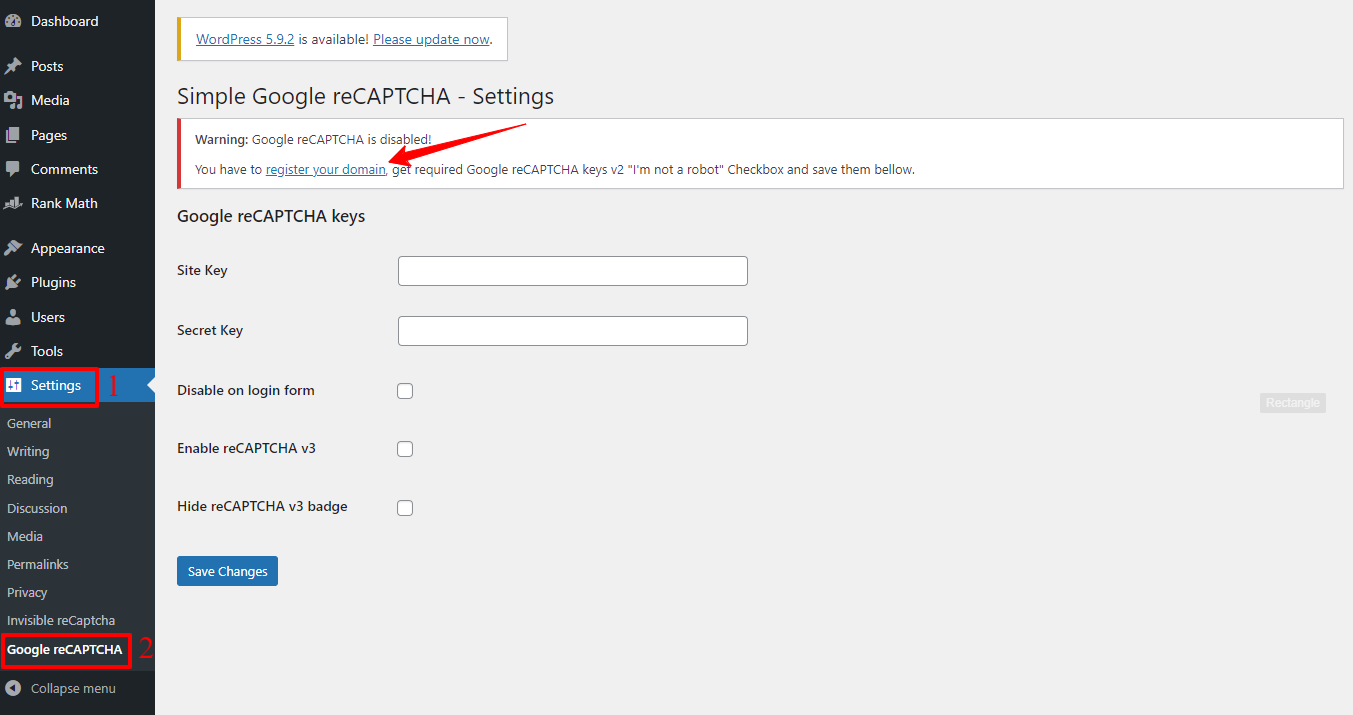
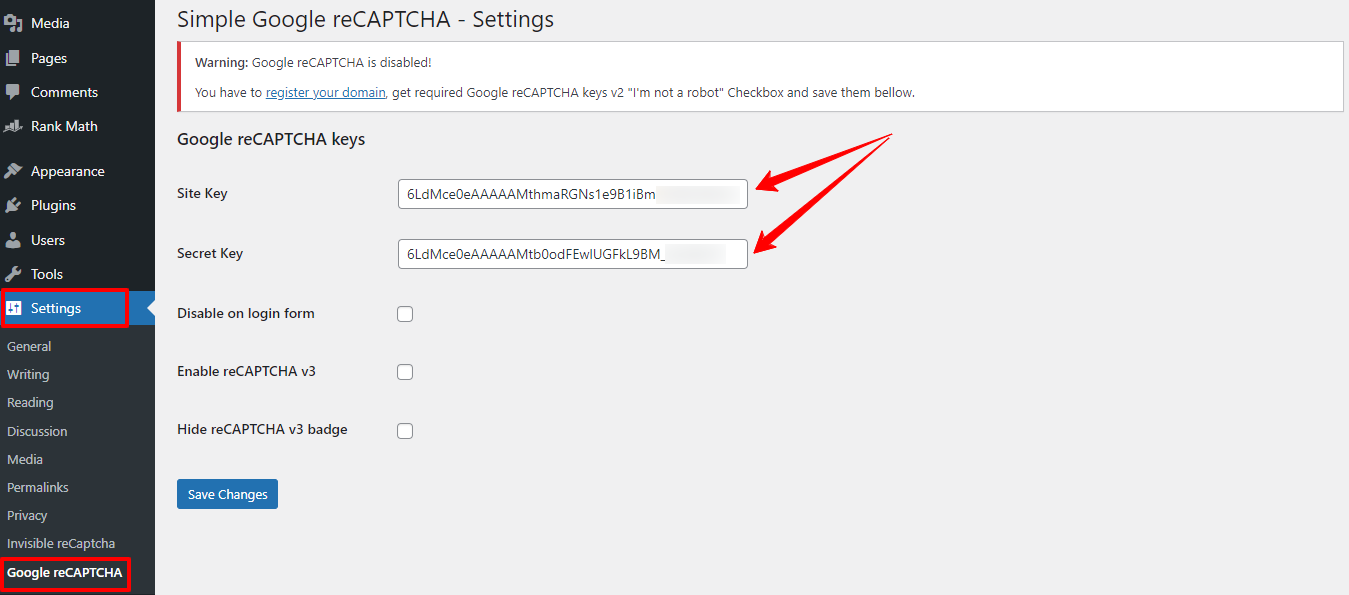
After that, let’s go to Settings -> Google reCAPTCHA, click on register your domain link to get the ReCaptcha site key and secret key.
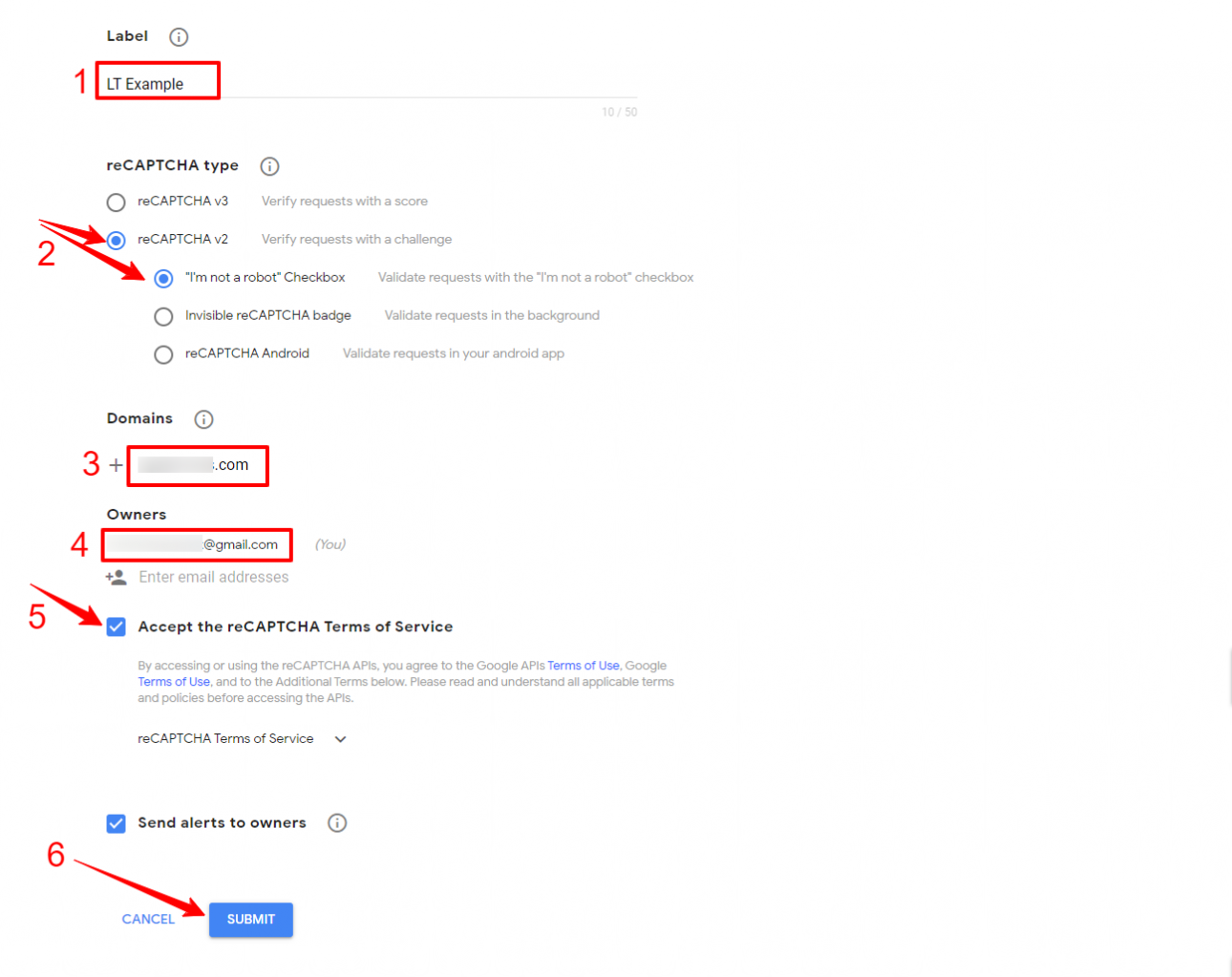
Now, you just need to fill out the label first. After that, simply select the reCAPTCHA v2 and choose the “I’m not a robot” Checkbox option.
The next step you need to do is enter your domain and your email address. Furthermore, don’t forget to accept the reCAPTCHA Terms of Service.
Finally, let’s press the Submit button to move on to the next step.
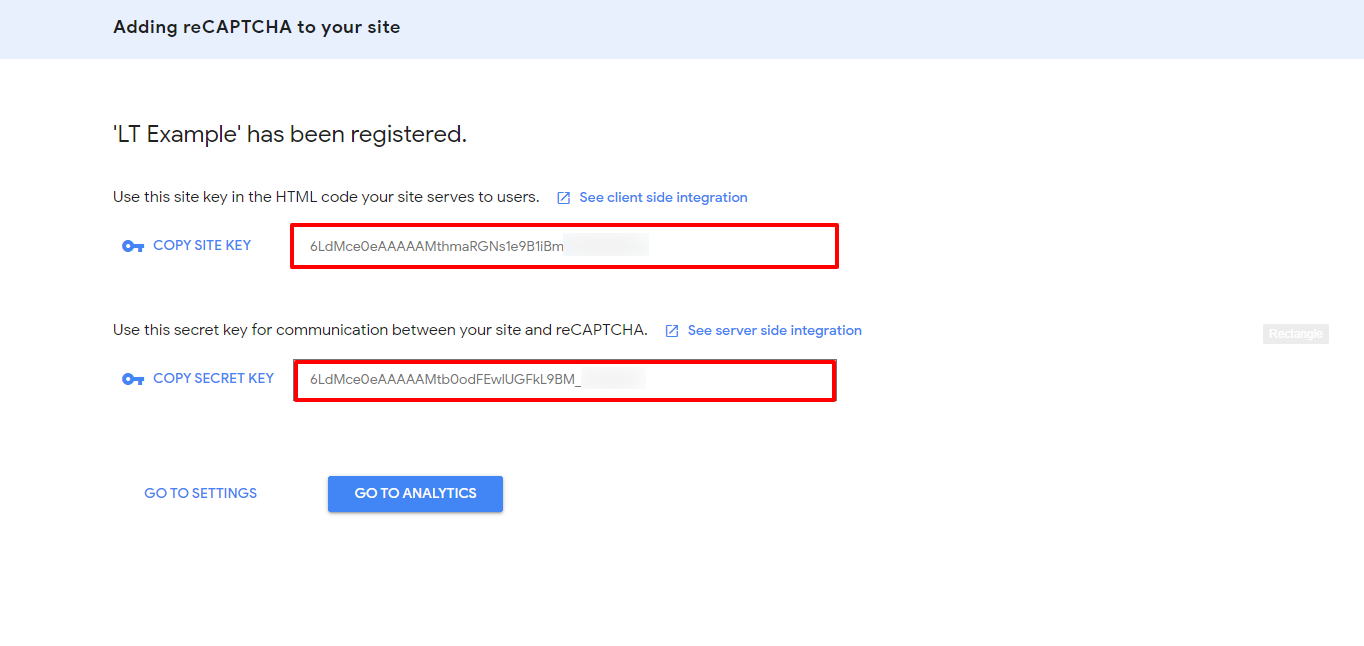
Your domain has been registered now, so the site key and secret key will appear for you. It’s time for you to store the keys by clicking on Copy Site Key and Copy Secret Key.
In the next step, go back to your WordPress admin dashboard. Then, open Settings -> Google reCAPTCHA, simply paste the site key and secret key you copied before.
Finally, you just need to save changes. That’s it.
Besides adding the reCAPTCHA to your comment form, this plugin also allows you to set up reCAPTCHA to your login form. You can enable or disable the feature by checking or unchecking the box next to Disable on login form. Moreover, you are also able to add reCAPTCHA to your login form via reCaptcha by BestWebSoft.
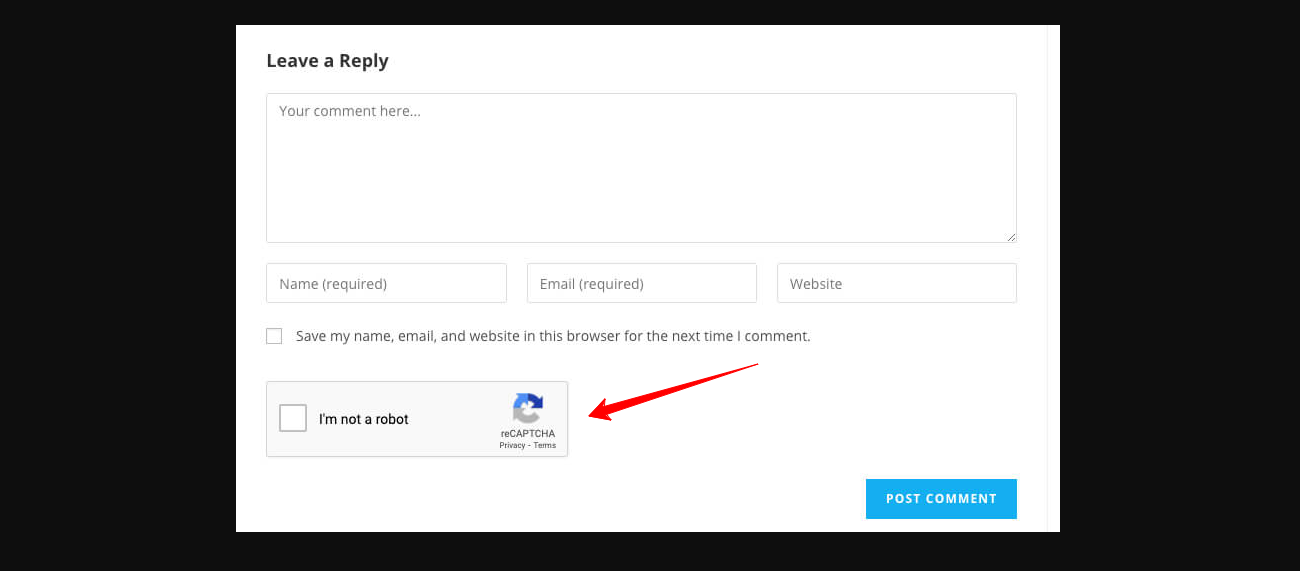
Why don’t you check the result on your site? The Google reCAPTCHA will appear perfectly below the comment box now!
Final thoughts
In short, the solution we show you today is quite simple and easy to implement. Therefore, don’t hesitate to protect your WordPress site by adding reCaptcha to your WordPress Comment Form. We are glad to help you make your site safer. If you have any trouble with reCaptcha or relevant topics, leave a comment below so that we can answer you as soon as possible. Furthermore, the reCaptcha can be added to Contact Form 7 to block contact form spam; read more about that here. Last but not least, don’t forget to build an eye-catching and responsive interface to attract more visitors with the many Free WordPress Themes we are providing. Thanks for visiting and have a great day.