PageSpeed Insights flags your home page with a red Largest Contentful Paint score, and the element it points to is the big hero image at the top. The template looks great, but that one picture shows up a second or two after everything else. In most cases the image is not too heavy. The browser simply finds it late or puts it at the back of the queue, and a few attributes and one file override fix that.
This guide shows how to find the LCP element, why hero images load late, and how to fix the LCP hero image in WordPress (classic and block themes) and in Joomla 5 and 6 with Cassiopeia or any template built on core layouts.
What LCP measures and why the hero image is usually the culprit
Hero images usually lose time in the load delay phase, before the download even starts.
Largest Contentful Paint is the moment the largest image or text block in the viewport finishes rendering. Google’s guidance on optimizing LCP treats 2.5 seconds or less as “good”, measured at the 75th percentile of real page visits. On a typical template home page, the largest element above the fold is the hero: a full-width photo behind the headline, a slider’s first slide, or the article’s full image.
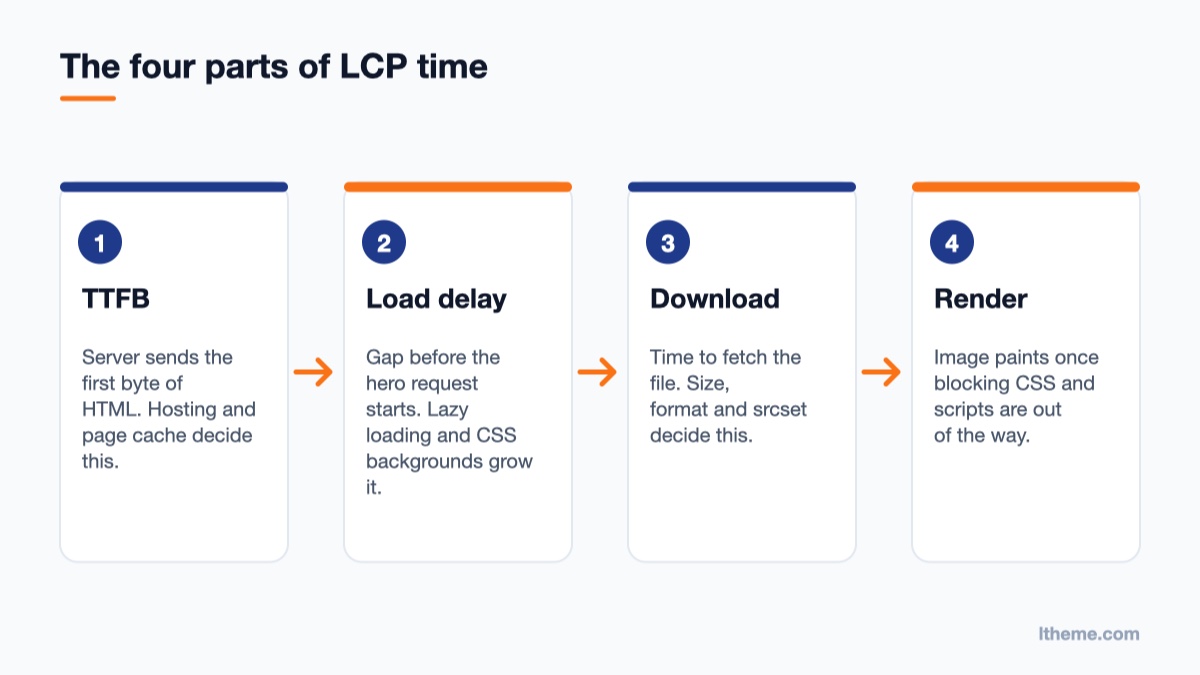
web.dev splits LCP into four parts, and it helps to know which one you are fixing:
Time to First Byte (TTFB) – how long the server takes to send the first byte of HTML. Hosting, caching and PHP speed live here.
Resource load delay – the gap between the first byte and the moment the browser starts downloading the hero image. This should be small.
Resource load duration – the time to download the image itself. File size and format live here.
Element render delay – the time between the download finishing and the image actually painting. Render-blocking CSS and JavaScript live here.
Hero images most often fail on resource load delay. Three things cause it: the image is lazy-loaded, the image is a CSS background the browser cannot see until the stylesheet arrives, or the image is injected by a slider script. Each one tells the browser “this can wait”, which is exactly wrong for the most important picture on the page.
Step 1: Confirm which element is your LCP
Do not guess. A logo, a heading or even a cookie banner can be the LCP element on mobile while the hero wins on desktop.
Run your URL through PageSpeed Insights. In the diagnostics, open the “Largest Contentful Paint element” item. It shows the element and the time spent in each of the four phases.
In Chrome, open DevTools, go to the Performance panel and record a page load. The LCP marker in the timeline highlights the element, and the network track shows when its request started.
In the Network panel, filter by Img, reload and look at the hero request. If it starts late in the waterfall, after CSS and scripts, you have a discovery or priority problem. If it starts early but takes a long time, you have a file size problem.
Check mobile and desktop separately. A hero that is cropped to a different file on small screens can behave differently on each.
Step 2: Stop lazy-loading the hero image
Native lazy loading (loading="lazy") is great for images further down the page, and both CMSs add it automatically. The problem is when the hero gets it too. web.dev is blunt about this: lazy-loading the LCP image always adds unnecessary load delay, because the browser waits for layout before it even requests the file.
Open the page source (not DevTools Elements, which shows the live DOM) and search for your hero file name. If its <img> tag contains loading="lazy", that is the first thing to remove. Also look for lazy-loading plugins or template options that swap src for data-src: those hide the real URL from the browser’s preload scanner until JavaScript runs, which is even slower. Most of those plugins have an “exclude” field or a “skip first N images” setting; use it for the hero. If you are choosing a plugin, our roundup of WordPress lazy load plugins covers the options.
Step 3: Fix the LCP hero image in WordPress
Since WordPress 6.3, core handles a lot of this for you. According to the WordPress 6.3 image performance notes, the first large image in the response (at least 50,000 pixels in width times height by default) gets fetchpriority="high", later images get loading="lazy", and the same image never receives both. This works for content images, featured images output by get_the_post_thumbnail(), images from wp_get_attachment_image(), custom header images and the Image widget.
So if your hero still loads late in WordPress, it is usually one of these cases.
The theme prints the hero with a hand-written img tag
wp_get_attachment_image() keeps your fetchpriority value and adds srcset and sizes.
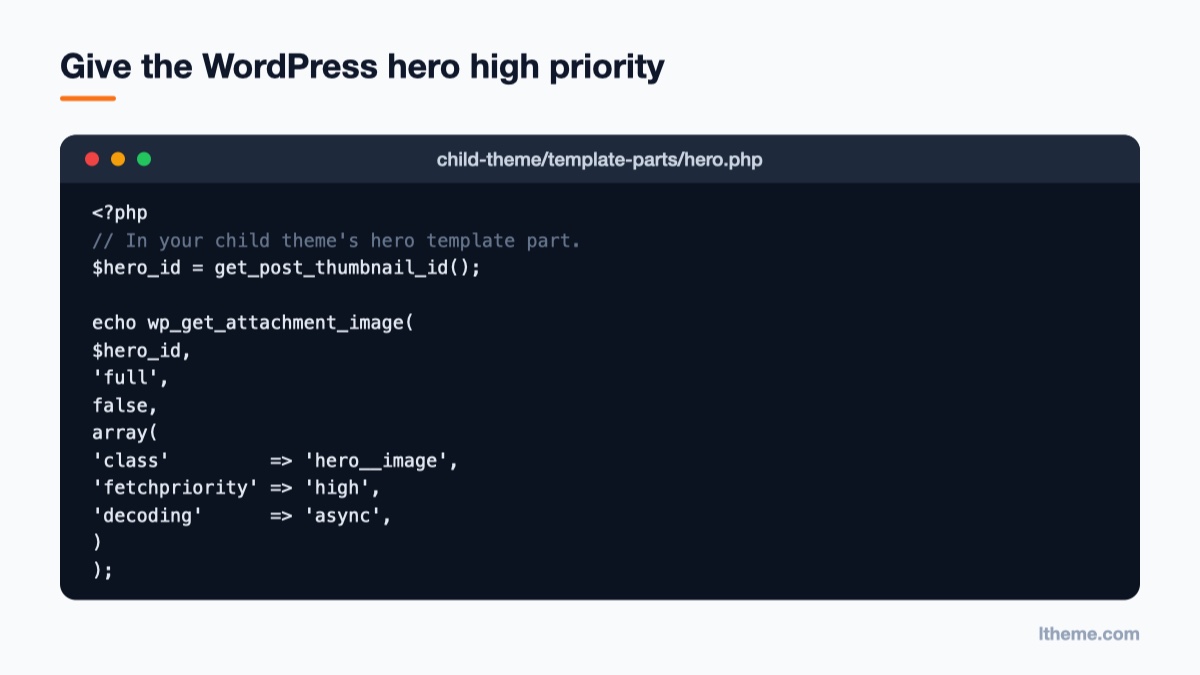
Core can only optimize images it renders. If a theme template file echoes <img src="..."> directly, no attributes get added. Replace that markup in a child theme with wp_get_attachment_image() and pass the priority yourself. WordPress never overrides attributes you set, so this is the most direct fix:
Because the function still runs through core’s loading logic, WordPress registers this image as the high-priority one and keeps lazy loading off it. You also get srcset and sizes for free, so phones download a smaller file. If your hero needs a specific crop, register a dedicated size as shown in our guide to adding custom image sizes in WordPress and pass that size name instead of 'full'.
The hero is a CSS background image
Many classic themes and page builders put the hero photo in background-image. The browser only discovers it after downloading and parsing the stylesheet, and core cannot add attributes to CSS. You have two options. The better one is to switch the section to a real image: in the block editor, the Cover block outputs an <img> element for an uploaded background image (as long as “Fixed background” is off), so core’s priority logic applies. If you must keep the CSS background, preload it from the child theme’s functions.php:
Preload exactly one file, the one actually used above the fold. If the CSS swaps to a different file on mobile with a media query, the preload must match, or you will download two heroes instead of one.
The hero is too small, or a slider is in charge
If your hero is a narrow image under the 50,000-pixel threshold, core skips it. Adding fetchpriority manually, as above, is simpler than lowering the threshold with the wp_min_priority_img_pixels filter. Sliders are harder: many load slides through JavaScript, so the first slide is invisible to the preload scanner. Set the slider to render its first slide as plain HTML, disable its lazy-load option for slide one, or replace the slider with a single static hero, which is usually better for conversions anyway.
Step 4: Fix the LCP hero image in Joomla 5 and 6
Joomla renders article images through the shared layout layouts/joomla/html/image.php. That layout adds loading="lazy" automatically whenever the image has a known width and height and no loading value was passed in. Joomla’s media field stores those dimensions in the image URL, so nearly every image you insert through the Media Manager is lazy-loaded, including the article’s full image at the top of the page. That is fine for intro images in a blog list further down, but bad for a single article or landing page whose full image is the hero.
The fix is a layout override that passes loading="eager" and fetchpriority="high" for the full article image. The core layout passes extra attributes straight through to the <img> tag, so no core files are touched.
Create the override
A layout override stops Joomla from lazy-loading the article's full image.
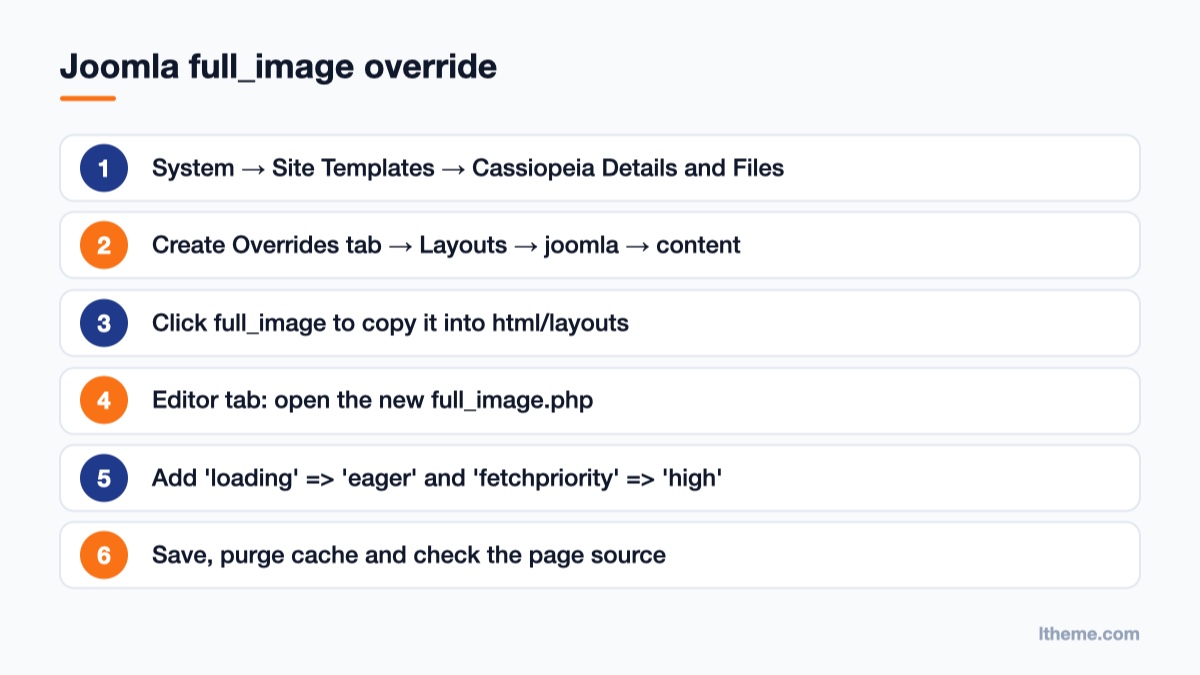
In the administrator, go to System → Site Templates and open Cassiopeia Details and Files (or your own template; if you use a child template, open the child).
Click the Create Overrides tab, then in the Layouts column open joomla → content and click full_image.
Joomla copies the file to templates/cassiopeia/html/layouts/joomla/content/full_image.php. Open it from the Editor tab.
Find the $layoutAttr array and add the two attributes shown below, then save.
Reload a single article and view the source: the full image now has loading="eager" fetchpriority="high". Do not apply the same change to intro_image.php unless the first intro image in a featured or blog layout really is your LCP element, because marking every intro image as high priority cancels the benefit.
Heroes in modules and template parameters
Many Joomla templates, including LTheme’s, place the hero in a Custom module or a template position instead of the article. For a Custom module, edit the image in the editor’s code view: remove loading="lazy" if present and add fetchpriority="high" to the <img> tag. If the template prints the hero as a CSS background from a template parameter, preload it from your template’s index.php (or a child template override of it) with the document’s preload manager:
The PreloadManager class is part of the Joomla core document API and is the same mechanism Cassiopeia uses for its font connections. If you are already tidying up how your template loads assets, our guide to the Joomla Web Asset Manager pairs well with this step, because render-blocking CSS and scripts are the next thing that holds the hero back.
Step 5: Make the file itself smaller
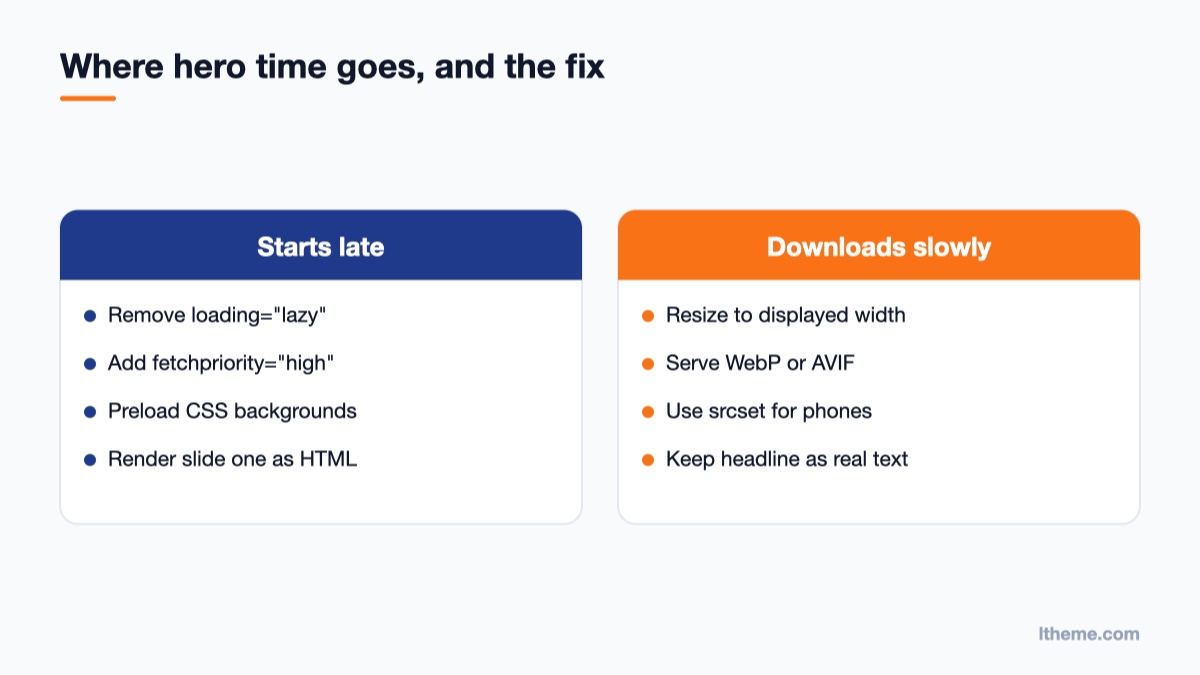
Match the fix to the phase PageSpeed Insights reports as slow.
Once the request starts early, look at download time. Priority hints do not shrink a 1.8 MB JPEG.
Size it to the layout. A hero displayed at 1,440 pixels wide does not need a 4,000-pixel original. Export around the largest displayed width, and let srcset serve smaller versions to phones.
Use a modern format. WebP is supported by every current browser and both CMSs accept it in their media managers. AVIF is usually smaller still where your stack supports it.
Always set width and height. They do not speed up LCP directly, but they reserve space and prevent layout shift, which protects your CLS score while the hero loads.
Keep the headline as text. A headline baked into the image cannot render before the image does. Real HTML text over the photo often becomes the LCP element itself and paints almost instantly, provided your web fonts are set to swap in rather than stay invisible while they download.
Common mistakes
Marking several images as high priority. web.dev notes that fetchpriority="high" stops helping once you apply it to more than one or two images. Pick the hero only.
Preloading and lazy-loading the same file. A preload followed by loading="lazy" on the img sends mixed signals and can waste the preload. Remove the lazy attribute first.
Preloading on every page. A home page hero preload printed site-wide makes every other page download an image it never shows. Wrap it in a condition such as is_front_page() in WordPress or a check on the active menu item in Joomla.
Editing core files. In WordPress, use a child theme; in Joomla, use the template override shown above. Updates overwrite core and parent files.
Testing only in the lab. PageSpeed’s lab score changes on every run. The field data at the top of the report, from real Chrome users, is what search uses, and it takes about 28 days to fully reflect a fix.
Caching the old HTML. After the change, purge your page cache and any CDN cache, or you will keep testing the old markup.
Templates that make this easier
A hero that is a real image near the top of the HTML, with text kept as text, is the easiest kind to optimize. LTheme’s onepage designs follow that structure: LT Bank Onepage is a free Joomla template for finance and service businesses with a single clear hero, and LT Garage Onepage is a WordPress landing page theme for repair shops where the same steps above apply to its header image. You can browse more in the Joomla templates and WordPress themes collections.
Wrap-up: the order to work in
Find the real LCP element first, then make sure it is not lazy-loaded, give it fetchpriority="high" (WordPress usually does this already; Joomla needs the full_image override or a manual attribute), preload it only if it is a CSS background, and finally trim the file. Purge caches, re-run PageSpeed Insights and compare the “resource load delay” phase with your first test. If that number has collapsed but LCP is still slow, the remaining time is in TTFB or render-blocking assets, and that is where to look next. Speed on the hero matters beyond the score, too: as we covered in why website speed matters for conversion rates, the first screen is where visitors decide whether to stay.
Welcome to LT Digital Team. We make daily blogs for Joomla! and WordPress CMS, support customers and everyone who has issues with these CMSs and solve any issues with blog instruction posts, trusted by over 1.5 million readers worldwide.
Latest posts by LT Digital Team (Content & Marketing) (see all)
We use cookies to improve your experience on our website. By browsing this website, you agree to our use of cookies.
Functional
Always active
The technical storage or access is strictly necessary for the legitimate purpose of enabling the use of a specific service explicitly requested by the subscriber or user, or for the sole purpose of carrying out the transmission of a communication over an electronic communications network.
Preferences
The technical storage or access is necessary for the legitimate purpose of storing preferences that are not requested by the subscriber or user.
Statistics
The technical storage or access that is used exclusively for statistical purposes.The technical storage or access that is used exclusively for anonymous statistical purposes. Without a subpoena, voluntary compliance on the part of your Internet Service Provider, or additional records from a third party, information stored or retrieved for this purpose alone cannot usually be used to identify you.
Marketing
The technical storage or access is required to create user profiles to send advertising, or to track the user on a website or across several websites for similar marketing purposes.











Recent Comments