
You click Update or Publish in the block editor and a red notice appears at the top of the screen: “Updating failed. The response is not a valid JSON response.” Your changes are not saved, and clicking the button again gives the same result. Sometimes the same message appears when you upload an image or save a reusable pattern.
The message tells you what went wrong, but not why. This guide explains what the error means, shows you how to find the real cause in a few minutes with the browser’s developer tools, and walks through each fix in order from most likely to least likely.
What the error actually means
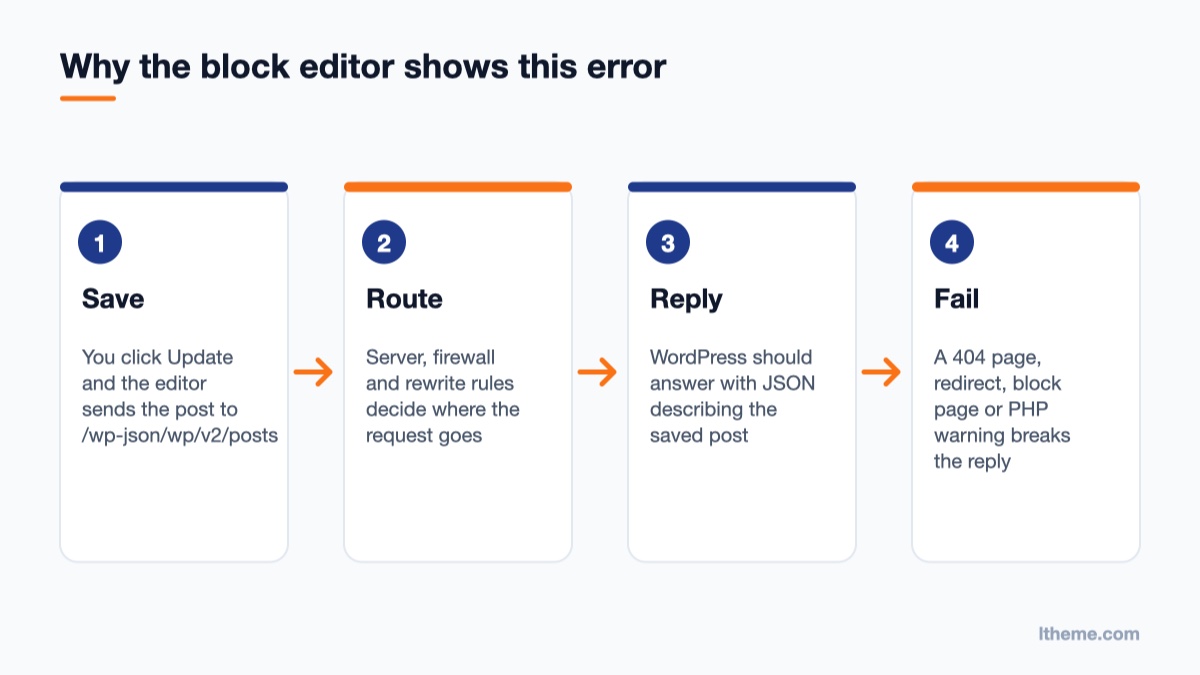
The block editor is a JavaScript application. When you save a post, it does not submit a normal form. It sends a request to the WordPress REST API, for example /wp-json/wp/v2/posts/123, and expects a reply in JSON format: a structured block of data describing the saved post.
If anything sits between the editor and that reply and returns something else, the editor cannot read the answer and shows the “not a valid JSON response” notice. That “something else” is usually one of these:
- An HTML page, such as a 404 “Page not found” page, because the
/wp-json/URL is not being routed to WordPress. - A redirect to another address, for example from
http://tohttps://or fromwwwto the bare domain. - A block page from a firewall, security plugin or CDN that decided the request looked suspicious.
- A PHP warning or notice printed before the JSON, which makes the whole reply invalid.
- A fatal PHP error that stops the request halfway.
So the task is not to “fix JSON”. It is to find out what the server actually sent back instead of JSON. Once you see it, the fix is usually obvious.
Step 1: See the real response in your browser
Before changing any settings, look at the failed request. This takes two minutes and saves hours of guessing.
Inspect the failed save request
- Open the post that fails to save in the block editor.
- Open your browser’s developer tools (F12 on Windows and Linux, Cmd+Option+I on macOS) and switch to the Network tab.
- Filter the list by Fetch/XHR, or type
wp-jsoninto the filter box. - Click Update in the editor so the error appears again.
- Click the new request in the list (it usually ends in the post ID, such as
posts/123?_locale=user) and look at the Status code and the Response tab.
What you see there points directly to the cause:
| What the response shows | Most likely cause | Go to |
|---|---|---|
| 404 status with an HTML “Not found” page | Broken permalinks or rewrite rules | Fix 2 |
| 301 or 302 redirect | Site URL mismatch, HTTP/HTTPS or www redirect | Fix 1 |
| 403 status or a “blocked” or “access denied” page | Security plugin, ModSecurity or CDN firewall | Fix 3 |
200 status, but text like “Warning:” or “Notice:” before the { |
PHP output from a plugin or theme | Fix 4 |
| 500 status or an empty response | Fatal PHP error | Fix 4 |
Test the REST API directly
You can also open https://yoursite.com/wp-json/ in a new tab. A working REST API returns a long block of JSON that starts with the site name and description. If you get your theme’s 404 page, a login screen, a redirect to another domain or a firewall message, you have confirmed the problem without opening the editor at all.
On a site that uses plain permalinks, the REST API is reached with a query parameter instead: https://yoursite.com/?rest_route=/. This is documented in the REST API routes and endpoints handbook. If ?rest_route=/ works but /wp-json/ does not, the rewrite rules are the problem.
Finally, check Tools → Site Health. If the REST API check fails, Site Health shows either “The REST API encountered an error” or “The REST API encountered an unexpected result”, together with the HTTP status code or error message. That detail is often enough to name the cause.
Fix 1: Make the WordPress and site addresses match
The editor sends its requests to the address stored in WordPress. If that address differs from the one you are actually browsing, for example http:// stored while the site runs on https://, or www.example.com stored while the server redirects to example.com, every save request is redirected and the editor receives a redirect instead of JSON.
- Go to Settings → General.
- Check that WordPress Address (URL) and Site Address (URL) use exactly the protocol and host shown in your browser’s address bar, for example
https://www.example.com. - Save the changes. You may be logged out and need to log in again.
If the fields are greyed out, the values are hard-coded in wp-config.php with the WP_HOME and WP_SITEURL constants. Edit them there instead. This mismatch is very common right after a migration or after installing an SSL certificate. If the site also loads some files over plain HTTP after the switch, our guide to the “content must be served over HTTPS” error covers the mixed content side.
Fix 2: Regenerate permalinks and the rewrite rules
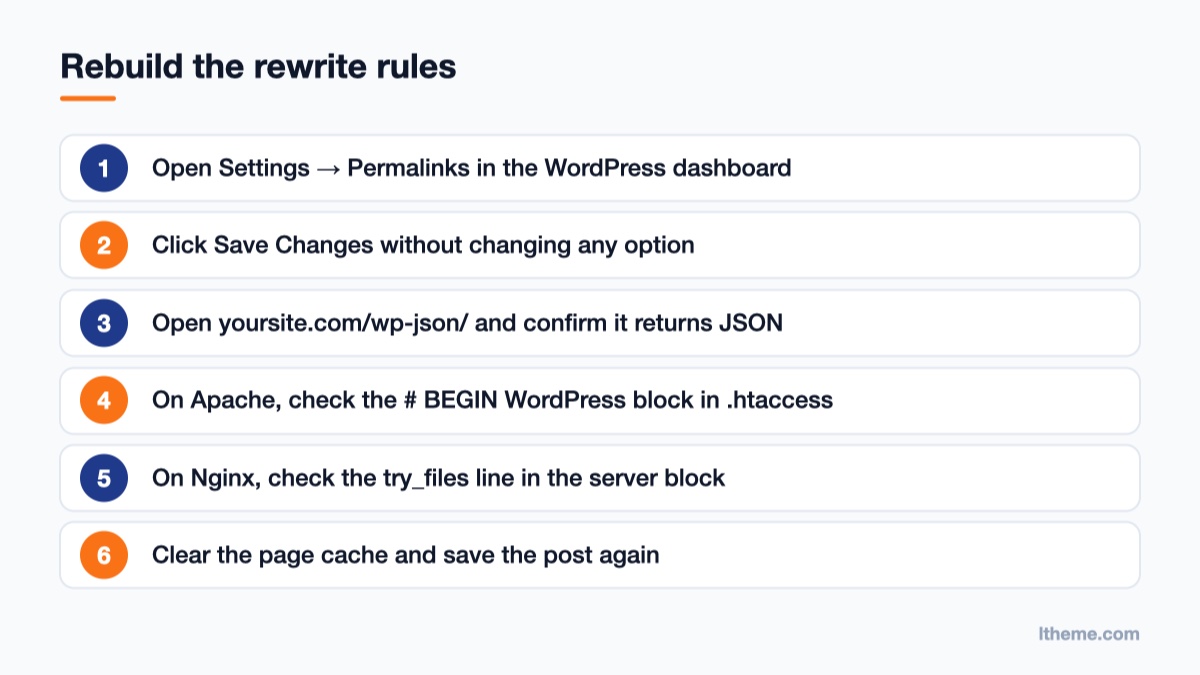
If /wp-json/ returns a 404, WordPress is not receiving those requests. The quickest repair is to make WordPress rebuild its rewrite rules:
- Go to Settings → Permalinks.
- Do not change anything. Just click Save Changes.
- Reload
https://yoursite.com/wp-json/and try saving the post again.
Check the .htaccess file on Apache and LiteSpeed
On Apache and LiteSpeed servers, saving permalinks writes the rules to the .htaccess file in the site root. If the file is not writable, or another tool has damaged it, the save does nothing. Open the file over FTP or your hosting file manager and make sure it contains the standard WordPress block, as listed in the Apache HTTPD / .htaccess documentation:
# BEGIN WordPress
<IfModule mod_rewrite.c>
RewriteEngine On
RewriteRule .* - [E=HTTP_AUTHORIZATION:%{HTTP:Authorization}]
RewriteBase /
RewriteRule ^index\.php$ - [L]
RewriteCond %{REQUEST_FILENAME} !-f
RewriteCond %{REQUEST_FILENAME} !-d
RewriteRule . /index.php [L]
</IfModule>
# END WordPress
If WordPress lives in a subfolder, RewriteBase and the last RewriteRule must include that folder, for example /blog/ and /blog/index.php. Keep a backup of the old file before you replace anything. Rules added by caching or security plugins usually sit outside the WordPress markers. Leave them in place, but if the problem continues, temporarily comment them out to test.
Check the Nginx configuration
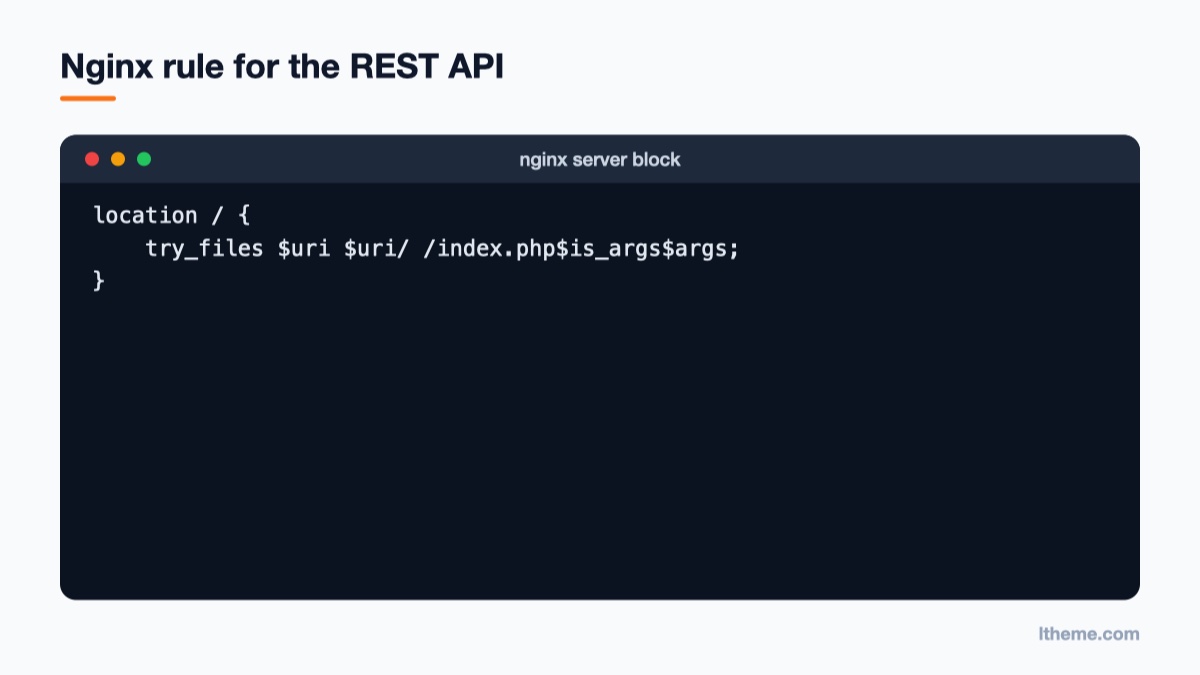
Nginx does not read .htaccess, so saving permalinks cannot repair it. The server block needs a try_files line that hands unknown URLs to WordPress. The REST API FAQ recommends passing query arguments with $is_args$args:
location / {
    try_files $uri $uri/ /index.php$is_args$args;
}
If you are on managed hosting and cannot edit the Nginx configuration, send this line to your host’s support team and ask them to confirm it is set for your site. The same root cause explains other routing errors as well. If ordinary posts also return a 404, see how to fix posts returning a 404 error in WordPress.
Fix 3: Allow the REST API through your firewall
A 403 response or a branded “request blocked” page means a security layer stopped the request. The block editor sends the whole post content in one request, so a long post containing code, iframes, <script> examples or SQL-like text can trigger firewall rules written to catch attacks. That explains a common pattern: short posts save fine, while one particular long post always fails.
Work through the layers one at a time:
- Security plugins. Some plugins include an option to disable or restrict the REST API. Do not disable it: the official REST API FAQ warns that doing so will break WordPress admin features that rely on it. If you want to limit anonymous access, require authentication instead of blocking the API. Check the plugin’s firewall log for a blocked request at the time of your save, and allow it or switch the firewall to learning mode for a short test.
- ModSecurity on the server. Many shared hosts run ModSecurity. Your hosting control panel or error log will show a rule ID for the blocked request. Ask your host to whitelist that rule for
/wp-json/requests from logged-in users instead of switching ModSecurity off entirely. - CDN and WAF services. If your site is behind a CDN with a web application firewall, look at its security event log. Create a rule that skips the managed rules for
/wp-json/requests carrying your WordPress login cookie, or for your own IP address while you edit.
After any change, retest with the same post that failed, since the trigger is often in that post’s content.
Fix 4: Find the plugin or theme printing extra output
If the response has status 200 but starts with “Warning:”, “Notice:”, “Deprecated:” or an HTML fragment before the opening {, a plugin or theme printed text into the response. A 500 status points to a fatal error. In both cases, the error log names the file responsible.
Turn on logging without showing errors to visitors
Add these lines to wp-config.php above the line that says “That’s all, stop editing!”, as described in the Debugging in WordPress documentation:
define( 'WP_DEBUG', true );
define( 'WP_DEBUG_LOG', true );
define( 'WP_DEBUG_DISPLAY', false );
Setting WP_DEBUG_DISPLAY to false matters here. If PHP messages are printed on screen, they are also printed into REST responses, which is exactly what breaks the editor. With the setting above, they go to wp-content/debug.log instead. Save the post again, then open the log and read the newest lines. The file path in the message tells you which plugin or theme is responsible.
On live sites where WP_DEBUG is off, the PHP setting display_errors may still be on at server level. If so, ask your host to turn it off for production, or set it to Off in your hosting panel’s PHP settings.
Isolate the conflict
If the log is empty or unclear, test for a conflict:
- Deactivate all plugins, then try saving the post.
- If it saves, reactivate plugins one at a time and save after each one until the error comes back.
- If it still fails with all plugins off, switch temporarily to a default theme such as Twenty Twenty-Five and test again.
On a live site, the free Health Check & Troubleshooting plugin from the WordPress.org team offers a troubleshooting mode that disables plugins and switches themes only for your logged-in session, so visitors are not affected. If the log shows a fatal error that takes the whole site down rather than just the editor, follow our guide to finding and fixing the WordPress critical error.
The error when uploading images
The same message can appear when you drag an image into an Image block. The diagnosis is identical: look at the failed request to /wp-json/wp/v2/media in the Network tab. Common causes specific to uploads are:
- A file name containing unusual characters that a firewall rule rejects. Rename the file to plain letters, numbers and hyphens and try again.
- A file larger than the server’s upload or POST size limits, which can produce an error page instead of JSON. Upload it through Media → Add New Media File to see the exact limit message.
- An image optimization plugin that fails while processing the file. Test with that plugin deactivated.
Common mistakes to avoid
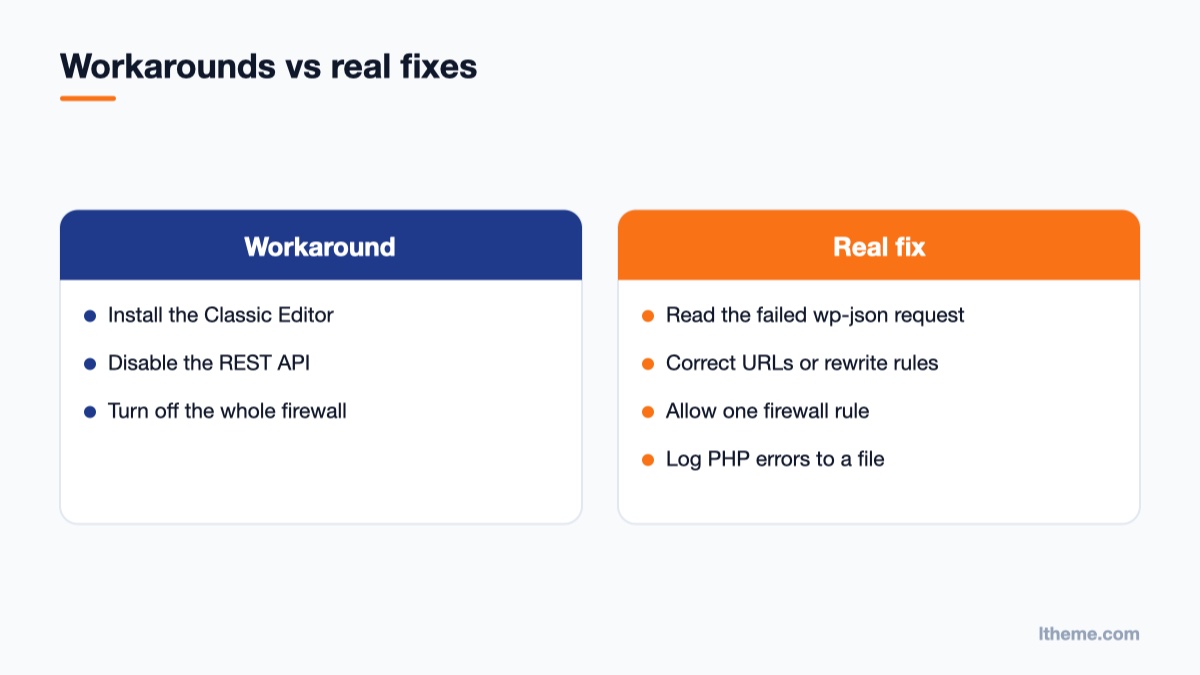
- Installing the Classic Editor as the fix. The classic editor does not use the REST API to save posts, so the error disappears. But the underlying fault remains, and anything else relying on the REST API, including Site Health, some plugins and the Site Editor, stays broken.
- Disabling the REST API to “improve security”. This is one of the most common causes of the error. Restrict access with authentication instead.
- Leaving debug display on. Showing PHP notices on screen breaks every REST response. Log errors to a file instead.
- Turning off the whole firewall permanently. Find the single rule that blocks the editor and add an exception for it.
- Forgetting the cache. If a page cache or CDN cached a broken
/wp-json/response, clear it after every fix before testing again.
Keep it from coming back
Most of these causes come from changes: a migration, a new SSL certificate, a new security rule or a plugin update. Test risky changes on a staging copy first, and after any migration open /wp-json/ and Site Health before you start editing content. If you are moving the site at the same time, our article on HTTP vs HTTPS explains why the protocol in your stored URLs matters.
A lightweight, well-coded theme also reduces the number of places where stray PHP output can come from. If you are rebuilding a small business site anyway, LT Carenix is a free, mobile-friendly WordPress theme for clinics and health services, and LT Garage Onepage suits auto repair shops that need a single landing page. More options are in our WordPress themes collection.
Wrap-up
“The response is not a valid JSON response” always means the editor received something other than JSON from the REST API. Open the Network tab, find the failed wp-json request and read its status code and response. A redirect points to your site URLs, a 404 to permalinks or server rewrite rules, a 403 to a firewall, and stray text or a 500 to a plugin or theme. Fix that one cause, clear any cache, and save the post again. Your next step: open https://yoursite.com/wp-json/ now, before the error appears again, and confirm it returns clean JSON.

- Fix “The Response Is Not a Valid JSON Response” in WordPress - October 14, 2026
- Joomla Workflows: Set Up an Article Approval Process - October 13, 2026
- How to Create a Custom Page Template in the WordPress Site Editor - October 12, 2026





Recent Comments