You need one extra stylesheet, a small script for a slider, or a Google Font on a Joomla site, and the quickest fix you find online is to paste a <link> or <script> tag into the template’s index.php. It works until the next template update wipes it out, or until the file loads twice, in the wrong order, before the CSS it was meant to override.
Since Joomla 4, and still in Joomla 5 and Joomla 6, there is a proper tool for this job: the Web Asset Manager. It decides which CSS and JavaScript files load on a page, in what order, with which dependencies, and it makes sure each one loads only once. This guide shows how it works, how to use it without touching core files, and how to fix the most common mistakes.
What the Web Asset Manager actually does
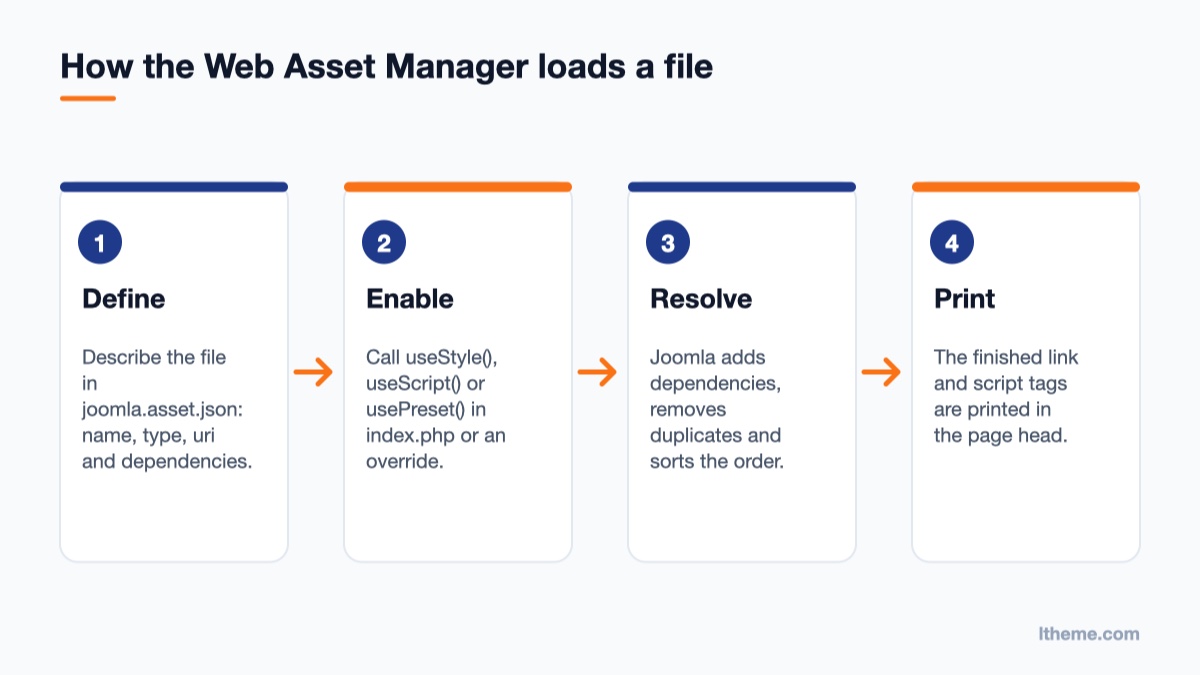
From joomla.asset.json to the page head: define, enable, resolve, print
Every CSS or JavaScript file in Joomla can be registered as a named asset. An asset has a name (for example template.user), a type (style, script or preset), a file path, and an optional list of other assets it depends on. When a page renders, Joomla looks at which assets were switched on, works out their dependencies, sorts them and prints the right <link> and <script> tags in the document head.
That gives you three practical benefits over hard-coded tags:
Correct order. If your script depends on core, Joomla prints core first, every time.
No duplicates. If a module and your template both ask for the same asset, it is printed once.
Clean overrides. Any extension can switch an asset off or replace it by name, without editing the file that registered it.
Assets are defined in JSON files called joomla.asset.json. Joomla reads them automatically from a fixed list of places, including media/vendor/, media/system/, each component’s media folder and, most important for site owners, the active template’s folder: templates/{your_template}/joomla.asset.json.
Look at how Cassiopeia does it
The fastest way to understand the system is to open the default template’s own asset file. In Joomla 5 or 6, go to System → Site Templates → Cassiopeia Details and Files and open joomla.asset.json. You will find entries like this one:
{
  "name": "template.user",
  "description": "A file where a user can add their own css.",
  "type": "style",
  "uri": "user.css",
  "weight": 500,
  "dependencies": [
    "template.active",
    "template.active.language"
  ]
}
Notice that uri is just user.css, not a full path. For a template, Joomla resolves the file inside the template’s media folder and adds the css or js sub-folder for you, so this entry points to media/templates/site/cassiopeia/css/user.css. The dependencies make sure it is printed after the main template stylesheet, which is exactly what you want for overrides.
Then open index.php in the same template. Near the top you will see the manager being fetched and the assets being switched on:
Defining an asset in JSON only registers it. Nothing is printed until something calls useStyle(), useScript() or usePreset() on it.
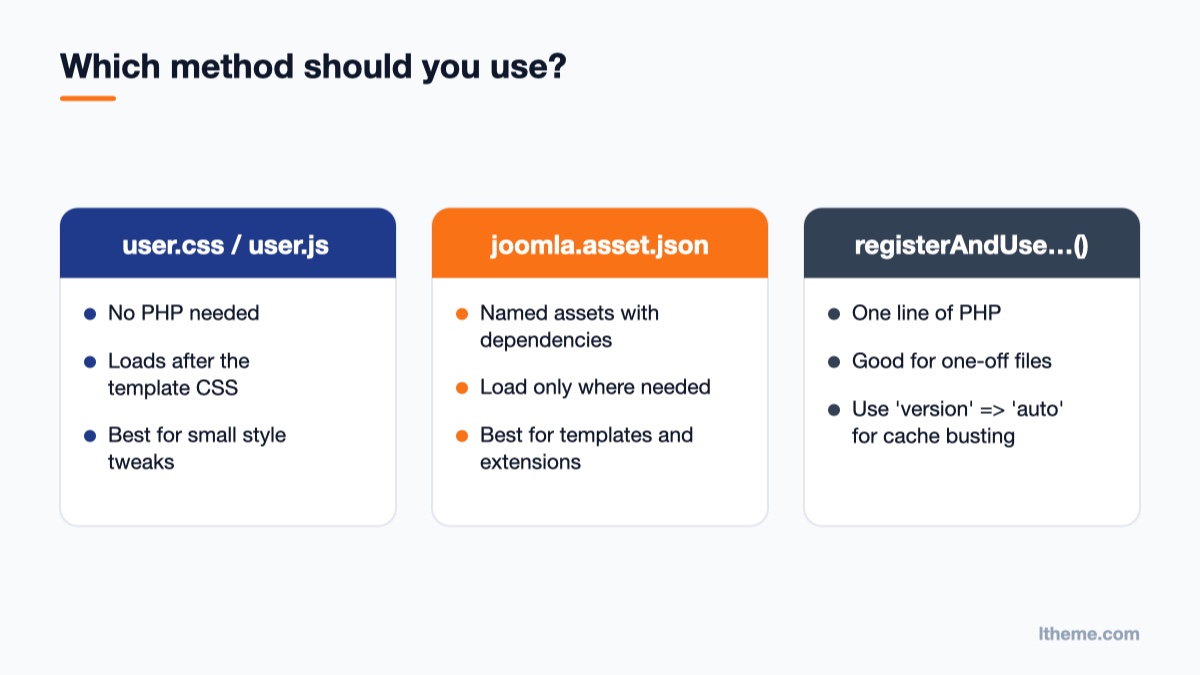
Method 1: add your own CSS and JS with user.css and user.js
Cassiopeia already loads user.css and user.js, so you only need to create the files
Because Cassiopeia already registers and switches on template.user for both CSS and JavaScript, you do not need to write any PHP to add your own code. You only need to create the files. Joomla skips an asset whose file does not exist, so the template works fine until you add them.
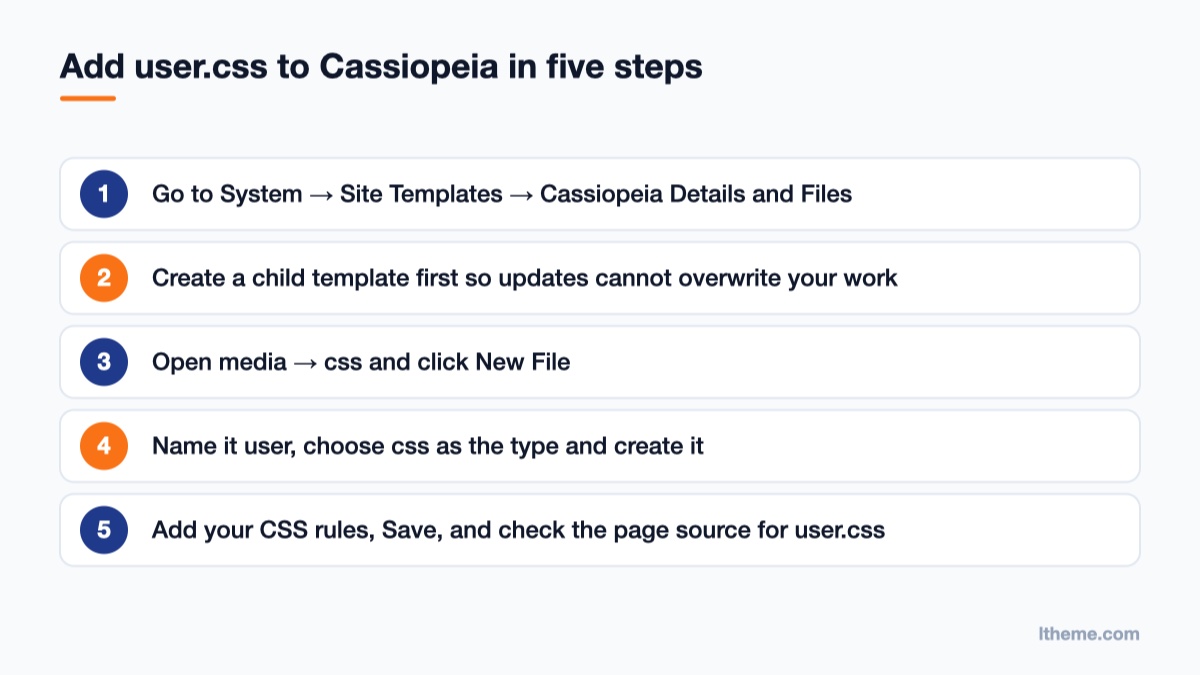
Step 1: create user.css
Go to System → Site Templates and open Cassiopeia Details and Files (or your child template, see below).
In the file tree, open the media section and select the css folder.
Click New File, enter user as the file name, choose css as the type and create it.
Reload the front end and view the page source. You should see user.css printed after template.min.css, with a version query string added for cache busting.
Step 2: create user.js (optional)
Repeat the same steps in the js folder and name the file user.js. It loads after the template’s own script because template.user depends on template.active.
Use a child template so updates do not overwrite your files
Joomla updates can replace Cassiopeia’s files. To keep your work safe, create a child template first: open Cassiopeia Details and Files and click Create Child Template, give it a name, then assign the new template style to your site. Put user.css and user.js in the child template’s media folder. Our older guide on creating Joomla child templates walks through the full process, and the same steps apply in Joomla 5 and 6.
Method 2: register your own assets in joomla.asset.json
The user.css trick covers most small changes. When you are building or extending a template and need several named files, conditional loading or dependencies on Joomla’s own scripts, register them properly.
Step 1: put the files in the media folder
Upload your files to the template’s media folder, using the css and js sub-folders:
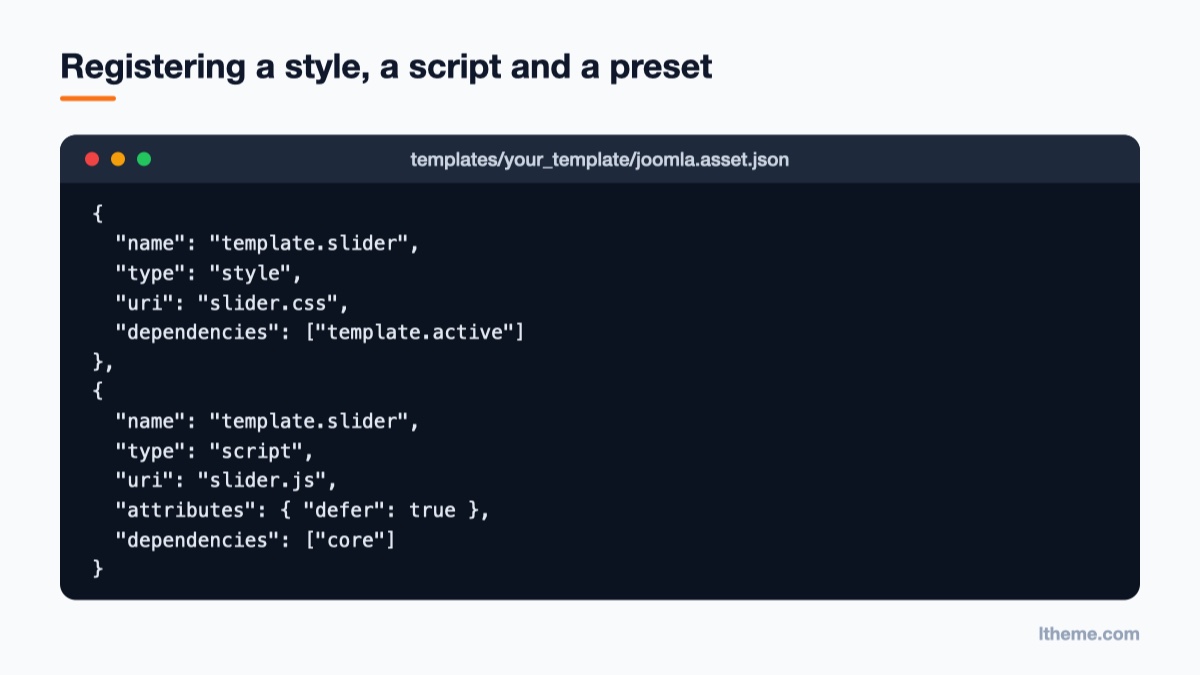
A style and a script may share the same name. The #style and #script suffixes in a preset tell Joomla which one you mean.
attributes are printed on the tag. "defer": true keeps the script from blocking rendering.
core is Joomla’s base script. Depend on it only if your code uses Joomla.* helpers; otherwise leave it out.
The file must remain valid JSON. A single trailing comma breaks every asset in the file, so validate it before saving (the $schema line at the top lets most code editors check it for you).
Step 3: switch the asset on
Registering is not enough; something has to use the asset. In the template’s index.php, after $wa is defined:
$wa->usePreset('template.slider');
Or load it only where it is needed, for example in a layout override for the home page module, so other pages stay lighter:
use Joomla\CMS\Factory;

$wa = Factory::getApplication()->getDocument()->getWebAssetManager();
$wa->usePreset('template.slider');
Method 3: register and use a file in one line of PHP
For a one-off file you do not want in the JSON, registerAndUseStyle() and registerAndUseScript() do both jobs at once. The arguments are the asset name, the file, options, HTML attributes and dependencies:
The 'version' => 'auto' option adds Joomla’s media version to the URL so browsers fetch the new file after you change it. Cassiopeia uses the same option for its font scheme stylesheet.
Inline CSS and JavaScript
Small snippets that depend on a template parameter, such as a brand colour chosen in the template style, can be added inline:
With 'position' => 'before' and a dependency on template.slider, the inline script is printed just before the slider script, so the config exists when the slider starts. Keep inline code small. Anything longer than a few lines belongs in a file the browser can cache.
Removing or replacing assets you do not need
The Web Asset Manager also lets you switch things off by name. Two common cases:
A template or extension loads a library you already include. Call $wa->disableScript('asset.name') or $wa->disableStyle('asset.name') after the asset has been enabled, for example near the end of your template’s index.php.
You want your own version of a stylesheet. Register a new asset under the same name in your template’s joomla.asset.json. The template file is read after the system and component files, so your definition wins.
To find an asset’s name, open the joomla.asset.json that defines it (for system assets, look in media/system/joomla.asset.json and media/vendor/joomla.asset.json). Be careful when disabling assets other scripts depend on: disabling core or a form validation script will break forms and admin-style features on the front end.
Check the folder. Template assets live in media/templates/site/{template}/css or /js, not in templates/{template}/css.
Check that something calls useStyle(), useScript() or usePreset(). A registered asset that is never used prints nothing.
If you use a child template, check that the child template style is the one assigned to the page.
Every asset from my template disappeared
Your joomla.asset.json is no longer valid JSON. Look for a trailing comma, a missing quote or a missing bracket. Paste the file into any JSON validator, fix it and reload.
My CSS loads but does not win
Make the style depend on template.active so it prints after the template stylesheet. If it still loses, the problem is selector specificity rather than load order; our guide on why custom CSS isn’t working explains how to diagnose that.
Visitors still see the old file
Use 'version' => 'auto' when registering, clear Joomla’s cache under System → Clear Cache, and purge any CDN or server cache in front of the site.
Using it with a ready-made template
If you run a commercial or free template rather than Cassiopeia, the same rules apply: look for the template’s own joomla.asset.json, check whether it already supports a user.css file, and put custom code in a child template or the file the developer provides for it rather than editing core template files. Templates such as GT Ayurveda for health and wellness businesses or the one-page LT Bank Onepage give you a finished design to start from, and the Web Asset Manager is how you add your own touches on top without losing them at the next update. You can browse more in our Joomla templates collection.
Wrapping up
For a quick style tweak, create user.css in a child template’s media folder and you are done. For anything bigger, register named assets in joomla.asset.json, set their dependencies, and switch them on only where they are needed. Your files load once, in the right order, and survive updates. If you are planning a move to the current major version, read what’s new in Joomla 6 and how to upgrade next. The official Web Asset Manager documentation and Cassiopeia’s own joomla.asset.json are the best references as you go further.
Welcome to LT Digital Team. We make daily blogs for Joomla! and WordPress CMS, support customers and everyone who has issues with these CMSs and solve any issues with blog instruction posts, trusted by over 1.5 million readers worldwide.
Latest posts by LT Digital Team (Content & Marketing) (see all)
We use cookies to improve your experience on our website. By browsing this website, you agree to our use of cookies.
Functional
Always active
The technical storage or access is strictly necessary for the legitimate purpose of enabling the use of a specific service explicitly requested by the subscriber or user, or for the sole purpose of carrying out the transmission of a communication over an electronic communications network.
Preferences
The technical storage or access is necessary for the legitimate purpose of storing preferences that are not requested by the subscriber or user.
Statistics
The technical storage or access that is used exclusively for statistical purposes.The technical storage or access that is used exclusively for anonymous statistical purposes. Without a subpoena, voluntary compliance on the part of your Internet Service Provider, or additional records from a third party, information stored or retrieved for this purpose alone cannot usually be used to identify you.
Marketing
The technical storage or access is required to create user profiles to send advertising, or to track the user on a website or across several websites for similar marketing purposes.










Recent Comments