Introduction
Today, there are many ways for people to access knowledge and get new information. Many people like to learn from articles or blogs by searching keywords on online search engines. However, not everything is available on the internet. That’s why forums (online communities) are created so that people can discuss different topics and answer questions they have not yet solved.
If you own a WordPress website and intend to build a forum page on your website, you should not miss this article. We will guide you in detail on how to add forums to your WordPress website with the bbPress plugin.
What is bbPress?
bbPress is a forum plugin that helps you create a visual and attractive discussion board without much effort. This plugin is powerful but simple and easy to use. Besides bbPress, there are many useful WordPress Forum Plugins that you can select and install for your website. However, in this blog, we will guide you to build a forum with bbPress because of its popularity and convenience.
Now, let’s start finding out how to use bbPress to add a forum to WordPress step-by-step.
Steps to add a forum to WordPress via the bbPress plugin
Installing bbPress and using it to generate a forum
Before installing bbPress, make sure that you own a WordPress website and have an administrator role. If not, you need to create a WordPress website so that you are able to add a forum or an online community.
The first step is to go to the admin dashboard, then click Plugins -> Add new. After that, search for the word “bbPress” in the search bar, choose the first result and install it.
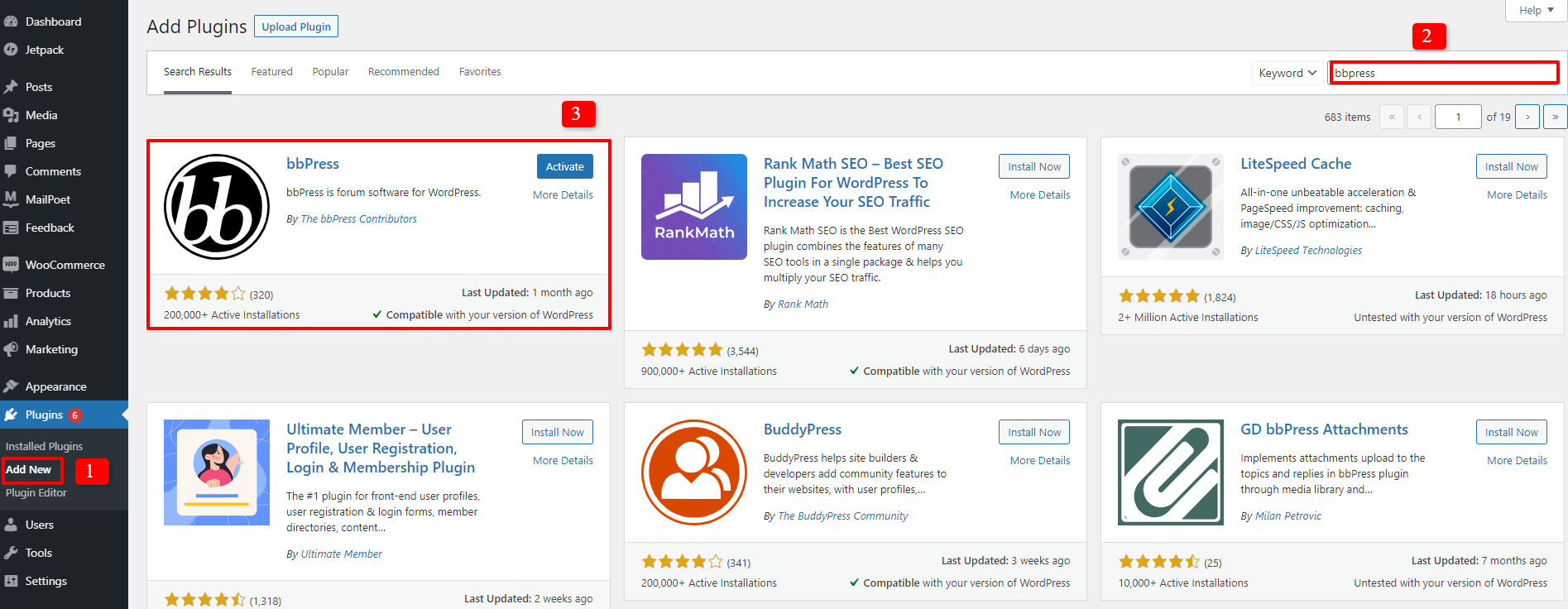
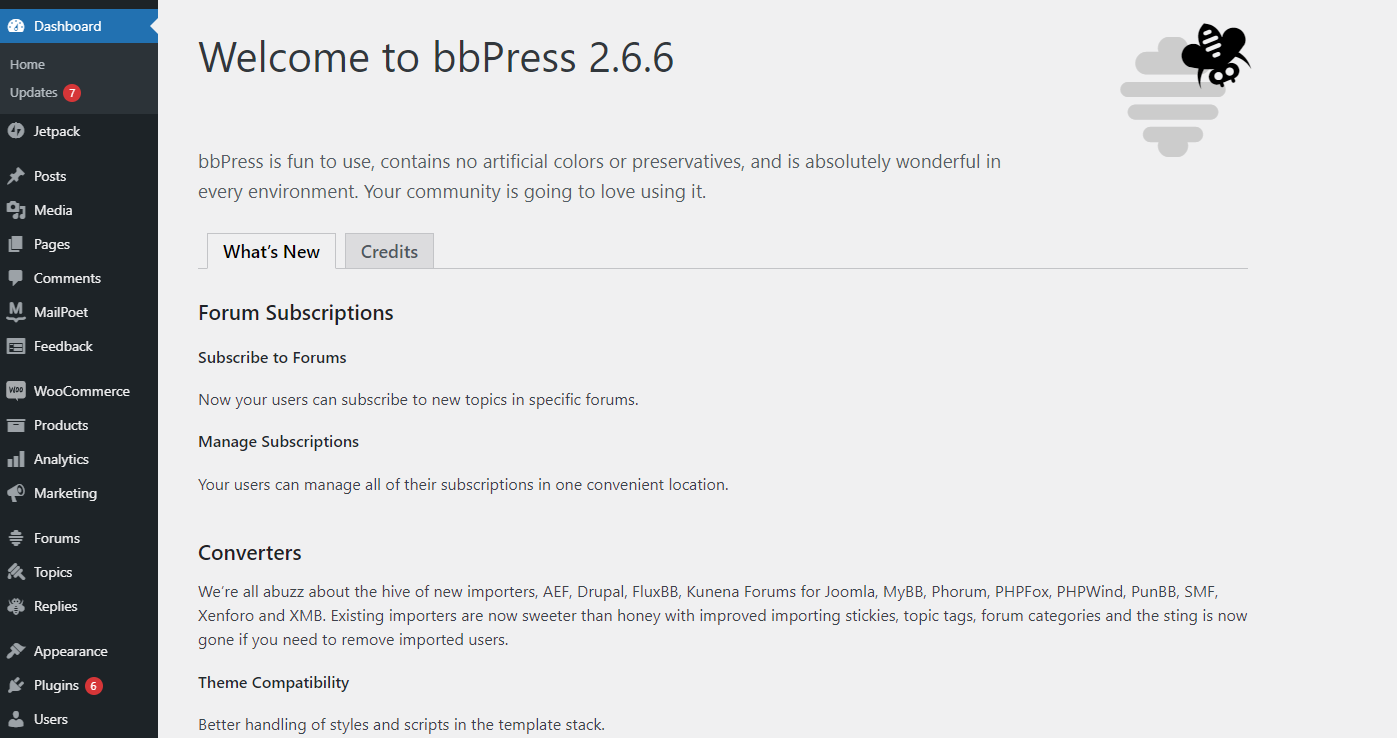
After installing bbPress, don’t forget to activate it so that you can use it to build a forum smoothly. The ‘Welcome to bbPress’ screen will appear to confirm that you have installed and activated it successfully.
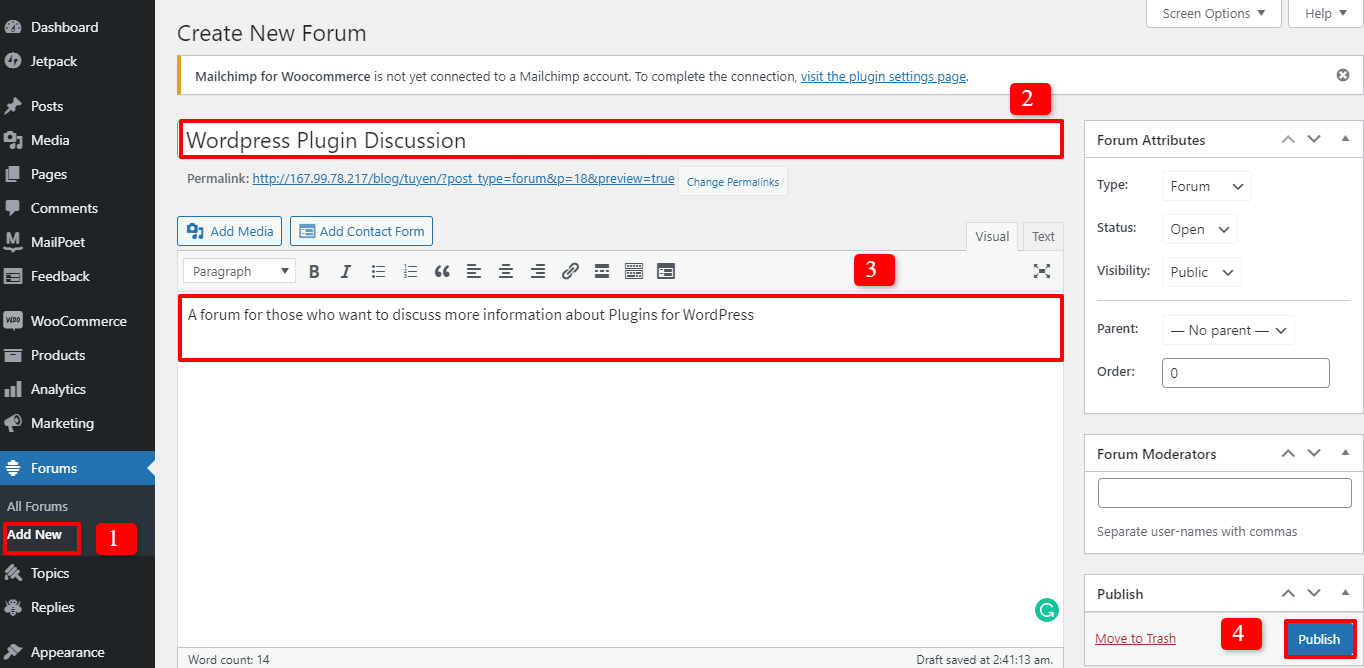
The bbPress installation has been completed. The next step is creating a forum. So, let’s go to Forums -> Add new. There will be an area for you to create a new forum. You need to fill out the title, which is the name of the forum you want to build. Then, give it a description and click the Publish button when you have finished. For each topic you want a discussion forum for, repeat the steps you just completed.
Showing the bbPress forum on the front end of your WordPress website
After you have completed generating some forums, you need to display them on the website with the following few simple steps.
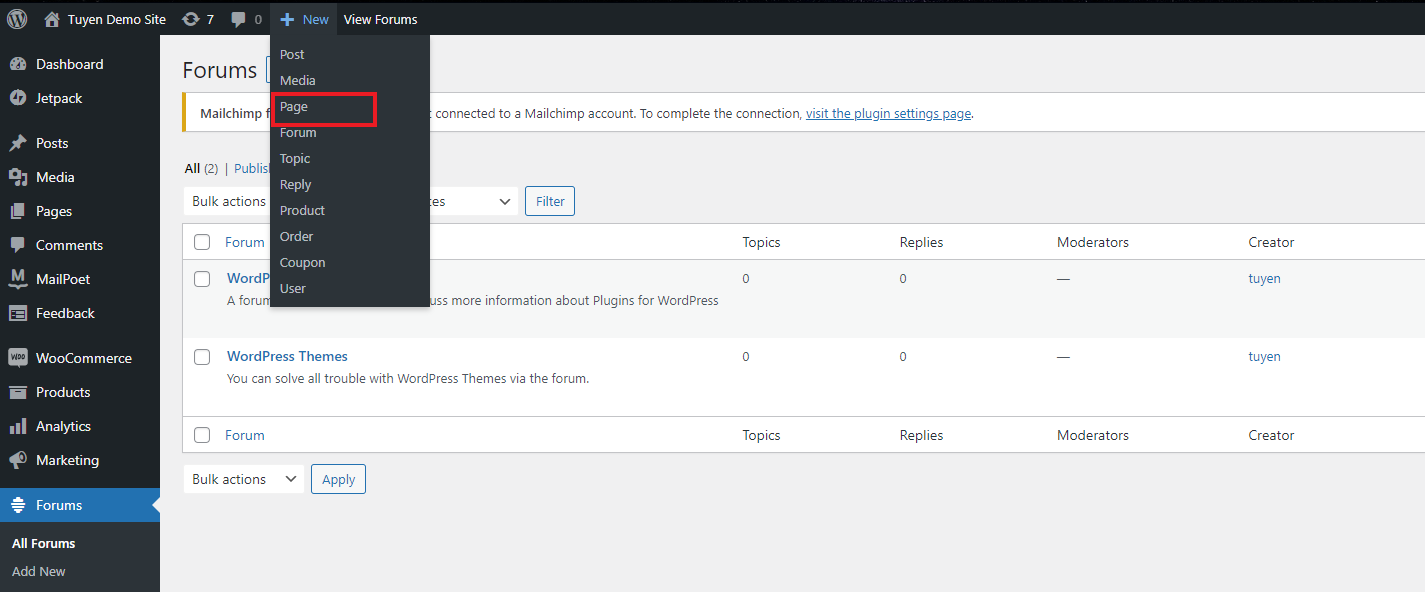
First, build a new page for your WordPress site: just click New -> Page. Then, fill out the title, since this page is created for forum discussions, you should give it a relevant name, such as Forums, Community, Online Discussions, and so on.
Before pressing the Publish button, don’t forget to paste this shortcode into your page so that your forum is visible on your site:
[bbp-forum-index]
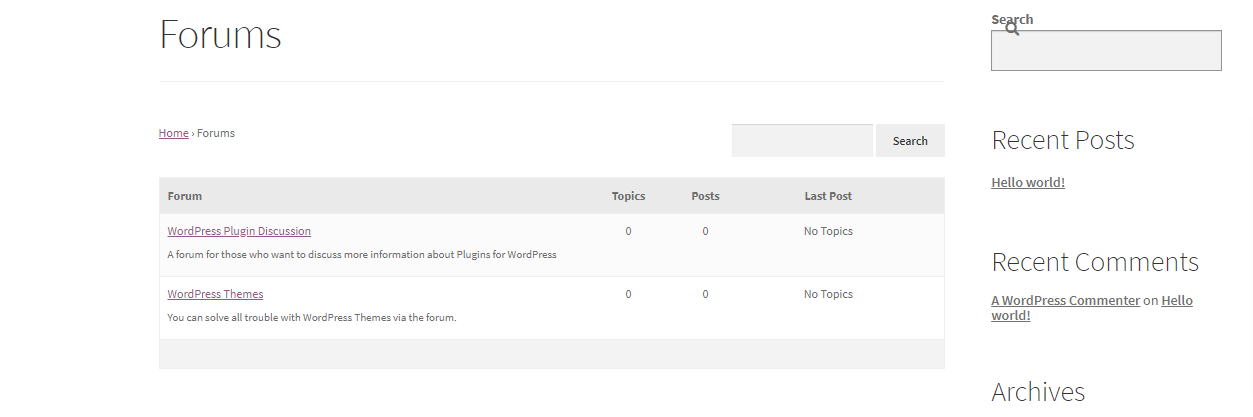
Your forum page will then look like the image below.
The next important step is adding the forums page to the site menu. If you haven’t found the most suitable menu for your site, you can visit WordPress Menu Plugins here to choose one easily. If you have already set up a menu plugin, let’s do the following steps.
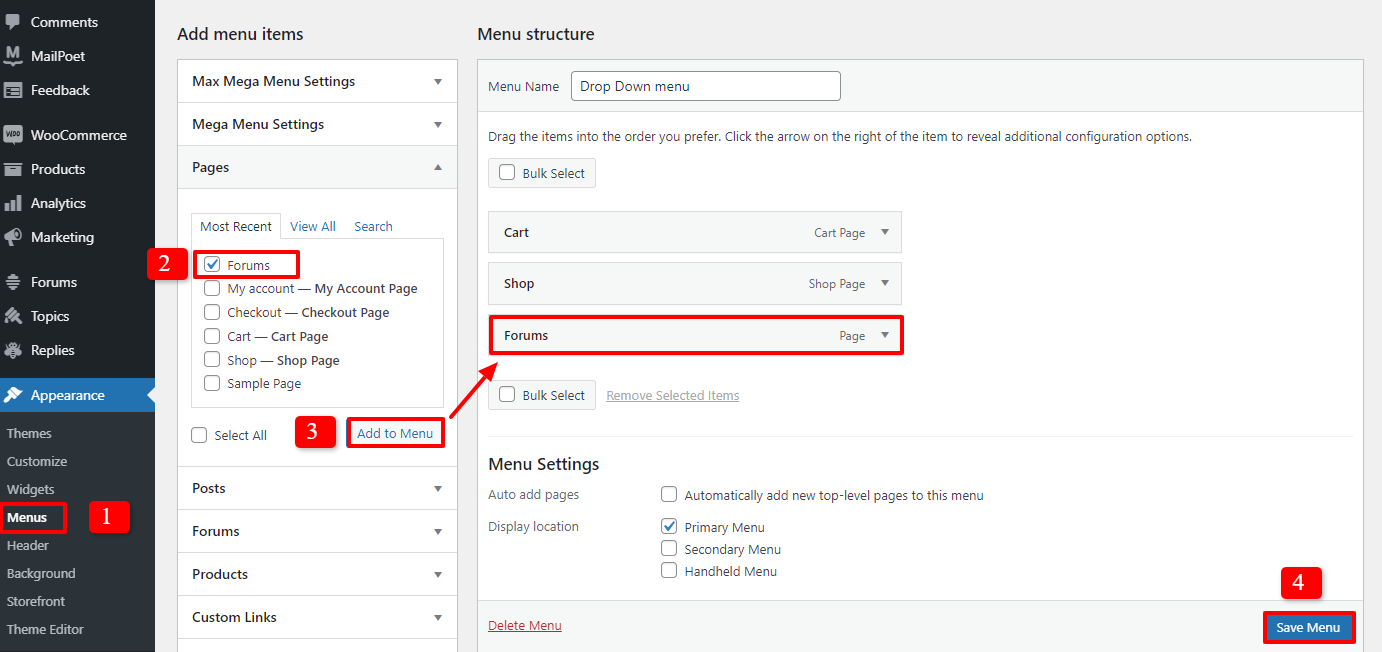
Click Appearance -> Menus. In the ‘Add menu items’ column, let’s click Pages and choose Forums, then press the ‘Add to Menu’ button. So, the Forums page will appear in the ‘Menu structure’. Don’t forget to click Save Menu to save all your changes.
Integrating bbPress with the WordPress theme
The main purpose of generating many new forums is to attract more visitors to register an account on your website. Thus, let’s allow registrations on your site by going to Setting -> General. Then, choose ‘Anyone can register’ and save your changes.
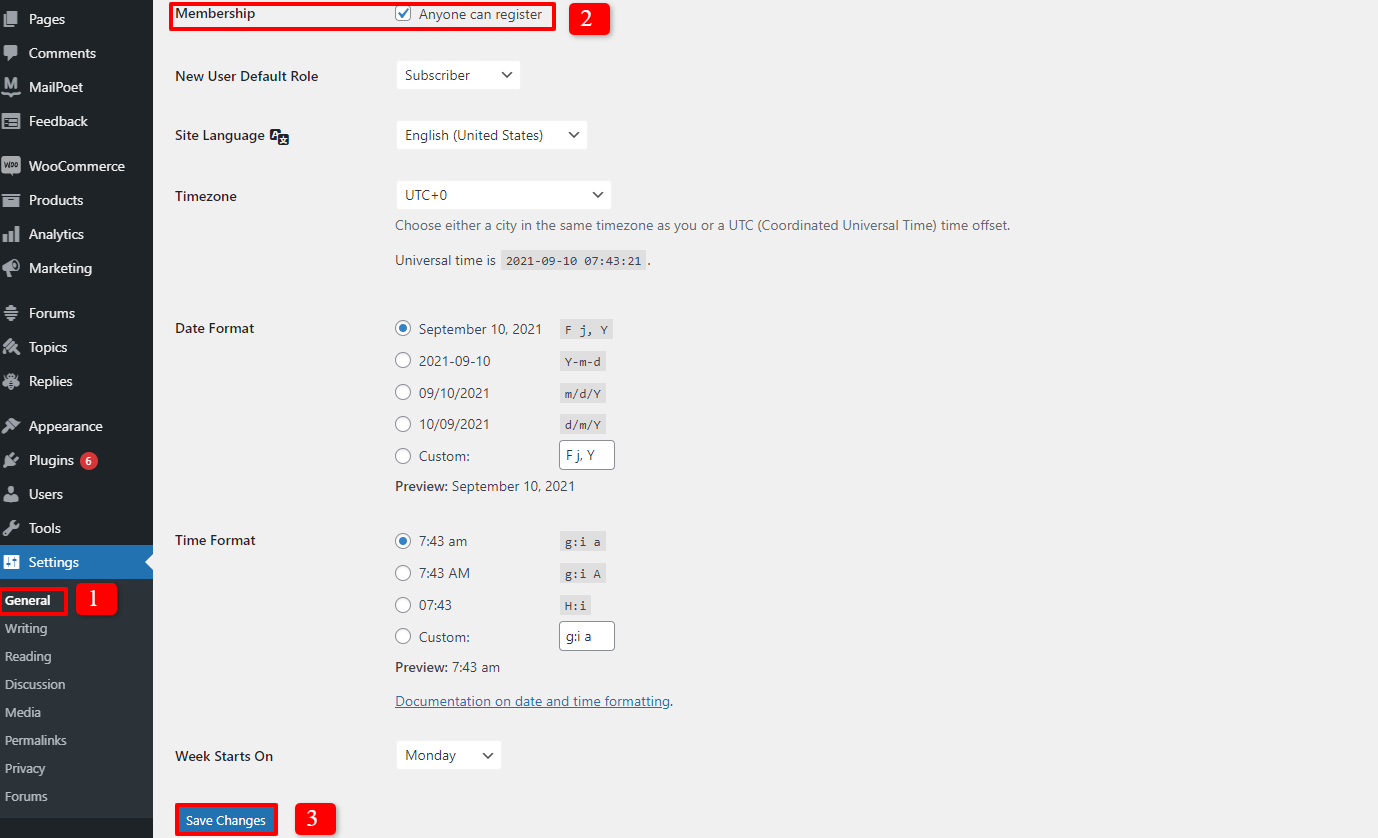
The next step is adding a registration page to your WordPress site. Don’t forget to insert the shortcode below and publish your page:
[bbp-register]
One more new page should be created, which is the Lost Password page. This page will be helpful for users who lose or forget the password of the account they registered on your site. The sequence is the same as when creating the registration page with the shortcode:
[bbp-lost-pass]
Now, there is just one more step to complete, which is adding a login form to your website. If you haven’t installed a login form plugin or want to switch to another plugin, let’s check out WordPress Login Plugins here. This step will help your forum users log in to your website easily and simply. So, let’s click Appearance -> Widgets and drag & drop your Login widget anywhere you want. In the main sidebar, you need to fill out the title, the register URL, and the Lost Password URL. After that, press the save button to store your settings.
Controlling bbPress forum settings
In order to help you understand more about all features of the bbPress plugin, we will explain the important information. That will help you customize everything exactly the way you want. So, go to Settings -> Forums. The first part is ‘Forum User Settings’.
Under ‘Roles’, the line ‘Automatically give registered visitors the Participant forum role’ means that you can choose the role users get when they join your online forums. The bbPress plugin provides 5 user roles with different capabilities, including:
- Keymaster: This role is for the website owner and WordPress administrator who can generate, remove or edit forums and posts.
- Moderators: They are able to moderate forums, posts, and topics by using moderation tools.
- Participants: They are default users. They can create new topics or posts on forums. Besides, they can participate in other discussions on your online forums.
- Spectators: They are not users, they are just visitors. They can only read the public posts and topics in forums.
- Blocked: The blocked users won’t have any capability to access forums.
The next one is ‘Allow flood protection by throttling users for 10 seconds after posting’. This option will allow you to prevent spam. You can change the number of seconds yourself.
The third option is ‘Allow users to edit their content for 5 minutes after posting’. This means your users are able to edit their content, add or remove text, or just correct spelling errors within 5 minutes of publishing their posts. You can also disable this option if you want.
Finally, you can also allow site visitors to attend the forums without accounts if you click the ‘Anonymous’ option.
Now, let’s move on to ‘Forum features’. There are a lot of options you can enable or disable. Everything depends on your purpose.
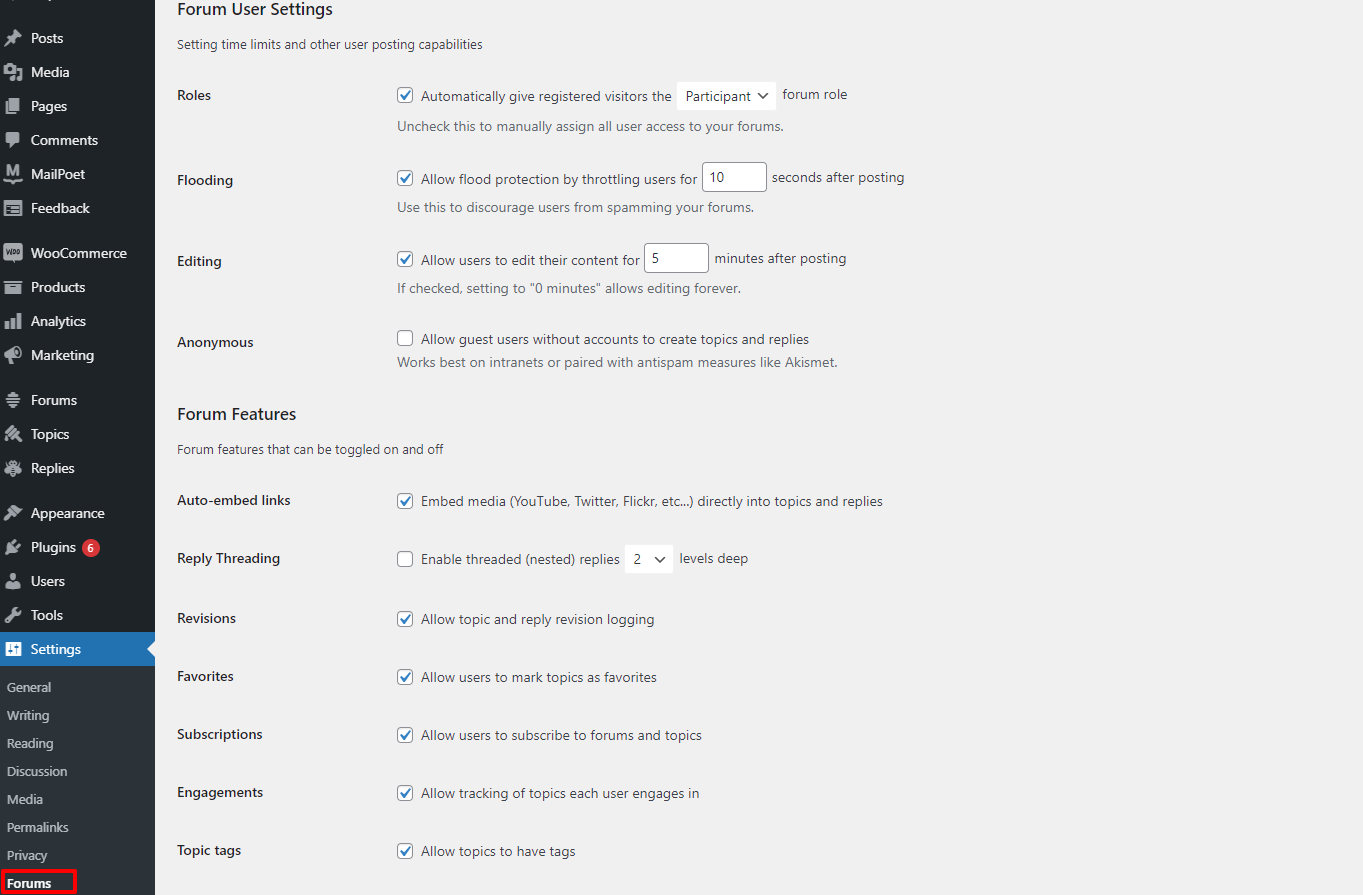
Moreover, you are able to change the settings related to Forum Theme Packages, Topics and Replies Per Page/ Per RSS Page, Forum Root Slug, and Forum Single Slugs. Now, it’s time for you to modify the forum settings to meet your requirements.
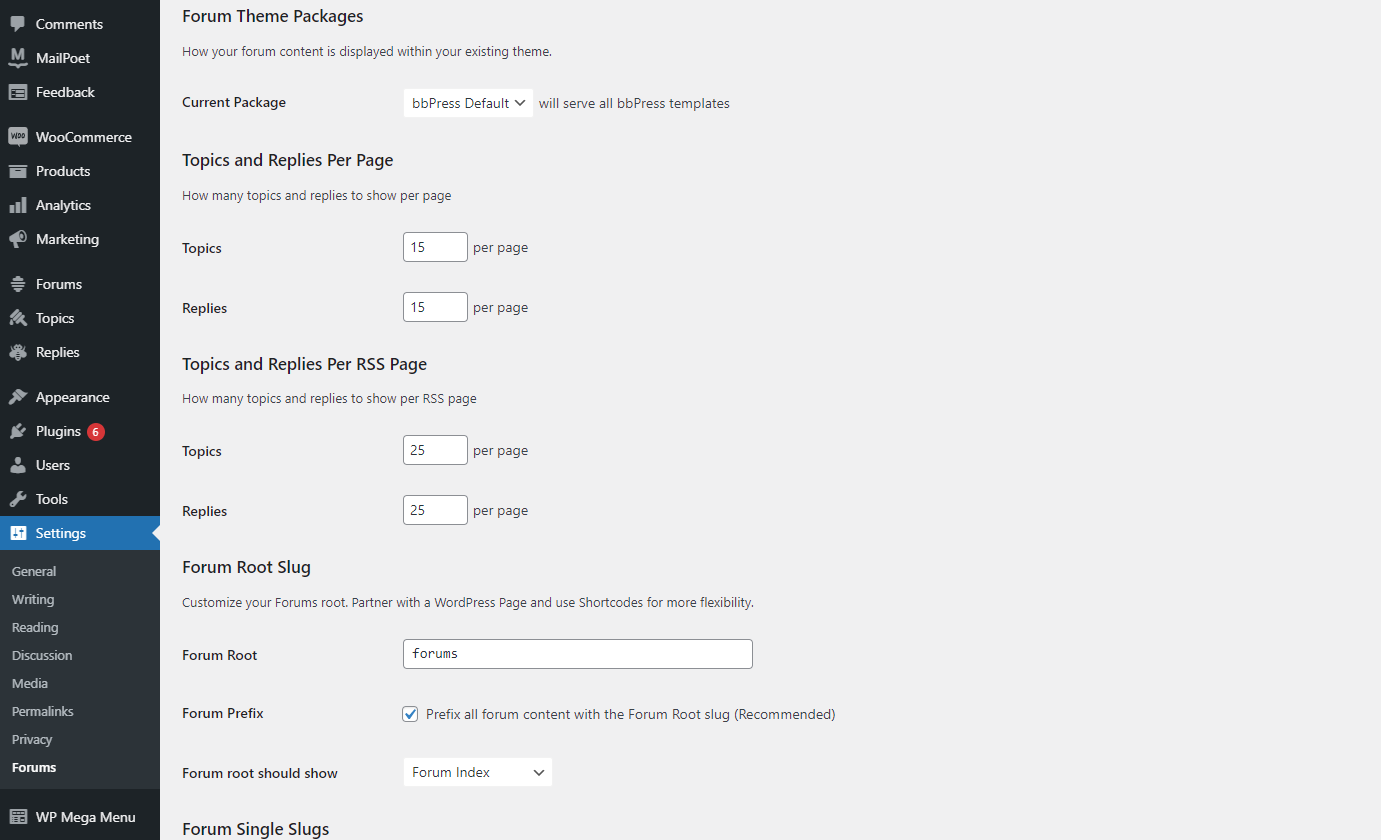
Finally, let’s save all your changes to make sure that your forums are perfect on your WordPress website.
Conclusion
In a nutshell, we hope that today’s blog will help you add a forum to WordPress effectively. If you need more guides to help you build up and develop your WordPress site easily, don’t hesitate to access the collection of WordPress Tutorials on our website. If you have any questions, leave a comment below and we will reply as soon as possible.