
Introduction
What is a custom archive page? It’s where you store all your old content on one page. In short, it can help you with monthly archive listings, tag archives, category archives, and much more.
By default, you can use sidebar widgets to display the annual archive. However, if you have a lot of content, especially for sites that have been operating for many years, it can be difficult to control everything. That’s why a custom archive is your savior. It keeps everything neatly stored and organized.
Please note that custom archives are different from the archive.php template. The archive.php template is used to showcase tag, author, category, etc. In contrast, the custom archives page is a single page that contains all your archives.
Currently, the majority of WordPress themes do not come with a custom archive page template. That is why we wrote this blog post. Let’s take a look at the ways to generate a custom archives page for your WordPress now!
Step-by-Step Instructions to Generate a Custom Archives Page
Building a Custom Archives Page Template
In order to have a custom archives page for your WordPress site, you need to generate a custom archives page template first. Now, open a new file in your text editor and name it page-archive.php. Then, at the top of the text editor, you have to add the code below:
<?php

/*

Template Name: Archives

*/

?>
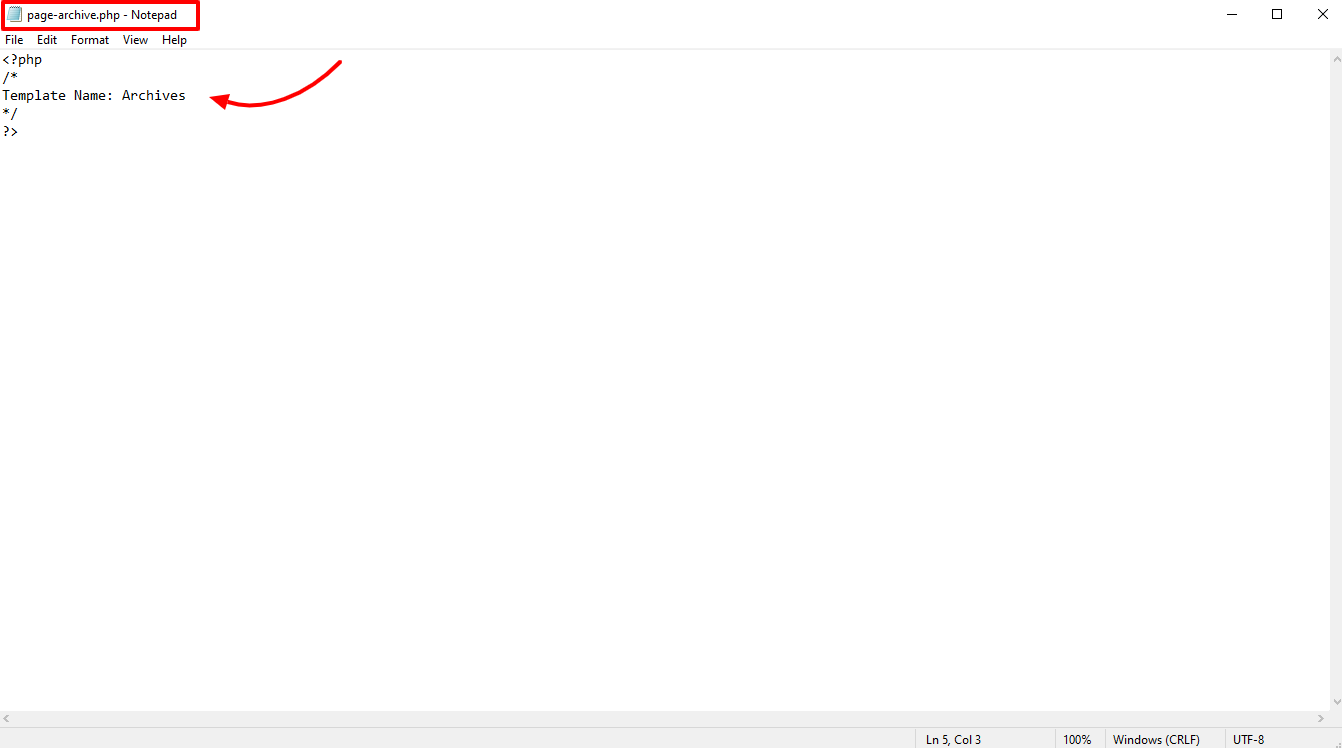
In the next step, you simply need to upload this file to your WordPress theme folder to create an Archives page template. After that, don’t forget to check if this page template matches the design of your site. You can do that by copying the content of the page.php file that is in your theme’s folder, then pasting it into the page-archive.php file. Here is our example showing what the page-archive.php file looks like.

Generating a Custom Archives Page
Once you have created the basic page template, you need to create a new custom archives page for your site.
In the admin dashboard, go to Pages -> Add New, then you can freely name the page whatever you want, such as Library, Archives, etc.
Next, on the right side of the screen, there will be a box called Page Attributes. In the Template section, all you need to do is select the Archives option for your page. Finally, you just need to Publish this page.
You now have a page that uses the archives page template, but it won’t show any content yet. Let’s follow the next step to add elements to this page.
Using Compact Archives to Add Monthly Archives
Now, we recommend adding monthly archives with the Compact Archives plugin. This is one of the most powerful WordPress Archive Plugins on the market.
Firstly, you need to install and activate this plugin by going to Plugins -> Add New. After installing and activating this plugin, all you need to do is insert the code below into the page-archive.php file and save it:
<p><strong>By Date</strong></p>

<ul>

<?php compact_archive($style='block'); ?>

</ul>
So, this code will help you display the monthly archives.
Adding a List of All Categories
It’s a great idea to use thematic categories to summarize your site’s content. This keeps your content organized and easy to manage. Therefore, listing the category archive plays an extremely important role.
So, let’s start adding a list of categories now. Firstly, add the following code to the archives page template file:
<p><strong>Categories:</strong></p>

<ul class="bycategories">

<?php wp_list_categories('title_li='); ?>

</ul>

<div class="clear"></div>
After that, you just need to insert the code below into your theme’s style.css file and everything is done.
ul.bycategories {

margin: 0;

padding: 0;

}

ul.bycategories li {

list-style: none;

list-style-type: none;

margin: 0;

padding: 0;

}

ul.bycategories li a {

list-style: none;

list-style-type: none;

margin: 0 20px 15px 0;

float: left;

background: #eee;

color: #464646;

padding: 5px 10px;

border-radius: 5px;

-moz-border-radius: 5px;

-webkit-border-radius: 5px;

}

ul.bycategories li a:hover{

text-decoration: none;

background: #ff6200;

color: #fff;

}

.clear{clear: both;}
Conclusion
All in all, we hope that with the help of today’s blog, you can easily generate a Custom Archives Page for WordPress without any trouble. If you have any questions or difficulties with the topic, don’t forget to leave your comment below. What’s more, if you are looking for some useful and attractive themes for your website, let’s visit our Free WordPress Themes here. We believe that they won’t let you down!