
You update a plugin, switch themes or paste a snippet into functions.php, reload the page, and WordPress shows a single line: “There has been a critical error on this website.” The dashboard may be gone too. The good news is that the WordPress critical error message is not a crash you have to guess about. It is WordPress catching a PHP fatal error on purpose, and it leaves you several ways in to find and fix the cause.
This guide walks through what the message means, how to use the recovery email and Recovery Mode, how to read the real error when the email never arrives, and how to fix the most common causes. A short section at the end covers the Joomla version of the same problem.
What the critical error message actually means
Since WordPress 5.2, core ships with a fatal error handler. When PHP hits an error it cannot recover from (a call to a function that does not exist, a class declared twice, a syntax error, running out of memory), WordPress stops the page and prints the generic “critical error” message instead of a blank white screen. On the admin side the message adds a link to the WordPress troubleshooting docs.
At the same moment, WordPress tries to work out which plugin or theme was running when the error happened. If it can identify one, it sends a “Your Site is Experiencing a Technical Issue” email to the site’s admin address with the error details and a special login link. That link opens Recovery Mode, where the broken extension is paused for your session only, so you can log in and deal with it while visitors still see the error.
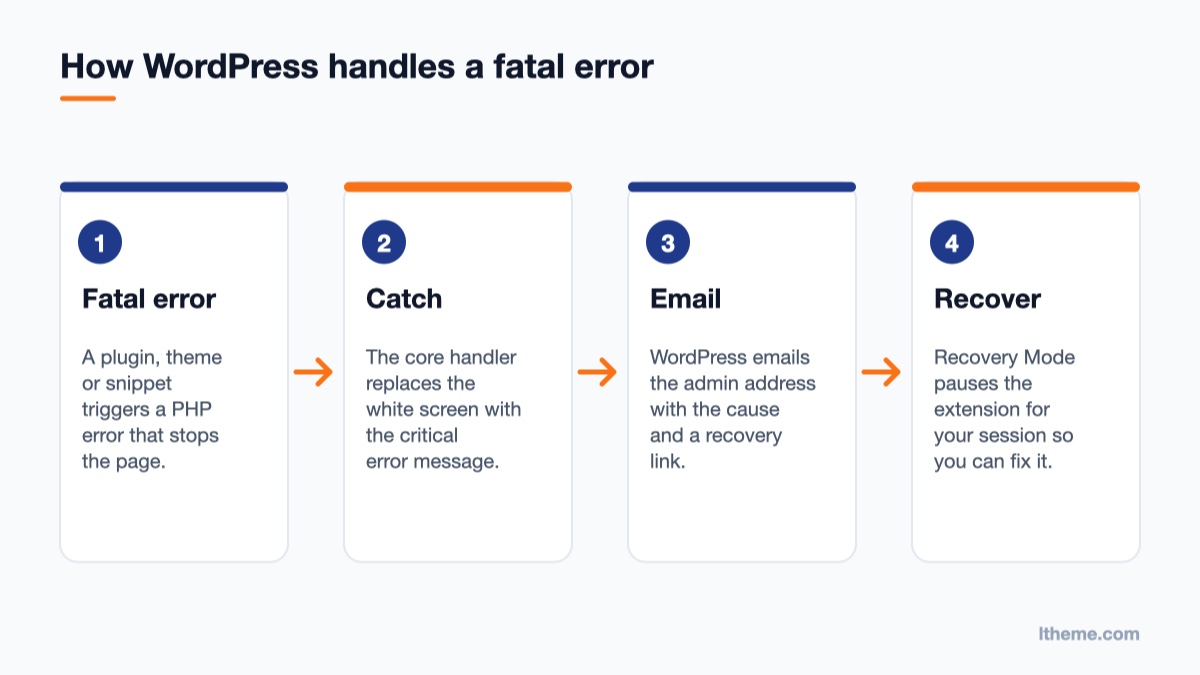
The handler itself is documented in the wp_is_fatal_error_handler_enabled() reference, and the email logic lives in the WP_Recovery_Mode_Email_Service class. You do not need to read the code, but two facts from it matter: the email goes to the RECOVERY_MODE_EMAIL address if you defined one, otherwise to the admin email in Settings → General, and WordPress rate-limits these emails, so you will not get a new one for every page load.
Step 1: Check your inbox for the recovery email
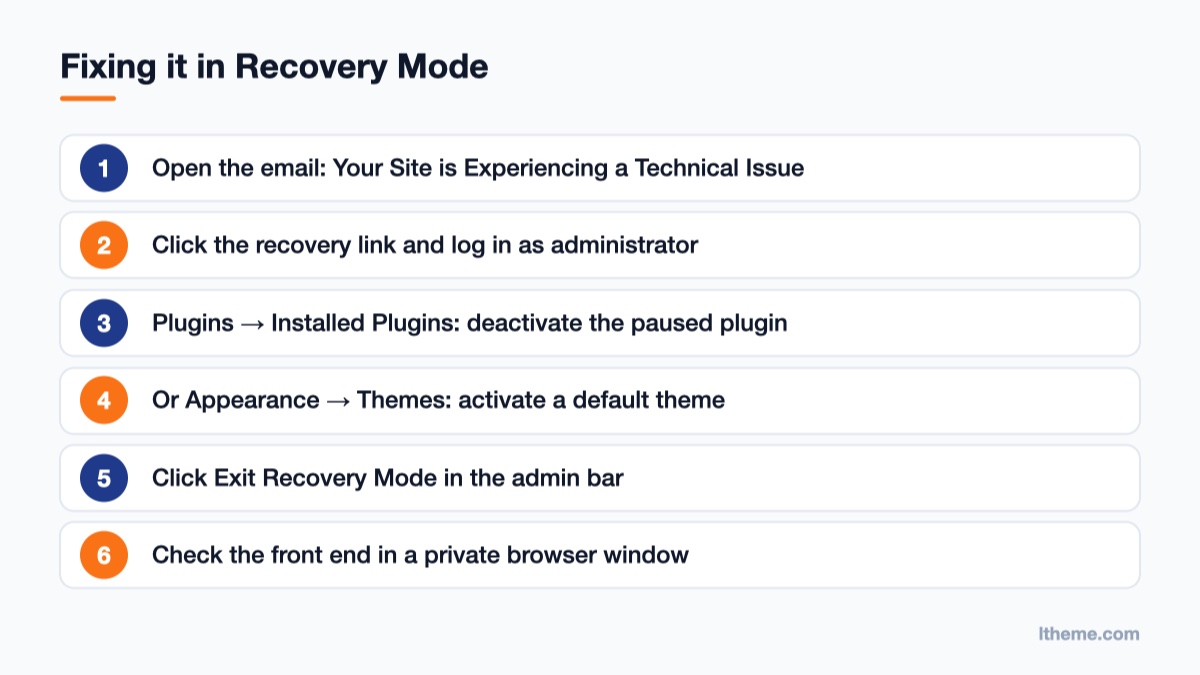
Before touching any files, search the admin mailbox (including spam) for the subject line containing “Your Site is Experiencing a Technical Issue”. The email tells you:
- Which plugin or theme WordPress blames, by name.
- The error type and message, with the file and line number.
- Your WordPress version, active theme and PHP version.
- A recovery link that expires after a limited time (it is single-purpose and tied to the site).
If the email names a plugin you just updated, you already know most of the story. Click the recovery link, log in with your normal administrator account, and you land in the dashboard with a notice saying Recovery Mode is active and which extension has been paused.
Fixing things inside Recovery Mode
Recovery Mode only affects your logged-in session. The plugin is still active for everyone else, which is why the front end keeps showing the error. From here you have three options:
- Deactivate the plugin in Plugins → Installed Plugins. The paused plugin has a clear notice next to it. Deactivating it removes the error for all visitors immediately.
- Update or roll back. If a newer version exists, update it. If the error started right after an update, deactivate it and contact the developer or install the previous version from its changelog page.
- Switch themes in Appearance → Themes if the email blames your theme. Activate a default theme such as Twenty Twenty-Five, then fix the theme files at your own pace.
When you are done, click Exit Recovery Mode in the admin bar. Always check the front end in a private browser window afterwards, because your own session no longer reflects what visitors see.
Step 2: No email? Turn on debug logging
The recovery email often never arrives. The server may not send mail, the admin address may be an old one, or WordPress could not link the error to a specific extension (errors in wp-config.php or a must-use plugin, for example). In that case you need the real PHP error, and WordPress will write it to a log file for you.
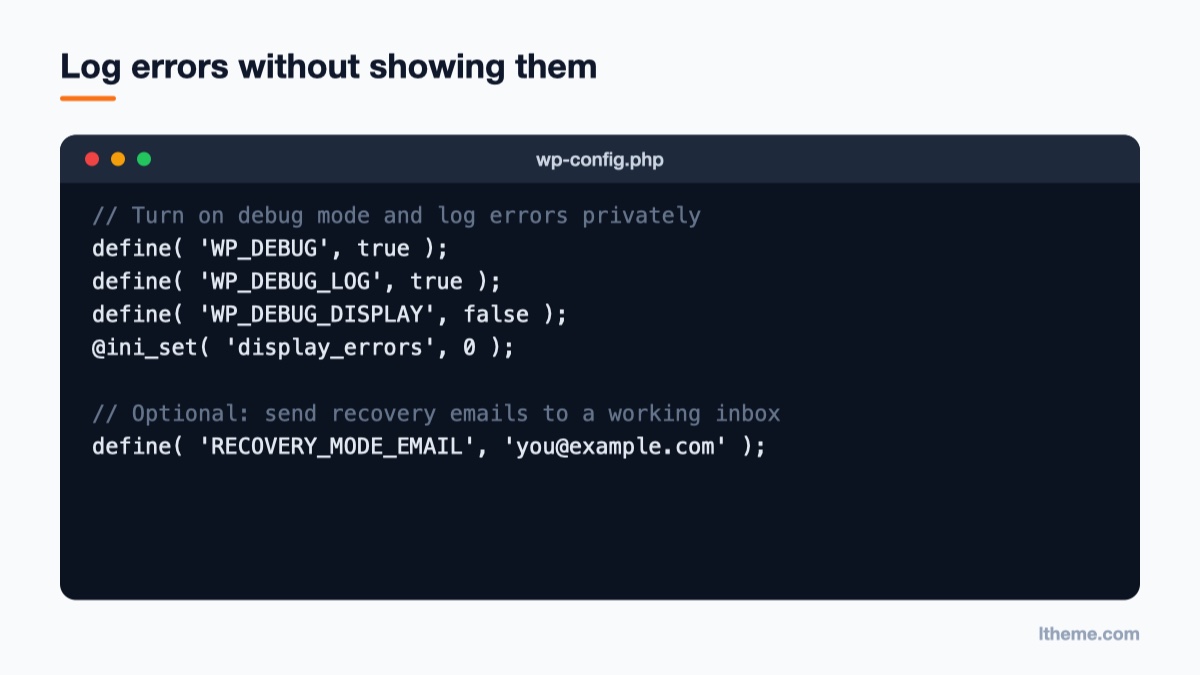
Connect with SFTP or your host’s file manager, open wp-config.php in the WordPress root, and find the line define( 'WP_DEBUG', false );. Replace it with the block below. It must sit above the line that says /* That's all, stop editing! Happy publishing. */.
// Turn on debug mode and log errors privately
define( 'WP_DEBUG', true );
define( 'WP_DEBUG_LOG', true );
define( 'WP_DEBUG_DISPLAY', false );
@ini_set( 'display_errors', 0 );

// Optional: send recovery emails to a working inbox
define( 'RECOVERY_MODE_EMAIL', '[email protected]' );
According to the official debugging guide, WP_DEBUG_LOG set to true writes errors to wp-content/debug.log, and WP_DEBUG_DISPLAY set to false keeps them out of the page HTML so visitors never see file paths. You can also give WP_DEBUG_LOG a full file path instead of true if you prefer to store the log outside the web root.
Reload the broken page once, then open wp-content/debug.log. Scroll to the bottom and look for a line that starts with PHP Fatal error. It reads something like this:
PHP Fatal error:  Uncaught Error: Call to undefined function get_field()
in /home/site/public_html/wp-content/themes/my-theme/single.php:24
The path tells you exactly where to look. Anything under wp-content/plugins/plugin-name/ points to that plugin; anything under wp-content/themes/theme-name/ points to the theme or child theme. In the example above, the theme calls a function from Advanced Custom Fields while that plugin is inactive.
When the log stays empty
If debug.log is not created, WordPress may not be loading far enough to write it, or the folder is not writable. Check your hosting control panel for the PHP error log (most hosts keep one per domain), and confirm the wp-content folder allows the web server to write files. A syntax error inside wp-config.php itself is a common reason nothing gets logged, so recheck the lines you just added for a missing semicolon or quote.
Step 3: Disable the culprit without the dashboard
Once you know which extension is responsible, you can switch it off through the file system. WordPress cannot load a plugin whose folder it cannot find, so renaming the folder deactivates it.
- Go to
wp-content/plugins/and rename the plugin’s folder, for examplewoo-extra-fieldstowoo-extra-fields-off. - Reload the site. If it loads, that plugin was the cause. WordPress will show a notice that the plugin was deactivated because its file does not exist.
- If you are not sure which plugin it is, rename the whole
pluginsfolder toplugins-off, confirm the site loads, rename it back, then disable plugins one at a time. - For a theme problem, rename the active theme’s folder in
wp-content/themes/. WordPress falls back to an installed default theme if one exists, so keep at least one default theme installed on every site.
If you only have database access, the same result comes from emptying the active_plugins row in the wp_options table (your prefix may differ), but renaming folders is safer and easier to undo.
The most common causes and their fixes
The log line usually falls into one of a handful of patterns. Matching it to the right fix saves a lot of trial and error.
| Log message contains | Likely cause | Fix |
|---|---|---|
Allowed memory size of ... bytes exhausted |
PHP memory limit too low for a heavy plugin or import | Raise WP_MEMORY_LIMIT in wp-config.php or the PHP limit in your hosting panel |
Call to undefined function |
Code relies on a plugin that is inactive, or a function removed in a newer PHP version | Reactivate the dependency, or wrap the call in function_exists() |
Cannot redeclare |
The same function is defined twice, often a snippet pasted into a child theme and also added by a plugin | Remove the duplicate or wrap it in a function_exists() check |
syntax error, unexpected |
A typo in a file you just edited | Fix or revert the last edit via SFTP |
Uncaught TypeError or ArgumentCountError |
Old plugin code running on a newer PHP version | Update the plugin, or ask the host which PHP versions it supports |
Memory errors have their own detailed walkthrough in our guide to fixing “allowed memory size exhausted”. If the error appeared right after a page builder update, the steps in dealing with a fatal error after updating Elementor still apply.
PHP version upgrades deserve extra care
Many “critical error” reports start the day a host moves a site to a newer PHP version. Code that only produced warnings on PHP 7.4 can throw fatal errors on PHP 8.x, because several old behaviours were turned into hard errors. Before you upgrade PHP, update every plugin and theme, check each one’s stated PHP compatibility on its wordpress.org page, and test the change on a staging copy first.
Common mistakes while fixing it
- Leaving WP_DEBUG on. Debug mode is for diagnosis. Once the site is fixed, set
WP_DEBUGback tofalseand deletedebug.log, which can expose file paths if it is publicly reachable. - Setting WP_DEBUG_DISPLAY to true on a live site. Visitors and bots would see full error messages with server paths.
- Editing theme files directly. A crash after a theme update is often caused by custom code in the parent theme being overwritten or clashing with new code. Keep custom code in a child theme, as explained in how to customize a theme without losing changes on update.
- Disabling the fatal error handler to “make the message go away”. Setting
WP_DISABLE_FATAL_ERROR_HANDLERtotrueonly switches off the friendly message and the recovery email. The error is still there, and you lose your easiest way back in. - Confusing it with other errors. “Error establishing a database connection” and a plain HTTP 500 page have different causes. See our guides on the database connection error and the HTTP 500 error if that is what you see.
The Joomla equivalent: “An error has occurred”
Joomla does not have Recovery Mode, but the diagnosis follows the same idea: get the real PHP error, then disable the extension that causes it. When a Joomla 5 site breaks, it usually shows a short error page with a status code and little detail.
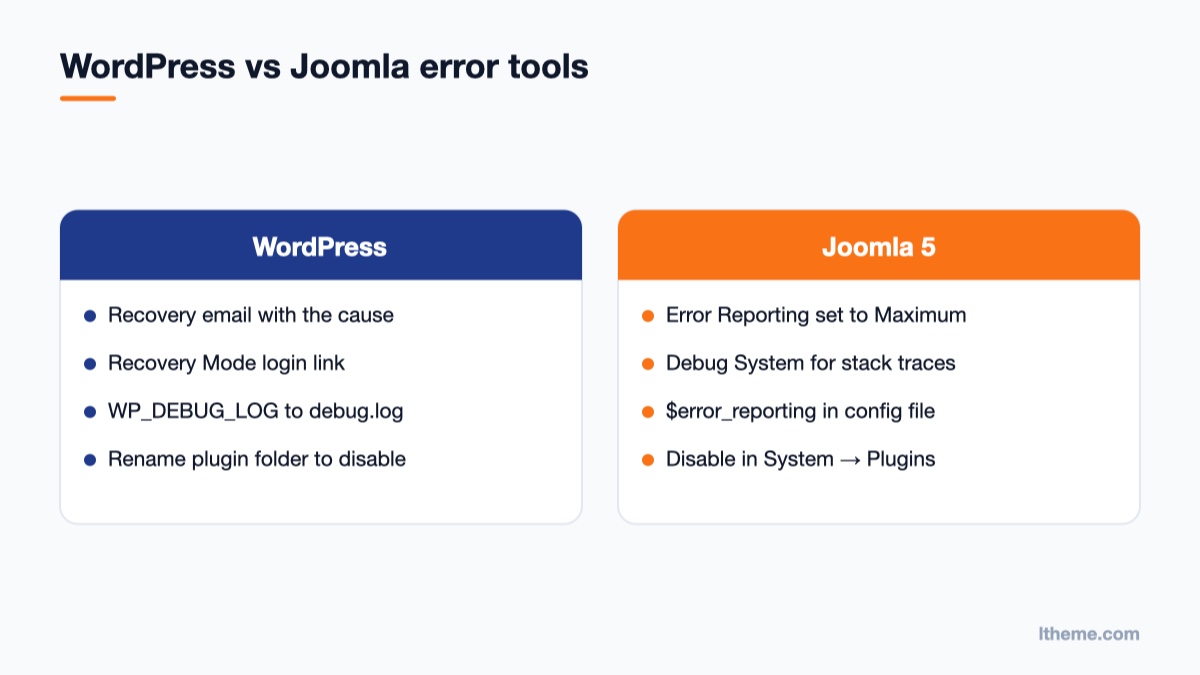
- If the administrator still works, go to System → Global Configuration → Server and set Error Reporting to Maximum. On the System tab you can also switch Debug System on for a full stack trace.
- If the administrator is broken too, open
configuration.phpin the Joomla root and changepublic $error_reporting = 'default';topublic $error_reporting = 'maximum';. The Global Configuration help page describes what each level does. - Reload the page, read the file path in the error, and disable the extension. Plugins can be switched off from System → Manage → Plugins, or by renaming the plugin folder under
plugins/group/namewhen you cannot log in. - For template errors, switch the default site template back to Cassiopeia in System → Site Template Styles.
- Set Error Reporting back to Default or None once the site works.
Upgrade-related crashes in Joomla often come from extensions that still use removed legacy classes. Our article on the “Class JFactory not found” error when upgrading to Joomla 6 shows a typical example.
Prevent the next critical error
Most critical errors come from changes made straight on the live site. A few habits make them rare:
- Take a full backup (files and database) before every plugin, theme, core or PHP update.
- Test updates on a staging copy, especially major versions of page builders and WooCommerce extensions.
- Set
RECOVERY_MODE_EMAILto an inbox someone actually reads, and make sure your site can send email. - Remove plugins you no longer use instead of just deactivating them.
- Pick themes that are actively maintained and keep their own code light.
That last point matters more than it looks. A theme that bundles fewer heavy features leaves less room for conflicts. If you are rebuilding after a crash, LT Leadgolf is a clean WordPress theme for schools and clubs, and LT Garage Onepage suits small service businesses that need one fast landing page. On the Joomla side, LT Carenix is a responsive health care template built for current Joomla versions. You can browse the full range of WordPress themes as well.
Wrap-up
“There has been a critical error on this website” is WordPress telling you a PHP fatal error happened and handing you the tools to fix it. Start with the recovery email and Recovery Mode. If no email arrives, turn on WP_DEBUG_LOG, read the last fatal error in wp-content/debug.log, and disable the plugin or theme it points to by renaming its folder. Then fix the root cause, turn debugging back off and check the site in a private window. Your next step: add RECOVERY_MODE_EMAIL to wp-config.php today, so the next warning lands in an inbox you check.

- WordPress Critical Error: How to Find and Fix the Cause - October 10, 2026
- Joomla Web Asset Manager: Add CSS and JS the Right Way - October 7, 2026
- Best WordPress Plugins Every New Website Needs. - August 31, 2026




Recent Comments