
Are you looking for the best method to add SVG in WordPress? By default, WordPress enables you to upload a wide range of image types, including jpg and png. However, this doesn’t include SVG, so WordPress doesn’t natively support SVG uploads. Don’t worry, in this blog, we are going to share with you two simple solutions to tackle this problem. First, let’s learn what SVG files are.
What are SVG files?
SVG is an XML-based markup language for representing two-dimensional vector graphics. The role of SVG in WordPress is that it enables you to zoom in on images while maintaining their quality, without them becoming pixelated.
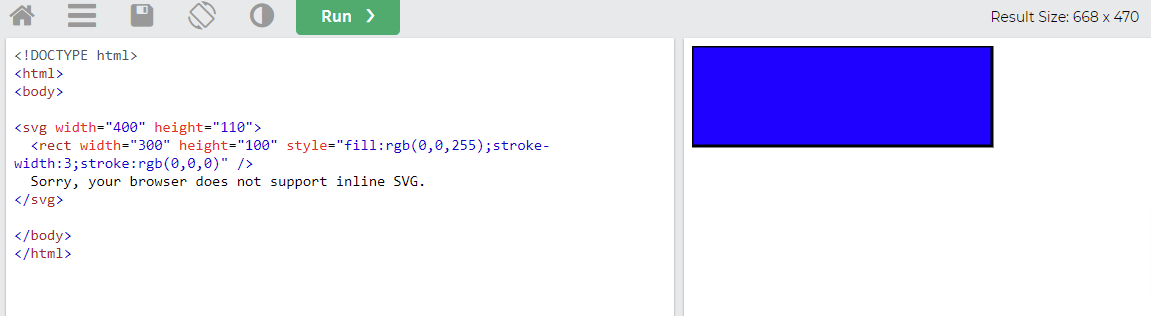
Unlike other file formats, SVG files save images as vectors built from lines, points, curves, colors, and shapes based on accurate formulas. SVG is written in plain XML and uses tags like HTML. Here is an example to demonstrate the code of an SVG file.
How to add SVG in WordPress?
This is a simple task, so there are several ways to handle this problem. In today’s blog, we introduce the easiest methods to help you add SVG in WordPress effortlessly. Now, let’s start with the first method, which uses a free plugin.
Solution 1: Upload SVG files using the SVG Support plugin
SVG support is a useful plugin that allows you to safely upload SVG files to your media library and use them like any other image. In addition, by using this tool, you have the ability to style elements easily without using CSS.
To use this method, you first need to install and activate the SVG Support plugin. For more support, please access our detailed tutorial on how to install a WordPress plugin for beginners.
After you have installed the plugin, navigate to the Settings > SVG Support page to configure the plugin’s settings.
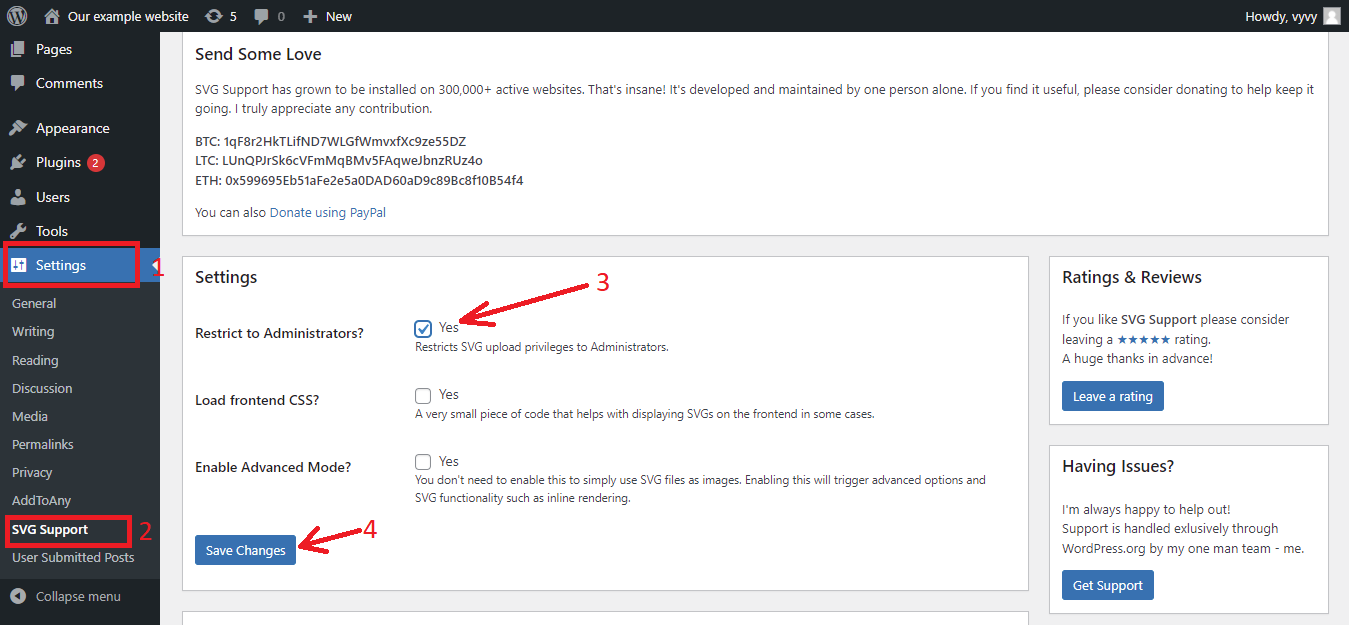
On the SVG Support page, scroll down to the Settings section. From there, you need to check the box displayed next to “Restrict to Administrators?” option. This option will permit only website administrators to upload SVG files in WordPress.
The third option allows you to enable Advanced mode. You should only tick the box when you want to use advanced features such as CSS animations and inline SVG rendering.
Once you are pleased with your selection, remember to click on the “Save Changes” button to store your settings.
Now, you can create a new post or edit an existing one on your WordPress site. In the post editor, you can easily upload your SVG. The process is the same as uploading any other image file.
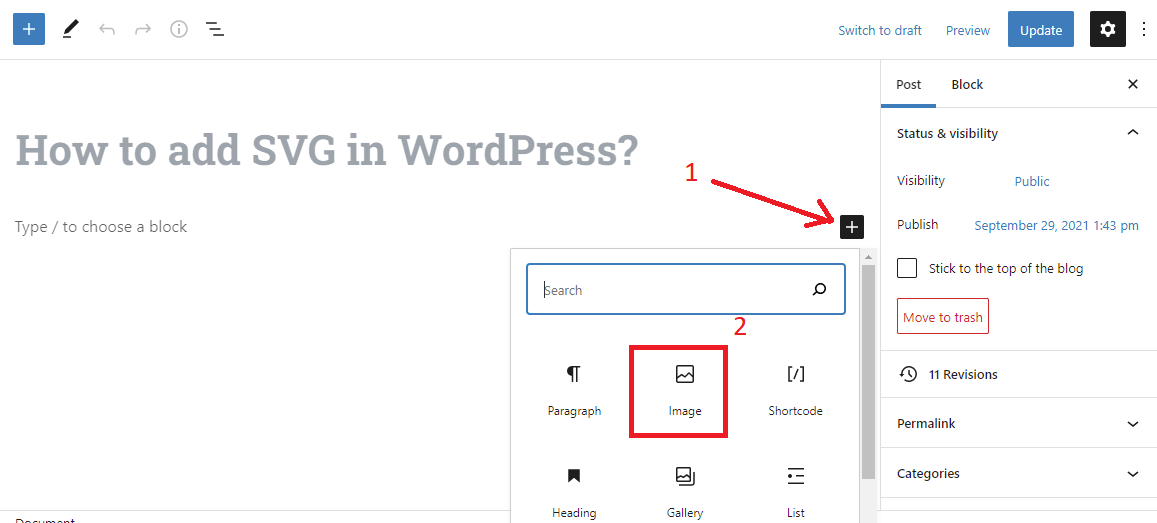
If you are using Block editor(Gutenberg), simply add an “Image” block to the editor and then upload the SVG file.
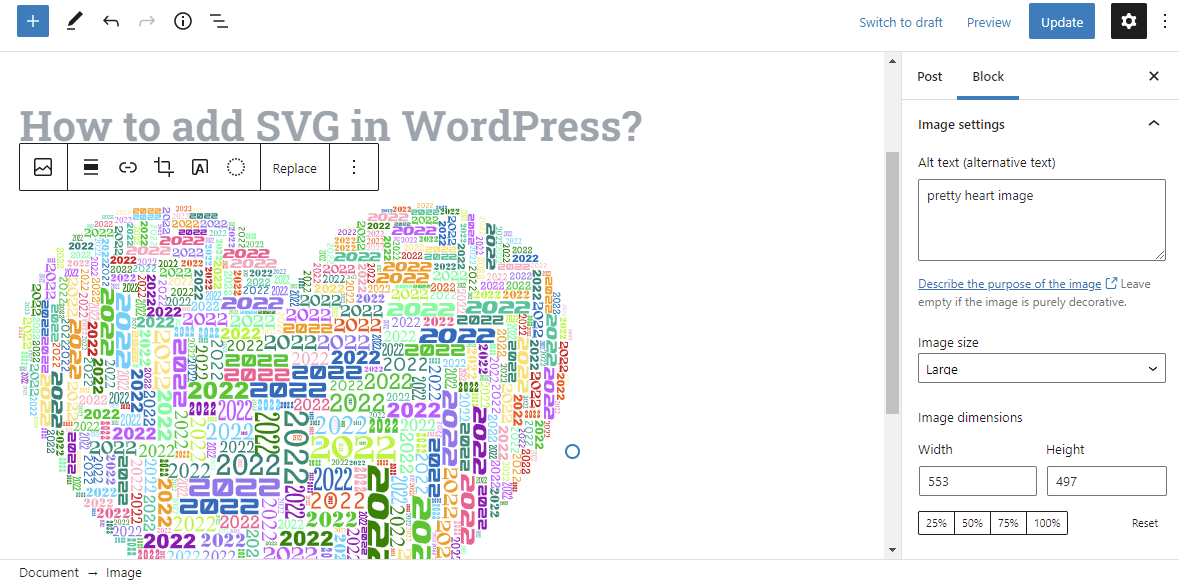
From the right column, you can easily add Alt text for your image as well as adjust the height and width according to your preference.
Once you are done, don’t forget to click on the Upload or Publish button and then visit your website to see it in action.
Solution 2: Upload SVG files using the Safe SVG plugin
Safe SVG is another free WordPress tool that gives you the ability to upload SVG files in WordPress. Additionally, this tool also sanitizes SVG files. Thanks to that, you can protect your website from vulnerabilities.
Similarly, you need to install and activate the Safe SVG plugin before using it. You can see our step-by-step tutorial on how to install a WordPress plugin for beginners.
One of its outstanding advantages is that this plugin doesn’t require you to configure any settings. Therefore, after activating it, you can start uploading SVG files immediately.
However, the weakness is that this tool allows all users who can write posts on your website to upload SVG files.
If you want to manage all users who can upload files, it is necessary to upgrade to the premium version of the plugin.
The bottom line
We have just given you the two simple methods to help you easily add SVG in WordPress. You can start with any method because both of them are easy and completely effective. If you have any questions, please leave a comment below. We will support you as soon as possible.
Moreover, it’s time to visit our Free WordPress themes to explore a wide range of gorgeous, well-structured, SEO-friendly themes and templates for your website.